
A recent comment asked about the most efficient way to write part of an array to the spreadsheet from VBA. This post looks at three alternative methods which have advantages in different circumstances (thanks to Lori Miller for reminding me of the Index alternative, which I have written about previously, then forgotten about).
Download all the functions discussed in this post from VBIndex.xlsb.
If the source array is in the form of a range object the task can be done very simply with a combination of the Offset and Resize methods:
Function SliceArrayO(DatRange As Variant, TLR As Long, TLC As Long, NumR As Long, NumC As Long) As Variant

    ' Slice an array passed as a range with the Offset method
    ' Ranges are not converted to arrays
    ' No step size argument

    If NumR = 0 Then NumR = DatRange.Rows.Count - TLR + 1
    If NumC = 0 Then NumC = DatRange.Columns.Count - TLC + 1

    SliceArrayO = DatRange.Offset(TLR, TLC).Resize(NumR, NumC)
End Function
An alternative is the worksheet Index function:
Function SliceArrayI(DatRange As Variant, Optional TLR As Long = 1, Optional TLC As Long = 1, _
    Optional NumR As Long = 0, Optional NumC As Long = 0, _
    Optional RowStep As Long = 1, Optional ColStep As Long = 1) As Variant

    Dim i As Long, j As Long, RowA() As Variant, ColA() As Variant
    ' Slice an array passed as a range using the Index function
    ' Optional step size argument

    If NumR = 0 Then
        NumR = DatRange.Rows.Count - TLR + 1
        If RowStep > 1 Then NumR = Int((NumR - 1) / RowStep) + 1
    End If
    If NumC = 0 Then
        NumC = DatRange.Columns.Count - TLC + 1
        If ColStep > 1 Then NumC = Int((NumC - 1) / ColStep) + 1
    End If
    ReDim RowA(1 To NumR)
    ReDim ColA(1 To NumC)

    If RowStep > 1 Then NumR = 1 + (NumR - 1) * RowStep
    If ColStep > 1 Then NumC = 1 + (NumC - 1) * ColStep

    j = 0
    For i = 1 To NumR Step RowStep
        j = j + 1
        RowA(j) = Array(TLR + i - 1)
    Next i

    j = 0
    For i = 1 To NumC Step ColStep
        j = j + 1
        ColA(j) = TLC + i - 1
    Next i

    SliceArrayI = Application.Index(DatRange, RowA, ColA)
End Function
Note that the array defining the rows in the output array (RowA) must be an array of arrays.
This procedure has the advantage that it is possible to specify a step for the output rows and columns, so that for instance every other row may be output. Also the input array may be either a range or a variant array.
A third alternative is to simply loop through the input array, and copy selected values to a new array:
Function SliceArrayV(DatRange As Variant, Optional TLR As Long = 1, Optional TLC As Long = 1, _
    Optional NumR As Long = 0, Optional NumC As Long = 0, _
    Optional RowStep As Long = 1, Optional ColStep As Long = 1) As Variant

    Dim i As Long, j As Long, m As Long, n As Long, NewA() As Variant
    ' Slice an array passed as a range or variant array with a double loop
    ' Ranges are not converted to arrays
    ' Optional step size argument

    If TypeName(DatRange) = "Range" Then
        If NumR = 0 Then
            NumR = DatRange.Rows.Count - TLR + 1
            If RowStep > 1 Then NumR = Int((NumR - 1) / RowStep) + 1
        End If
        If NumC = 0 Then
            NumC = DatRange.Columns.Count - TLC + 1
            If ColStep > 1 Then NumC = Int((NumC - 1) / ColStep) + 1
        End If
    Else
        If NumR = 0 Then
            NumR = UBound(DatRange) - TLR + 1
            If RowStep > 1 Then NumR = Int((NumR - 1) / RowStep) + 1
        End If
        If NumC = 0 Then
            NumC = UBound(DatRange, 2) - TLC + 1
            If ColStep > 1 Then NumC = Int((NumC - 1) / ColStep) + 1
        End If
    End If

    ReDim NewA(1 To NumR, 1 To NumC)

    If RowStep > 1 Then NumR = 1 + (NumR - 1) * RowStep
    If ColStep > 1 Then NumC = 1 + (NumC - 1) * ColStep

    m = 0
    For i = 1 To NumR Step RowStep
        m = m + 1
        n = 0
        For j = 1 To NumC Step ColStep
            n = n + 1
            NewA(m, n) = DatRange(TLR + i - 1, TLC + j - 1)
        Next j
    Next i

    SliceArrayV = NewA
End Function
This code will also work on an array passed as either a Range object or a variant array, and allows a step size to be specified for the output array. As a possibly faster variation, the alternative code below converts an input range to a variant array before extracting the data. The option for step sizes has been removed from this version, to keep the code as simple as possible:
Function SliceArrayV2(DatRange As Variant, Optional TLR As Long = 1, Optional TLC As Long = 1, _
    Optional NumR As Long = 0, Optional NumC As Long = 0) As Variant

    Dim i As Long, j As Long, NewA() As Variant
    ' Slice an array passed as a range or variant array with a double loop
    ' Ranges are converted to arrays
    ' No step size argument

    If TypeName(DatRange) = "Range" Then DatRange = DatRange.Value2
    If NumR = 0 Then NumR = UBound(DatRange) - TLR + 1
    If NumC = 0 Then NumC = UBound(DatRange, 2) - TLC + 1

    ReDim NewA(1 To NumR, 1 To NumC)

    For i = 1 To NumR
        For j = 1 To NumC
            NewA(i, j) = DatRange(TLR + i - 1, TLC + j - 1)
        Next j
    Next i

    SliceArrayV2 = NewA
End Function
Finally, I have written a “front-end” function that selects the most appropriate function to use, of the four available, based on some benchmark tests described later. The SliceA function works as follows:
- If it is passed a variant array (rather than a range object) it calls SliceArrayV2 if there is no step size specified for the output, or SliceArrayV for row or column steps (or both) greater than 1.
- If it is passed a range object it calls SliceArrayO if there are no steps in the output, or SliceArrayI if there are.
Function SliceA(DatRange As Variant, Optional TLR As Long = 1, Optional TLC As Long = 1, _
    Optional NumR As Long = 0, Optional NumC As Long = 0, _
    Optional RowStep As Long = 1, Optional ColStep As Long = 1) As Variant
    Dim i As Long, j As Long, RowA() As Variant, ColA() As Variant
    ' Call one of four Slice functions, depending on input and output types

    If RowStep = 0 Then RowStep = 1
    If ColStep = 0 Then ColStep = 1

    If TypeName(DatRange) <> "Range" Then
        If RowStep = 1 And ColStep = 1 Then
            SliceA = SliceArrayV2(DatRange, TLR, TLC, NumR, NumC)
        Else
            SliceA = SliceArrayV(DatRange, TLR, TLC, NumR, NumC, RowStep, ColStep)
        End If
    ElseIf RowStep = 1 And ColStep = 1 Then
        SliceA = SliceArrayO(DatRange, TLR - 1, TLC - 1, NumR, NumC)
    Else
        SliceA = SliceArrayI(DatRange, TLR, TLC, NumR, NumC, RowStep, ColStep)
    End If
End Function
Examples of the use of the SliceA function as a User Defined Function (UDF) are shown in the screen shots below. In each case the data is extracted from a range with 8 columns and 262 rows:


Benchmark results for the slicing functions under different conditions are shown in the tables below. For each case there are 11 different results:
- 1: SliceArrayI (using the index function) passed a range object.
- 2-4: SliceArrayV (using a double loop) 1) passed a variant array, 2) range converted to array, then passed to the function, 3) passed a range object.
- 5-7: SliceArrayV2 (modified double loop) with the same three cases as above.
- 8: SliceArrayO (using the Offset method) passed a range object.
- 9-11: SliceA with the same 3 cases as SliceArrayV and SliceArrayV2
The first case was 1000 iterations extracting a 5×5 array from a 10×10 array:

For a small array the functions looping through an array were significantly faster than those that operated on a range, but when passed a range these functions were significantly slower. Of the two functions operating on a range, SliceArrayO was significantly faster than SliceArrayI. The SliceA function was only marginally slower than the best case for each of the three variations.
The second case was 100 iterations extracting a 5×5 array from a medium sized array (1000 x 10)

These results are similar to the first case, except that SliceArrayV2 passed a range is now three orders of magnitude slower than when passed a variant array.
The third case was 10 iterations extracting a 5×5 array from a large array (5000 x 1000)

Operating on a large range the functions that convert the range to an array have become much slower than the others. Note that even though this operation is only repeated 10 times, V2-Range is more than 100 times slower than V2-Array 2, which performs the range to array operation only once.
The next case extracted a 500×500 array from the same large array as before (5000×1000)

Relative times are in the same order, but the relative differences are much smaller.
Finally a small array was extracted from near the end of the large array, again repeated 10 times.
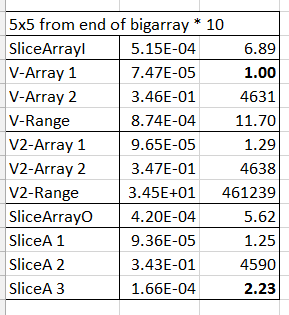
For this case the functions operating on range objects were significantly slower, whereas those operating on arrays were as fast or faster. Those functions requiring the conversion of a range object to a variant array were again very slow, especially when this operation was repeated 10 times, resulting in an execution time about 100 times slower than the function otherwise following the same operations, and almost 500,000 times slower than the fastest function.
In summary:
- When operating on arrays, the looping functions were significantly faster on small arrays, and had similar performance on very large arrays.
- When operating on range objects the SliceArrayO function (using the offset method) was significantly faster than using the Index function. Both were significantly faster than looping on a range method, and hugely faster than converting the range to a variant array, especially for large arrays.
- The SliceA function performed close to the best timing, except when conversion of a large range to an array (outside the function) was included in the timing.



 Newton Excel Bach, not (just) an Excel Blog