Flipping Coin Problems

At Daily Dose of Excel Dick K. looks at a VBA solution to this problem:

Problem description: Take a stack of coins all heads up. Upturn the topmost coin, place back on the stack and then proceed: take the top 2 coins and upturn as a single stack (tail, head becomes when upturned and placed back on the stack tail, head (the two coins are flipped as if glued together)). Now in the same way flip the top 3 coins and place back on the stack (you get: tail, tail, head (and if there were 4 coins that would be tail, tail, tail, head). When you upturn the whole stack begin again with the first coin. Continue until you return to a stack with all heads up.

Dick’s macro produced this output for 1 to 50 coins:

Flips vs Number of Coins

I thought I’d see if I could come up with a reasonably tidy macro-free solution.  The formula I came up with is:

  • =IF(D$1<$B2,C2,MOD(INDEX(C$2:C$100,C$1+$A2-$B2+2)+1,2))

This treats a zero as a head, and a 1 as a tail.  The formula was entered into cell D2 and copied into D2:I7 (for a 6 coin stack), with numbers 1 to 6 in D1:I1 zeros in A2:A7, 1 to 6 in B2:B7 and zeros in C2:C7 :

First 6 flips

Next cells D2:I7 were copied to D9:I14; =I2 was entered in C9 and copied down to C14; =A2+7 was entered in A9 and copied down to A14, and 1 to 6 entered in B9:B14

Second block of six flips

This block of 6×9 cells (A9:I14) can then be copied down as often as required:

Completed solution for 6 coins

Having done that, I thought I’d try a similar approach in VBA.  Here’s the code:

Sub CoinStack2()
Dim StackA() As Long, NumCoins As Long, Numtails As Long, NumIts As Long
Dim i As Long, j As Long, k As Long, L As Long, ItTable() As Long, NumOut As Long
Const MaxLoops As Long = 1000000

NumOut = 300
ReDim ItTable(1 To NumOut, 1 To 2)

For L = 1 To NumOut
NumCoins = L
ReDim StackA(1 To NumCoins, 1 To NumCoins + 1)
Numtails = 0
NumIts = 0
For i = 1 To MaxLoops
For j = 1 To NumCoins
StackA(j, 1) = StackA(j, NumCoins + 1)
            Next j

For j = 1 To NumCoins
NumIts = NumIts + 1
                For k = 1 To j
StackA(k, j + 1) = (StackA(j - k + 1, j) + 1) Mod 2
Numtails = Numtails - StackA(k, j) + StackA(k, j + 1)
                Next k
For k = j + 1 To NumCoins
StackA(k, j + 1) = StackA(k, j)
                Next k
If Numtails = 0 Then
ItTable(L, 1) = L
ItTable(L, 2) = NumIts
GoTo nextstack
                End If
            Next j
Next i
nextstack:
    Next L
Range("stacka").Resize(L - 1, 2) = ItTable
End Sub

Output for up to 300 coins is shown below:

Number of Iterations vs Number of Coins (click for full size view)

The trend seen in Dick’s graph is continued, in fact the number of flips required to return to all heads is never more than n^2 (where n is the number of coins), but the peaks are more often n^2-1, and the number of points between peaks doesn’t seem to have any clear trend.  Also the trend for the minimum number apparent in the 1-50 coin graph seems to have disappeared.

Correction: Following Mawdo’s comment I had another look at the minimums, and there is a pattern, and it is more regular than the maximums.  For the integers 1,2,3 … m:

  • Coin stacks with (2^m)-1 coins are at a minimum
  • The number of flips required is  ((2^m)-1)(m+1); i.e. number of coins x (m+1)
  • The next stack (with 2^m coins) requires only (2^m)(m+1)-1 flips; i.e. number of coins x (m+1)-1
  • There are no other stacks that require less than (number of coins) x (m+1) flips.

I have added these minimum points to the chart below:

Iterations vs Number of coins with minimum line

Posted in Charts, Excel, VBA | Tagged , , | 2 Comments

Using Beam Design Functions

“Beam Design Functions” is an Excel spreadsheet providing a User Defined Function (UDF) that will calculate the stresses, strains, forces and moments in a reinforced or prestressed concrete section subject to any specified bending moment and axial load, using an elastic analysis.  The only restriction is that the section must be symmetrical about the vertical axis (i.e. the axis perpendicular to the axis of bending). The spreadsheet may be downloaded from: Beam Design Functions.zip

I recently had a request to provide more detail about how to use the spreadsheet, so here it is:

Like most of my engineering spreadsheet programs, the functionality of the spreadsheet is provided by a UDF, called Elastic in this case, which returns a variety of different arrays, depending on the input values.  This provides a great deal of flexibility, allowing the function to work directly on the output of a frame analysis program for instance, but for starting out it is better to work with the example set up on the spreadsheet.  The procedure is:

  1. Enter the concrete section details, in the grey shaded range on the Elastic1 Input sheet.
  2. Enter the reinforcement and prestress (if any) details.
  3. Enter the applied moment, axial load, and load eccentricity

When the data is entered the depth of the Neutral Axis and the tension face (top or bottom) will appear in the pink shaded range; more detailed output options are described below.  The section can also be plotted by clicking the “Redraw Section” button.  Sample input data is provided on the Examples sheet, and this may be simply copied and pasted into the appropriate data ranges.  The screenshot below shows data for a circular sections, modelled as a series of trapeziums:

"Elastic" input for a circular section, click for full size view

Note that:

  • The concrete section is specified in trapezoidal layers from the top face, by layer depth, top width, and bottom width.
  • Voids may be specified by entering the top and bottom width of the void under B3 and B4.
  • The concrete elastic modulus must be entered on the top row, and for any layer with a different modulus to the layer above.
  • Reinforcement is specified by depth from the top face, diameter and number.  It is assumed to be symmetrical about the vertical axis.
  • The steel elastic modulus must be entered on the top row, and for any layer with a different modulus to the layer above.
  • Prestressing is specified by the force per strand for each layer.  The force should allow for lock-off and friction losses (if applicable), but elastic losses are calculated by the program.
  •  See the “Contents” sheet for more details about sign conventions, datum for eccentricity of loads, etc.

Having entered the section details and loads, detailed output information is given by the Elastic UDF on the “Elastic1 Out” sheet.

The download spreadsheet has been set up to adjust the input ranges automatically; the ranges are shown in cells C3 and C4, using a rather lengthy formula:

Calculated input ranges

These ranges are then called in the Elastic function, using the Indirect function:

=(Elastic(INDIRECT($C$3),INDIRECT($C$4),’Elastic1 Input’!$A$6,’Elastic1 Input’!$B$6,’Elastic1 Input’!$C$6,C$7,0))

For general use elsewhere it is easier to enter the ranges directly, using the function wizard:

"Elastic" Function arguments in the Function Wizard

If the input data is entered in the grey shaded ranges on the input sheet it is not necessary to make any changes to the Output sheet, the data shown below will be automatically displayed:

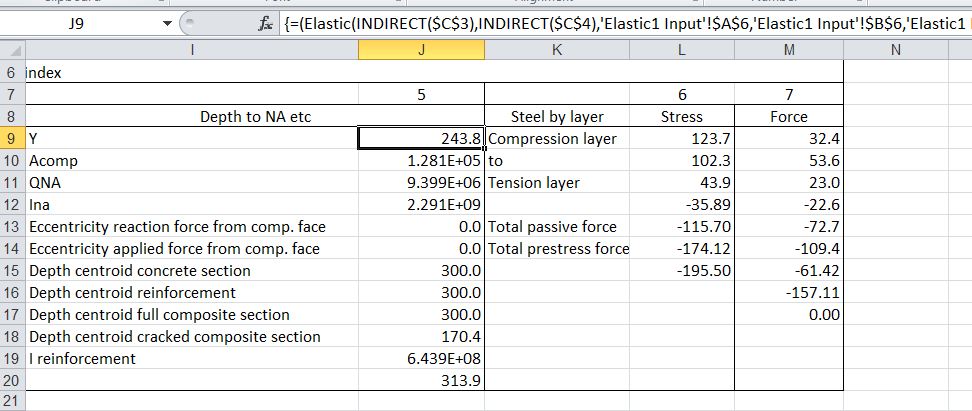
"Elastic" Stress, strain force and moment results

"Elastic" Miscellaneous, steel stress and steel force by layer results

If it is desired to display the results in a different location in the spreadsheet, or in a different spreadsheet, it must be reentered as shown below:

 =Elastic(conc, reo, momin, axin, Optional [eccentric, Out_Index, Units])

  • Conc: A 6 column range with concrete cross section details
  • Reo: A 6 column range with reinforcement and prestress details
  • Momin: The applied bending moment
  • Axin: The applied axial load
  • Eccentric: The eccentricity of the applied load
  • Out_Index: An index number controlling the output data, see example output.
  • Units: 0 for loads and eccentricity in kN and metres, dimensions in mm, stresses in MPa (default), any other number for any consistent units.

To see all the results for any output column the function must be specified as an array function.  See here for details: Using Array Formulas

But once again, if you use the shaded input areas on the Input sheet, you don’t need to change anything on the output sheet.

If anything isn’t clear, or you would like more details of anything, please ask in the comments area below.

Posted in Beam Bending, Concrete, Excel, Newton, UDFs, VBA | Tagged , , , , , , , | 12 Comments

Spline Interpolation Alternatives

A recent post at Jon Peltier’s Blog looks at an “on-sheet” method of performing linear interpolation on a set of tabular data, and the following comments include a number of alternative ways of carrying out the same process, and also some alternatives using cubic splines.  This prompted me to have a look at the various ways of performing this calculation, including VBA based User Defined Functions (UDFs) that have been presented here previously.

One reason for the interest in the large number of alternatives is that Microsoft (in their wisdom) do not provide any built-in functions to perform this task, even for linear interpolation.  Interpolation of scattered data using least squares fitting has a large number of useful functions (Forecast, Trend, Linest, Slope and Intercept for instance), but if we want to interpolate between specified points we are on our own. The steps in the process for linear interpolation are (assuming we want to find the Y value for a specified X, given a table of X and Y values, with X monotonically either increasing or decreasing):

  • Find   the nearest X values above and below the given value, and the associated Y values.
  • Find the slope of the straight line between these two points (Y2 – Y1)/(X2 – X1)
  • The interpolated Y value is then: Y = Y1 + (X-X1)  * Slope

I have added examples of two different examples of this procedure to the CSpline2 spreadsheet, which also includes VBA cubic spline functions, with full open source code.   The screenshot below shows the output:

Linear Spline Interpolation; click for full size view

The position of the highest X value less than the interpolation value (60 in the example) is found using the Match function: =MATCH(A17,B6:B13).  That value is then used with either the Index or Offset function to produce a 2 x 2 table of the X and Y values around the interpolation value:

  • =INDEX(B$6:B$13,$A21) or
  • =OFFSET(B6,A21-1,0,2,2)

Note that the Offset function must be entered as an array function; see Using Array Formulas for details.

Finally this table is used to calculate, the interpolated Y value, either using an arithmetic formula (essentially the process used in Jon Peltier’s article), or using the Trend function.  The Trend function can also be combined with the offset function, to avoid the need to create a 2 x 2 table on the spreadsheet for each interpolation:

  • =TREND(OFFSET($C$6,A17-1,0,2,1),OFFSET($B$6,A17-1,0,2,1),A17)

This allows the interpolation to be carried out on a single row, which is convenient if you have a column of values to interpolate, rather than a single value.

Four alternative “single cell” interpolation formulas are shown in the screen shot below (all taken from a comment by Ihem to Jon Peltier’s article at : http://peltiertech.com/WordPress/excel-interpolation-formulas/#more-3322)

Single cell interpolation formulas

UDFs carrying out the same process (other than the Lagrange Polynomial) can be found at:

Linear and quadratic interpolation: Ip2.zip
Cubic Splines: CSpline2
More cubic splines, including functions for weighted and constrained fitting: AL-Spline-Matrix03.zip or AL-Spline-Matrix07.zip

The results of the UDFs, compared with the “on-sheet” formulas are shown in the screenshot below:

Results of alternative interpolation formulas

It can be seen that the InterpA UDF and the Percentile formula give exactly the same results, as do the CardSplineA UDF and the Catmull-Rom formula.  The results for all 7 methods are plotted below:

Interpolation Results, smooth function

There is very little difference between any of the interpolation functions, and for this case simple straight line interpolation would be quite satisfactory.  It should be noted that the cubic polynomial least squares fit is not so good however, and even for smoothly varying data such as in this case it would not be appropriate.

With less well behaved data the differences between the alternative methods become more apparent, as can be seen in the screen shot below:

Interpolated and fitted curves with "spikey" data

In this case the fitted cubic polynomial is clearly inappropriate. The most appropriate of the spline approximations would depend on the nature of the data, and the reason for the spike.

As for whether to use a UDF or an “on-sheet” method, this is really a matter of tatse.  My preference is for using a UDF, as being more convenient, easier to audit, and less likely to introduce error, but in any case checking the results by plotting togther with the original data is essential.

Posted in Excel, Maths, Newton, UDFs, VBA | Tagged , , , , , | 7 Comments

Yet more new links

Cosmic Horizons is about  what’s going on within our Event Horizon, and

In the Dark is a blog about the Universe, and all that surrounds it, so that just about covers everything I suppose.

Have a look, they aren’t just your usual pop-sci.

Posted in Newton | Tagged , , | Leave a comment

New Links, and an Update

Some new links, mostly suggested by Al Vachris:

Jan Karel Pieterse has been freely providing some of the best Excel advice on the Internet for some years now, but he has escaped inclusion on my blogroll, possibly because his site is not actually a blog.  Not that that matters; it’s well worth a visit, and is now on the list.

Other interesting links recently provided by Al include:

VBA Code Compare

http://www.formulasoft.com/vba-code-compare.html

VBA Code Compare allows you to compare and merge any Visual Basic code embedded into a VBA project (macros, sheet code, module code etc.). VBA Code Compare uses direct access for working with VBA modules. Thus, you don’t have to export the source code to a file for comparing and import the edited code back.

You can use this tool for comparing two versions of the same module or for working with the source code when several authors change the code simultaneously.

VBA Code Compare allows you to download the source code of two modules, compare them, synchronize (merge) different parts of code, edit the code before and after comparing and save the changes.

The interface of VBA Code Compare gives you a chance to view the comparison report in two side-by-side windows, and supports syntax highlighting of the source code of Visual Basic.

VBA Code Compare has its own File Manager consisting of two side by side windows. It allows for the comparing of two folders’ contents, loading files for further work, copying files and folders etc. You can control the list of files to be displayed in the File Manager by using filters.

VBA Code Compare is freeware.

Hyperpolyglot

http://hyperpolyglot.org/scripting

Scripting Languages: PHP, Perl, Python, Ruby

a side-by-side reference sheet

They also have similar pages for a wide variety of other languages:

Programming Languages Reference Sheets
syntax for common tasks in a side-by-side format 

Scripting Languages:
PHP, Perl, Python, Ruby

Embeddable Languages:
Tcl, Lua, JavaScript, Io 

Shell Languages:
Bash, Zsh, AppleScript, PowerShell

 C Style Languages:
C, C++, Objective C, Java, C#

 Pascal Style Languages:
Pascal, Ada, PL/SQL, SQL/PSM

 Lisp Dialects:
Common Lisp, Scheme, Clojure, Emacs Lisp

 Type Inference Languages:
Standard ML, OCaml, Scala, Haskell

 Declarative Languages:
Prolog, Erlang, Oz

 Concatenative Languages:
Forth, PostScript, Factor

 Computer Algebra Software:
Mathematica, Sage, Maxima

 Numerical Analysis Software:
MATLAB, R

(Spot the notable omissions!)

Web-Sketches:

Everything you ever wanted to know about timber roof framing (and then some):

http://www.geocities.ws/web_sketches/

This one isn’t just for roof builders, there is lots of good stuff on working with 3D graphics, including Excel worksheets and Javascript code.

Update:

And Finally, Andrew Engwirda has moved and re-vamped his blog:

http://andrewexcel.blogspot.com/ :

Welcome to my new blog.

Why the change?

Well, my old blog site was getting very tired. Comments were disabled due to the inability to fight spam effectively and I missed getting feedback.

After looking at some other blog companies, I decided Blogger was the best for what I wanted. Some editing of the CSS and the odd tweak here and there – and a new blog is born.

Now all it needs is some content, and I think you will like some of the stuff that is coming up…

There are some major changes coming to my site and some new add-ins will be available for download soon.

And I’ll be looking more at the analysis side of things – data presentation, charts, design and best practice, something I’ve not blogged about much before – it’s time to become a little more serious.

Stay tuned!

Posted in Computing - general, Excel, Javascript | Tagged | 4 Comments