The Inverse Quadratic Method 3 – Brent’s Method

The previous post in this series presented iterative methods to solve polynomial equations using direct or inverse quadratic interpolation.  These methods have two disadvantages:

  • In some circumstances the function may converge very slowly, or not at all.
  • The name of the function to be solved must be hard coded into the solution function

The user defined function QuadBrent overcomes both of these problems:

  • Brent’s Method is used to use different interpolation techniques (quadratic, linear, or bisection) through the course of the solution.
  • The name of the function to be solved is an argument of the UDF, (using the technique described in this recent post) so the QuadBrent function may be used to solve any equation that can be evaluated with a VBA function.

In addition the quadratic interpolation may be performed either by the Inverse Quadratic Method (the default), or by using Muller’s Method.

The function is entered as shown below:
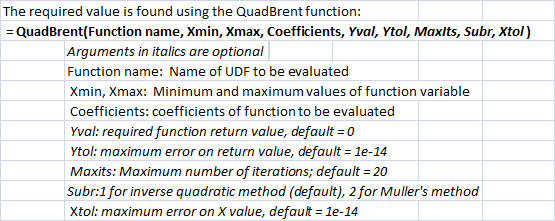
 =QuadBrent(FunctionName, Ak, Bk, Coefficients,  Max error = 1E-14, Max iterations = 20, Subroutine = 1, Xtol 1e-14)

  • FunctionName is the name of a VBA function evaluating the equation to be solved.
  • Ak and Bk are the lower and upper bounds to the solution value.
  • Coefficients is a range or array of values that will be passed to FunctionName
  • Subroutine = 1 for Inverse Quadratic method or 2 for Muller’s method

The function returns a single column array with three rows:

  • The solution to the equation
  • The number of iterations
  • The error in the function value for the given solution

In order to display all three rows the function must be entered as an array function:

  • Enter the function as normal.
  • Select the cell containing the function and the two below.
  • Press F2
  • Press Ctrl-Alt-Enter

The QuadBrent function has been added to the ItSolve Functions2.xls spreadsheet, including full open source code.  The functions previously presented, QuadMuller and QuadSolve2 have also been modified to accept the input the name of a function  to be evaluated.

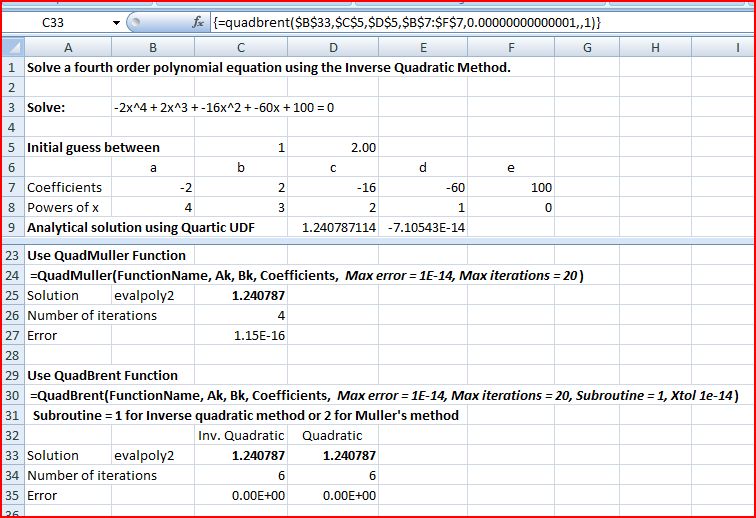
Use of the Quadbrent function, along with the two earlier functions, is shown in the screen shots below:

QuadBrent solution to a quartic polynomial, click for full size view

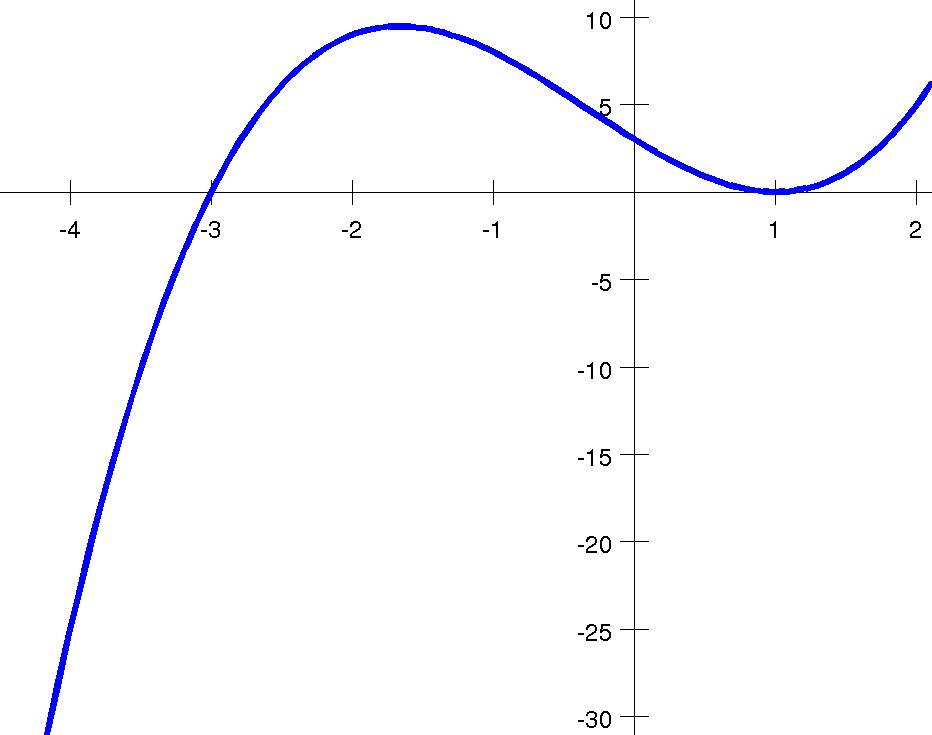
QuadBrent solution to a cubic polynomial

Note that in the second example the function crosses the x axis at x = -3, then touches the axis, but does not cross, at x = 1.  The QuadBrent function has found the solution at x = -3, but the QuadMuller function has failed to converge:

Wikipedia Brent Method Example

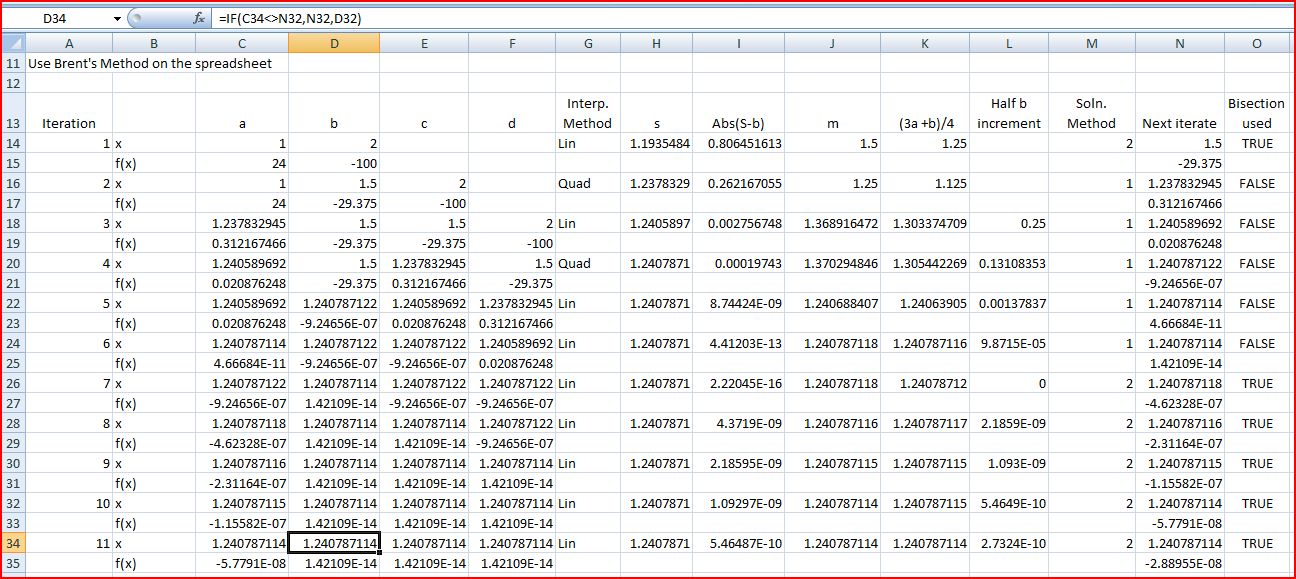
The spreadsheet also includes an on-spreadsheet implementation of Brent’s Method used to solve the equation shown above.  The solution output is shown below, and may be compared with the detailed description of the evaluation given in the Wikipedia article:

Step by step output for Brent's Method, click for full size view

Posted in Excel, Maths, UDFs, VBA | Tagged , , , , , | 12 Comments

Calling a function as a variable

The functions described in recent posts provide iterative solutions to polynomial equations, but the same method can be used for any equations that can be evaluated numerically and have a single variable.  The question then is, how can we call a function as a variable, rather than hard-coding the function call in the calling function.  The answer lies in the Application.Run method: 

Click for full size view


 An example of this method is given in the file PassFunc.xls, which as usual includes full open source code.  The file includes an amended version of the QuadMuller function (and the associated SolvexM function), and a function to evaluate the second moment of area of a segment of a circle about its base, given the radius of the circle and the width of the segment: 

CircIsb Function (click for full size)


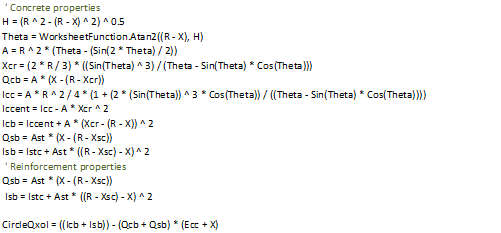
The calculations performed by the function CircleIsb are: 

Second Moment of Area of a circle segment about its base


The formulae for the segment area properties are taken from the Section Properties spreadsheet (version for Excel 2003 and earlier). 

The screenshot below shows an example of the QuadMuller function calling the CircleIsb function to find the width of a circular segment of radius 600 mm with a second moment of area of 5.00E9 mm^4. 

QuadMuller function used with CircleIsb function


If using this method to write your own routines note that the arguments to the called function are passed by value, and hence arrays must be declared as variants, rather than explicitly declared as arrays (which can only be passed by reference).  Coincidentally, Tushar Mehta has posted on a similar topic at Daily Dose of Excel and his own site.  His post provides a class based approach, and also gives more details of how the application.run method can be used (in effect) to pass data by reference.

Posted in Arrays, Excel, Maths, UDFs, VBA | Tagged , , , , , , | 6 Comments

The Inverse Quadratic Method – 2

Firstly a clarification from the previous post in this series.  The method presented in that post was a direct application of quadratic interpolation, rather than the inverse quadratic method, as implied by the post title.  The inverse quadratic method will be described in this post, along with Muller’s method which is another variant using quadratic interpolation. 

In the quadratic interpolation method described in the previous post the next approximation of the function root was found in two stages: 

  1. Find the coefficients of the quadratic curve passing through three points of the function
  2. Find the closest root of that quadratic, using the quadratic formula.

In Muller’s method these two stages are combined into one, and the equation used to find the root of the quadratic is less prone to loss of significance; see the Wikipedia article on the topic: 

Mullers Method, click for full size view


The procedure for finding the next root approximation is considerably simplified in the Inverse Quadratic Method.  In this method a quadratic curve is fitted to the three points on the function being solved, but using the f(x) values as the x values, and the x values as the f(x) values.  The resulting function may be evaluated directly for x = 0 (i.e. f(x) = 0 in the original function).  Note that the inverse quadratic function is an approximation to the quadratic function through the chosen points, so the root found by this process is not an exact root of the quadratic function. 

The equation for the next root approximation is given by Wikipedia as: 

Inverse Quadratic Function Method, click for full size view


Muller’s Method and the Inverse Quadratic Method are now incorporated in the ItSolve Functions.xls spreadsheet, along with full open source code: 

Muller's Method and Inverse Quadratic Method

Posted in Excel, Maths, UDFs, VBA | Tagged , , , , | 3 Comments

Some VBA maths resources

In the past week I have discovered a couple of  sites with open source maths related VBA code that I was previously unaware of, and which deserve to be better known:

AlgLib:

“ALGLIB is a cross-platform numerical analysis and data processing library. ALGLIB aims to be highly portable: it supports several programming languages (C++, C# and other languages); it may be compiled with a wide variety of compilers and was tested under a wide variety of platforms. And it is free – ALGLIB is distributed under a GPL license (version 2 or later).”

All of the code is provided in VBA as well as various flavours of C and Fortran, and appears to be well documented and indexed.  This makes it ideal for creating prototypes in VBA, and if desired converting to compiled dlls at a later date.

Axel Vogt

Axel’s home page sets new standards for minimal web site design, here it is in full:

axalom
various files for numerical or financial Math, free for download

But don’t be put off, there are many worthwhile files here, as well as some excellent articles on programming topics.

Posted in Arrays, Excel, Maths, VBA | Tagged , , | 4 Comments

Function roots with the Inverse Quadratic Method

An earlier post presented various methods for finding the roots of polynomial functions based on the use of linear interpolation.  It is sometimes advantageous to use a quadratic interpolation function, and methods using this approach will be presented in this and following posts.  The earlier functions and the new quadratic interpolation functions have been incorporated in the spreadsheet ItSolve Functions.xls

Any three points on a plane (other than co-linear points) will define a unique quadratic curve of the form ax2 + bx + c = 0.  The User Defined Function (UDF) FITQUAD returns an array of the three coefficients, a, b and c: 

 A = ((Y2 – Y1) * (X1 – X3) + (Y3 – Y1) * (X2 – X1)) / ((X1 – X3) * (X2 ^ 2 – X1 ^ 2) + (X2 – X1) * (X3 ^ 2 – X1 ^ 2))
B = ((Y2 – Y1) – A * (X2 ^ 2 – X1 ^ 2)) / (X2 – X1)
C = Y1 – A * X1 ^ 2 – B * X1 

This quadratic equation may then be solved in the usual way to find the x values for which it evaluates to zero.  The procedure for applying this method to evaluating the roots of higher order functions is: 

  • Select three known points on the function to be solved, in the region of the solution of interest, with at least one point on each side of the x-axis
  • Fit a quadratic curve to these three points
  • Find the root of the quadratic curve in the range of interest
  • Find the y value of the higher order function at this x value.
  • Replace the furthest outlying of the three trial points with this new point.
  • Repeat until the error is acceptably small.

The screenshot below shows this procedure carried out on the spreadsheet, using the FitQuad function: 

Click to view full size


The process is automated using the UDF QuadSolve(): 

Inverse Quadratic Interpolation with QuadSolve

Posted in Excel, Maths, UDFs, VBA | Tagged , , , , | 5 Comments