Recently I had problems with an Excel Add-in that was still trying to run, and generating error messages, even after being removed from the add-in list and uninstalled.
After much searching and trying suggested methods that didn’t work, I finally found a method that did work at:
First, remove the addIn from Excel. After removing it, don’t reopen Excel yet
Go to registry: Start -> Run -> regedit -> HKEY_CURRENT_USER\Software\Microsoft\Office\version\Excel\Options. Delete the registry of the addIn you want to remove. The data column will give you the hint.
This is the key, remember to restart the computer to reset Excel. If you open Excel before the restart, it will register the AddIn in your registry again and you will need to start all over again
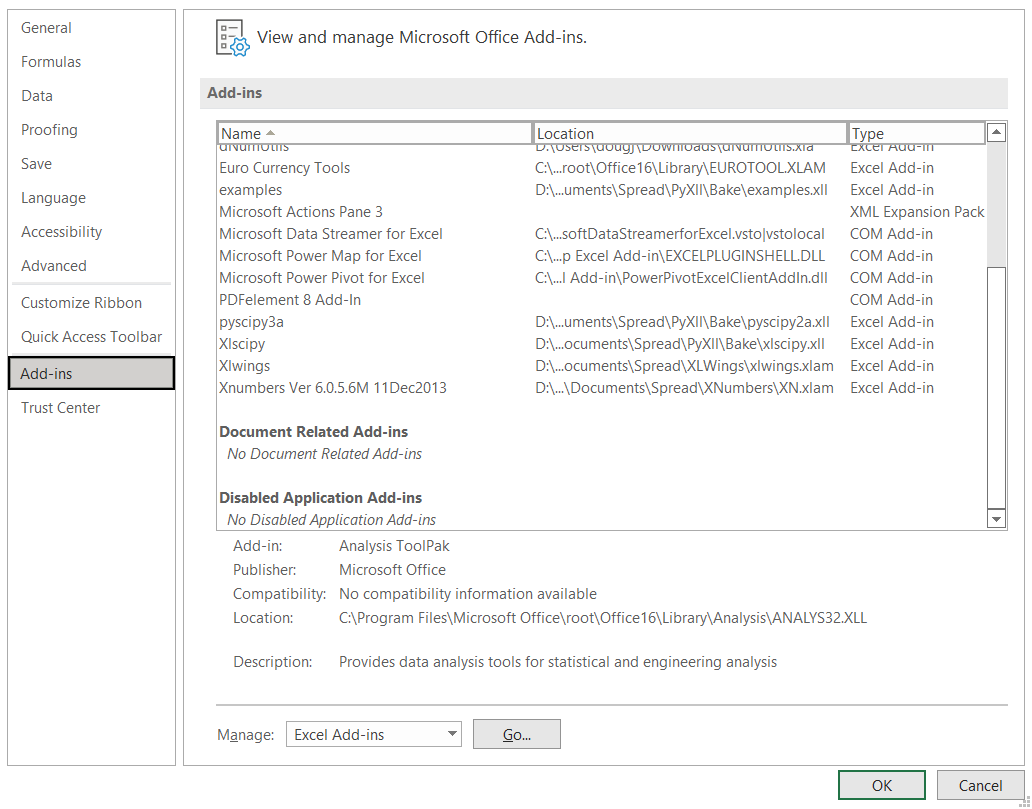
Recently I found that for unknown reasons the Excel Solver add-in was not working. Opening the add-ins list from the Devloper tab showed that it had become deactivated (also accessible from File-Options-Add-ins):
Clicking the Solver check box returned a message that the Solver file cold not be accessed. Several similar problems were reported on Stackoverflow and elsewhere, but none of the suggested solutions worked for me, and a lengthy session with Microsoft support, ending up with reinstalling Office, also had no effect.
I finally discovered that when the Excel add-ins are accessed through File-Options-Addins the dialog box has a list of “inactive add-ins”, then a list of “Disabled Application Add-ins”, which listed the Solver add-in. I was able to remove Solver from the list (leaving it empty), after which it could be enabled in the usual way.
I don’t recall when or how Solver became disabled, but for anyone with a similar problem, checking the disabled add-ins list may provide a simple fix.
Python functions include detailed help documentation but to access this you need the full path to the function, including the names of all code modules and submodules. This post looks at how this information can be found using Excel with pyxll, using the Scipy and Numpy libraries as examples.
As well as pyxll the code requires the inspect, importlib, pkgutil, and numpy libraries:
from inspect import getmembers, isfunction, getdoc, ismodule, signature
import importlib as imp
import pkgutil

import numpy as np

from pyxll import xl_func, xl_arg, xl_return
Example code samples for listing functions from modules include the use of the functions inspect.getmembers and pkgutil.iter_modules. The code below allows either of these functions to be used, and returns either the full output, or just the names of listed functions:
@xl_func
def get_modlist(modname, out=1, out2 = 1):
    mod = imp.import_module(modname)
    if out == 1:
        memb = getmembers(mod, ismodule)
        namelist =  [submod[0] for submod in memb if ismodule(submod[1])]
    else:
        memb = list(pkgutil.iter_modules(mod.__path__))
        namelist =  [submod[1] for submod in memb if submod[2] == True  ]
    if out2 == 1:
        return memb
    else:
        return namelist
This function was found to give different results with Numpy and Scipy. Using getmembers on the top level Scipy module returned no results, but Numpy returned all available module names:
Using pkgutil.iter_module returns the available modules in Scipy and are indicated with TRUE in the third column, but for Numpy all the modules are indicated as FALSE:
The code below uses pkgutil.iter for the top level Scipy module, and getmembers for all other cases:
@xl_func
def get_modules(modname):
    try:
        mod = imp.import_module(modname)
    except:
        return []
    if modname == 'scipy':
        memb = list(pkgutil.iter_modules(mod.__path__))
        namelist =  [submod[1] for submod in memb if submod[2] == True  ]
    else:
        memb = getmembers(mod, ismodule)
        namelist =  [submod[0] for submod in memb]
    return namelist
The screenshot below shows this function displaying scipy modules and 5 levels of submodule:
For any selected submodule all the available functions can be listed with the get_funcs function:
@xl_func
def get_funcs(modname,  searchstring =''):
    lentxt = len(searchstring)
    mod = imp.import_module(modname)
    memb = getmembers(mod)
    namelist =  [func[0] for func in memb if ((isfunction(func[1]) or type(func[1]) == np.ufunc) and func[0][0:lentxt] == searchstring)]
    return namelist
This function will display all functions included in the sub-module, or optionally a search string may be used:
From the list of functions, one can be chosen to display the built-in help with the Get_Docs function:
I have now updated the spreadsheet to work with pyxll, and with some new functions and examples. The spreadsheet and associated Python code can be downloaded from:
py_Quant creates a Pint Quantity object, which may be conveniently used to convert between any compatible units:
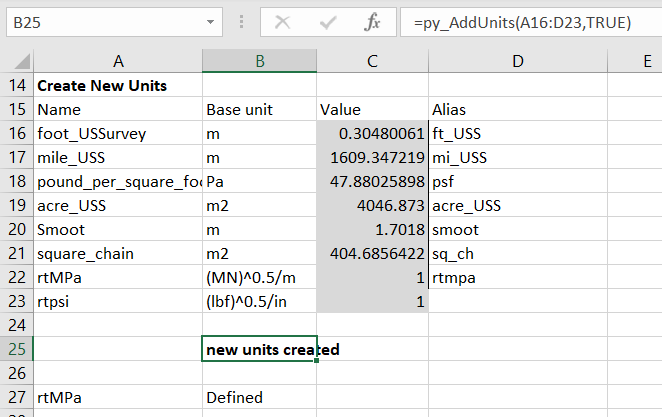
py_AddUnits adds units to the Pint Unit Registry, and py_UnitDefined checks if a unit yet exists:
A new example has been added, illustrating how to work with formulae that have constants with implied units, using as an example finding the tensile strength of concrete based on a constant times the concrete’s compressive strength:






 Newton Excel Bach, not (just) an Excel Blog