Elastic Biaxial Bending

Spreadsheets performing Ultimate Limit State analysis with biaxial moments have been presented previously, most recently here: Biaxial bending update

I have now modified the Beam Design Functions spreadsheet to carry out a biaxial moment analysis with linear elastic material properties. The spreadsheet, including full open-source code, can be downloaded from:

Beam Design Functions Biax.zip

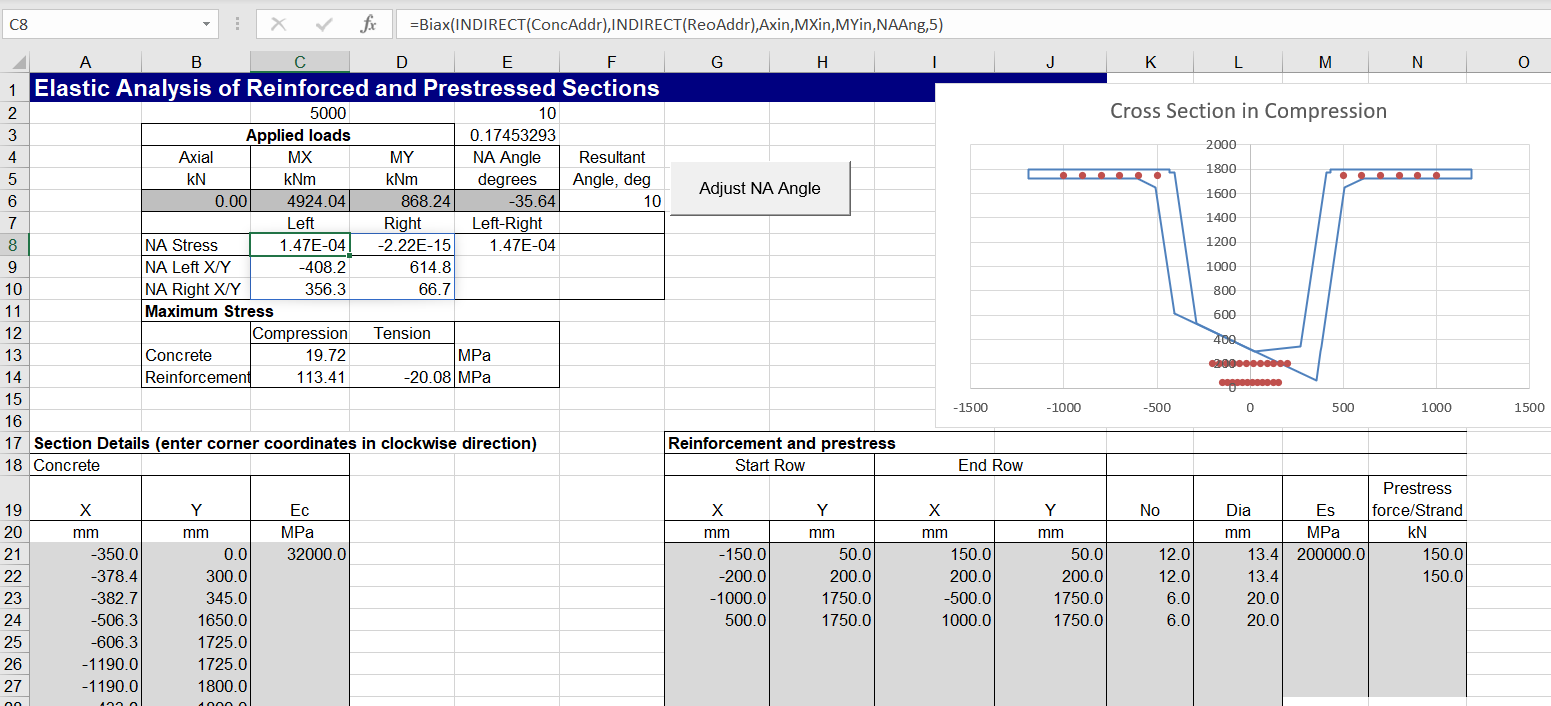
Input for a square section is shown below (the cross section is plotted with an xy graph, so x and y axes are not plotted to equal scale). The Biax function adjusts the position of the neutral axis so that the stress at one end is close to zero. The other stresses are then calculated based on the input neutral axis angle. Clicking the “Adjust NA Angle” button adjusts the angle so that the stress at both ends are near equal.

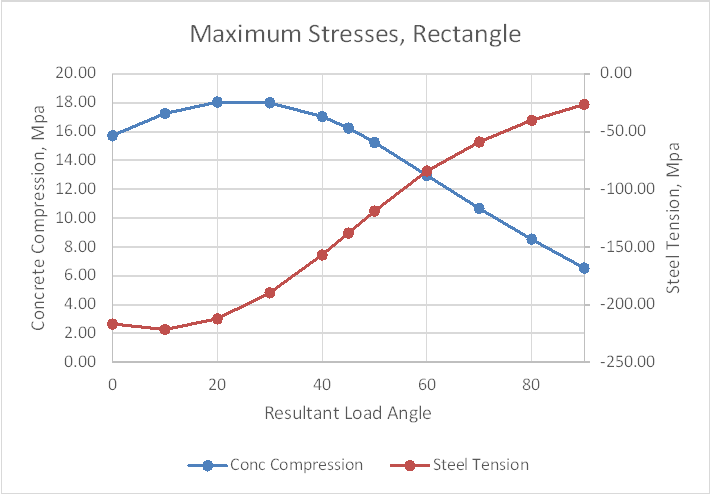
Maximum concrete compression and steel tension are plotted below for a resultant input moment angle to the X axis between 0 and 90 degrees.

Input and results below are for a rectangular section, 2000 mm wide by 1000 mm deep.
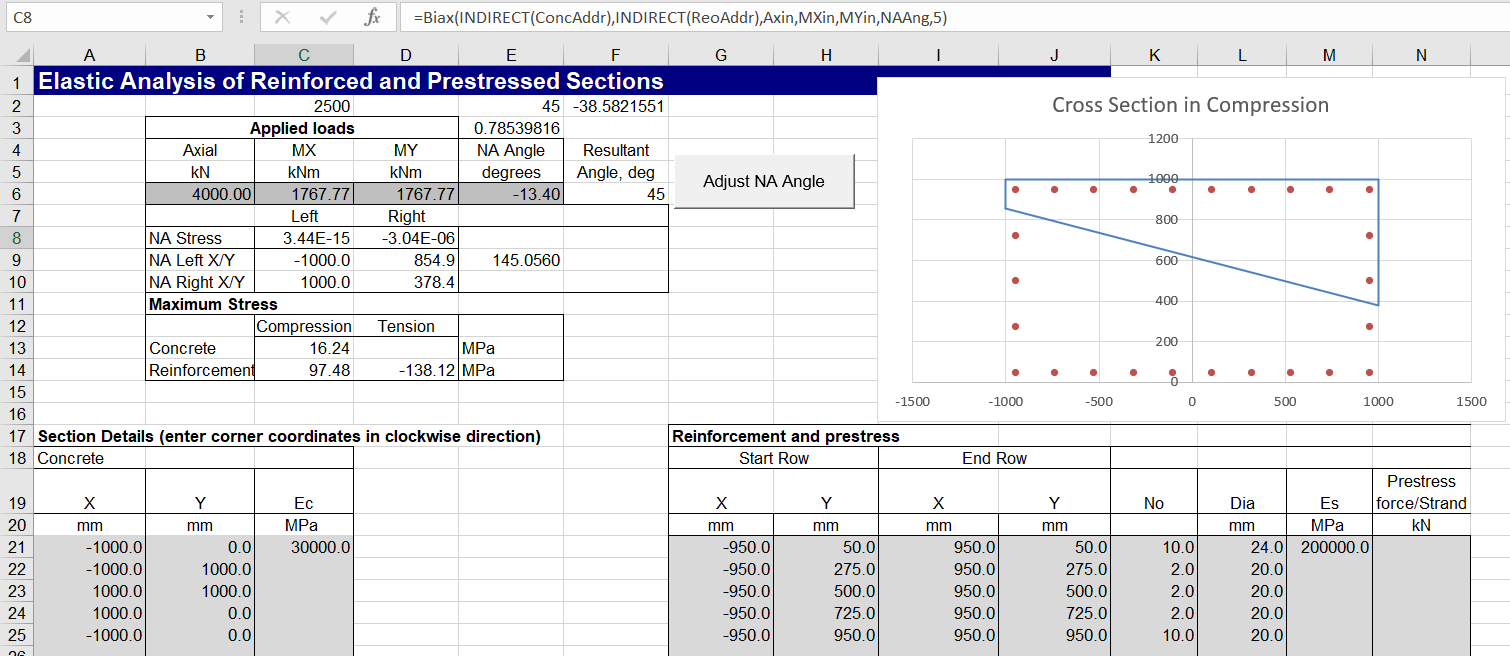
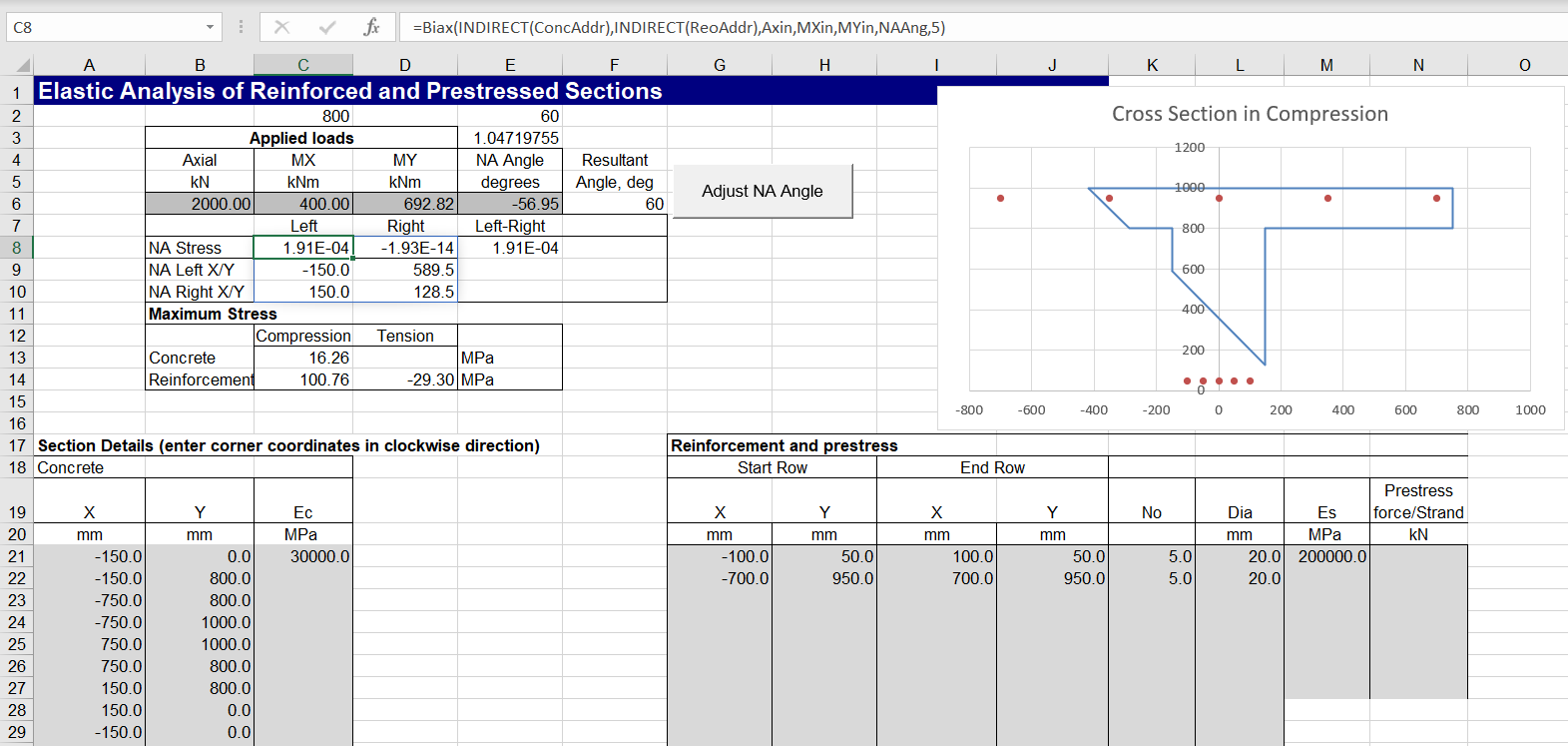
Non-rectangular sections may also be analysed. In some cases the “Adjust NA Angle” routine may fail to find a solution. Adjusting the initial input angle, so that the NA stresses are both close to zero should allow the routine to work:
Detailed output results are given on the “Elastic Out” sheet, including:

  • Section properties for the concrete in compression, reinforcement, and the combined section. Note that the listed properties are calculated with the section rotated so that the neutral axis is parallel to the X axis.
  • Concrete stresses at each node of the section in compression.
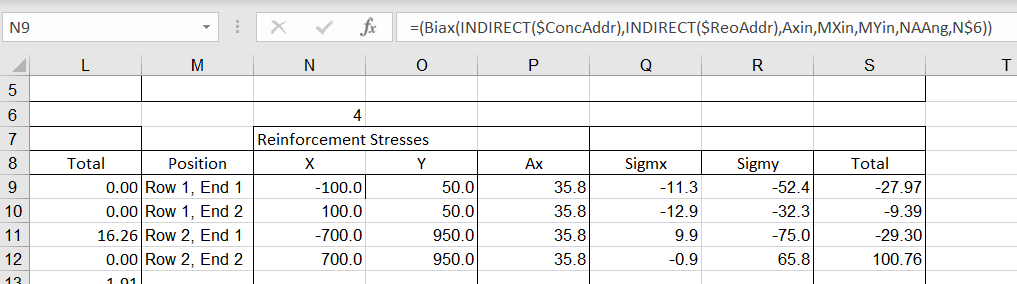
  • Reinforcement stresses at each end of each layer.

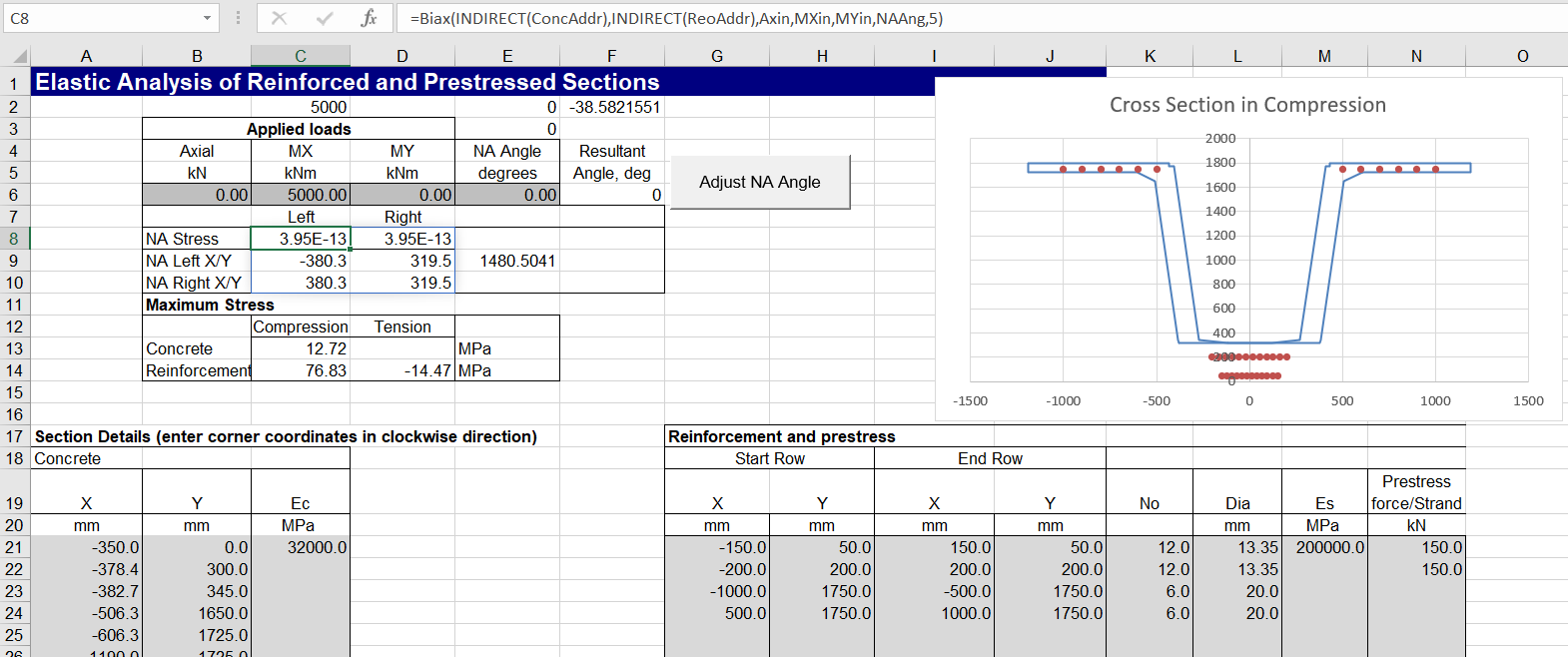
The spreadsheet also allows for input of steel prestress forces:
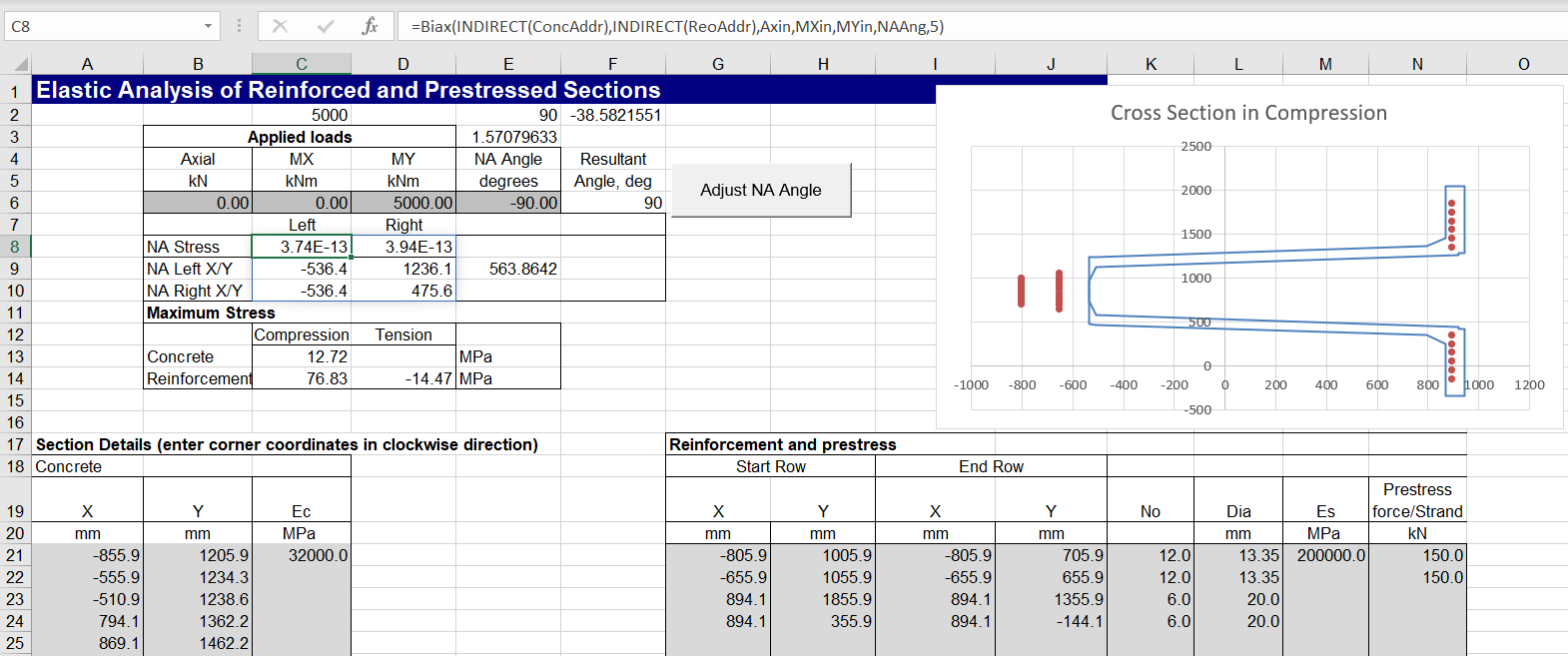
The image below shows the same section input with coordinates rotated through 90 degrees, and with the same moment applied about the Y axis. The neutral axis angle is also rotated through 90 degrees, giving identical results for concrete and reinforcement stresses:
The results have also been checked against the “Elastic” single axis bending function, showing exact agreement:

A prestressed example with biaxial bending is shown below. Note that for complex shapes the Excel goal-seek function (used by the Adjust NA Angle routine) is more likely to fail to find a solution, and some initial manual adjustment of the NA angle may be required:
Posted in Beam Bending, Concrete, Excel, Newton, UDFs, VBA | Tagged , , , , , | 9 Comments

Floating Point Precision Problems

A question on Quora :

prompted me to look at how these numbers are handled in Excel, in VBA called from Excel, and in Python called from Excel via pyxll. The results are shown in the screenshot below:

Column A shows the operation performed on each line, with results from on-sheet calculations, VBA user defined functions (UDFs), Python UDFs, and Python UDFs using Numpy float64 data type, in the following columns.

For the operations using (0.1+0.2)+0.3 and 0.1+(0.2+0.3):

  • Both Excel and VBA show the two expressions as being equal to 0.6, with the difference exactly 0 and the two expressions as equal.
  • Both Python and Numpy, when called from Excel, show the two expressions as exactly equal to 0.6, but a small difference between them, and the expressions as unequal.
  • When the expressions are entered directly in Python, (0.1+0.2)+0.3 returns 0.600000000000001, with the other results as when called from Excel (see screen-shot below).

For the operations involving a division by zero:

  • The Excel on-sheet calculation returns #DIV/0! for all three cases.
  • The VBA code returns #VALUE! for all three. Note that it is possible to check for zero divisions, and return #DIV/0! with additional code.
  • Python using Python float values returns a zero division error message for all three cases.
  • Python using Numpy float values returns 1.7977E+308 for the first two cases and #NUM! for the third when called from Excel.
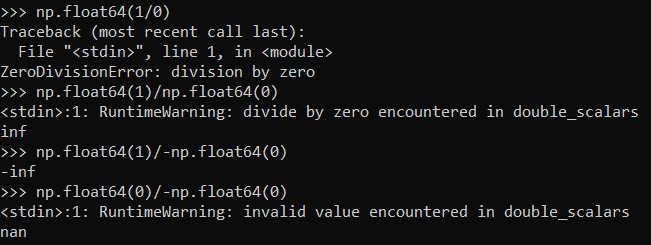
  • Entering the divisions by zero directly in Python returns the same error message as when called from Excel, but when using Numpy Float64 values, it returns inf, -inf, and nan, respectively, together with a warning (see screen-shot below).

Finally, comparing or subtracting two large numbers, with more than 15 significant figures, creates an inconsistency in Excel:

  • The numbers actually entered (formatted as text) are shown in column A, but when these numbers are entered as values the final 9 of the smaller one is truncated to 0, and the displayed number is 9999999999999990. Nonetheless, subtracting the two numbers returns zero, but checking for equality returns FALSE.
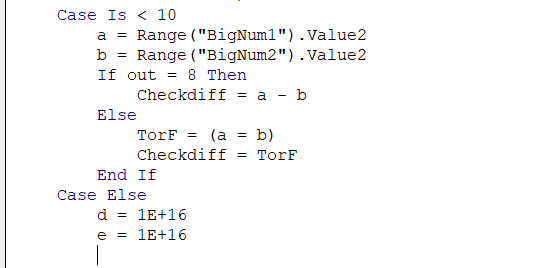
  • VBA, Python and Numpy all return the same results with these numbers. When the numbers are passed from Excel the truncated value of the smaller number is preserved, and subtraction returns 10.0 (rather than the exact result of 1.0), and checking for equality returns FALSE. When the numbers are entered directly in VBA or Python code the smaller number is rounded up to 1.0E16, so subtraction returns 0 and the equality check returns TRUE.
  • When entered in the VBA editor, the editor updates the display automatically changes the rounded up value to display as 1E16 (see screen-shots below).

In summary:

  • Excel does not fully comply with the IEEE 754 format, since it displays results close to zero as zero, and it has no equivalent of inf, -inf, or nan.
  • The Excel rounding or truncating of numbers is preserved when the values are passed to VBA or external code.
  • Checking for equality in Excel, the results are not always consistent with the displayed values.
  • When checking for equality VBA returned the same results as Excel (at least for the examples used here), even though it did not always return the same subtraction result.
  • The VBA equality and subtraction results were self-consistent (for the values checked).
  • When checking if two numbers are equal, either in on-sheet calculations or VBA or external code, always either used rounded values, or check that the relative absolute difference is below a specified tolerance.

For more examples, details, and discussion see: When does 35 not equal 35?

Posted in Excel, Link to Python, Maths, Newton, NumPy and SciPy, PyXLL, UDFs, VBA | Tagged , , , , , , , | 1 Comment

Raining on the Rock

Raining on the Rock is the name of a song by John Williamson; released in 1987, it was recently re-released with a new video:

It is also what happened at Uluru this week:

Rain on Uluru
Posted in Bach | Tagged , , | Leave a comment

CSpline and Malware

I was recently informed that the Malwarebyte program was raising a warning for the CSpline2 download. On checking I found that the spreadsheet had a VBA module called frmPickwb which was not my code.

The file has now been updated, with the offending module deleted, and I’m told that Malwarebyte no longer raises a warning.

The message is, always check downloaded files, even from trusted sources, and please let me know if you get any malware or other warnings on files downloaded from here.

Updated download file: CSpline2

Posted in Computing - general, Curve fitting, UDFs, VBA | Tagged , , | Leave a comment

Lambda and VBA

The new Excel Lambda function (see here for more details and links) is currently only available to those signed up to the Beta Preview version of Excel 365, but is has been favourably reviewed by almost all of those who have tried it, being widely described as a “game changer”. I have yet to try it myself, but from the many examples given, I am struggling to see any significant advantage over the use of simple VBA user defined functions (UDFs).

ExcelJet has a detailed post on how to use the new function, including code for several examples. Extracts from two of these examples are shown below, together with VBA code for UDFs with the same functionality.

The screen-shots below show code for a Lambda function to evaluate the volume of a sphere. First by entering the function in a worksheet cell:

Then by entering the function in the Name Manager, and giving it a convenient name:

A slightly more complex example counts the number of words in any text string:

Results for the same two examples are shown below, using VBA UDFs:

Here is the VBA code for these two functions:

Const Pi As Double = 3.14159265358979

Function SphereVol(r As Double)
    SphereVol = 4 / 3 * Pi * (r) ^ 3
End Function

Function CountWords(Text As String)
    If Len(Trim(Text)) = 0 Then
        CountWords = 0
    Else
        CountWords = Len(Trim(Text)) - Len(WorksheetFunction.Substitute(Text, " ", "")) + 1
    End If
End Function

From my brief comparison, I would list the advantages of the alternatives as:

Lambda Functions:

  • Can be used in on-line versions of Excel that don’t support VBA
  • No knowledge of VBA required

VBA User Defined Functions:

  • Useful functions can be created with minimal VBA knowledge
  • A good way to learn useful VBA skills, without getting bogged down in the details of the complex Excel VBA object model
  • Much easier debugging and documentation for complex functions
  • Link to existing VBA libraries
  • Link to compiled functions for maths intensive functions
  • Save as an add-in to use across other workbooks
Posted in Computing - general, Excel, UDFs, VBA | Tagged , , , , | 1 Comment