Weighted Least Squares Regression, using Excel, VBA, Alglib and Python

Least squares linear regression in Excel is easy.  That’s what the Linest and Trend functions do.  That is, they find the coefficients of a straight line (or higher dimension shape) so that the sum of the squares of the distances of each data point from the line is a minimum.  However, if we want to use weighted data (give the values at some points more importance than others), there are no built in functions to do the job.  This post looks at various options, including using Linest with modified input, VBA user defined functions (UDFS) and UDFs using the Alglib and Python Scipy libraries.  All the code used is free and open source, and may be downloaded from:

WeightLSq.zip (VBA and Linest versions)

xl_Spline-Matrix2.zip (Alglib version)

xlScipy-xlw.zip (Python Scipy version)

The first spreadsheet uses VBA only.  The other two both use Python and require Python and xlwings to be installed.  The Alglib and Python downloads also include  wide variety of other functions.

The screen shot below shows some sample data with two known variables (X1 and X2) and an associated value Y.  We wish to find a linear equation of the form:
Y = A + B.X1 + C.X2
that fits the given Y values as closely as possible.

wlinest1-1

The first two results use the Linest function with no weighting.  In the first formula, the optional Const value is omitted, so Const is set to True, and the equation constant value (A) is calculated.  For this case the X range only requires the X1 and X2 values (columns B and C).  In the second formula Const is entered as False, so an additional column is required with X = 1.

Note that Linest returns the coefficients in reverse order, so our equation is given by:
Y = 22.12 + 0.0137X1  – 1.032X2

Linest can be used with weighted data by applying the weights to both the X and Y data, but to return the correct results the following points are important:

  • The weighted error values for each point are squared, so the weights are also squared, but the standard definition for weighted least squares applies the weight to the squared errors (see weighted linear least squares).  The Linest function should therefore be passed the square root of the weights.
  • The weights must also be applied to the intercept data (the column of ones), so the Linest Const value must be set to False, and the intercept column included in the X data, as for the second unweighted example.

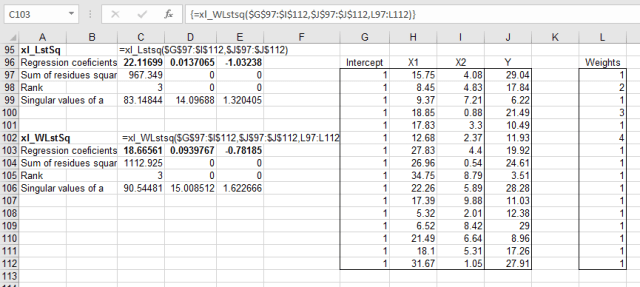
The table of weight square roots may either be generated on the spreadsheet (Weighted Linest 1 above), or the square root can be applied within the Linest formula (Weighted Linest 2).

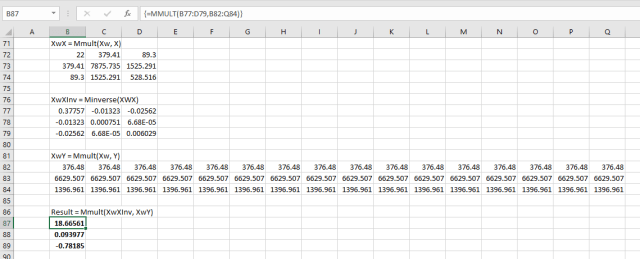
Results of VBA functions performing the least squares calculations (unweighted and weighted) are shown below:

wlinest1-2

Full open source code is included in the download file.  Note that the results are identical to those found by Linest, but returned in the reverse order.  For the weighted analysis the column of full weights is used as the input data.

The two screenshots below show an on-sheet calculation, using the same method as used in the VBA functions.  These are also included in the download file.
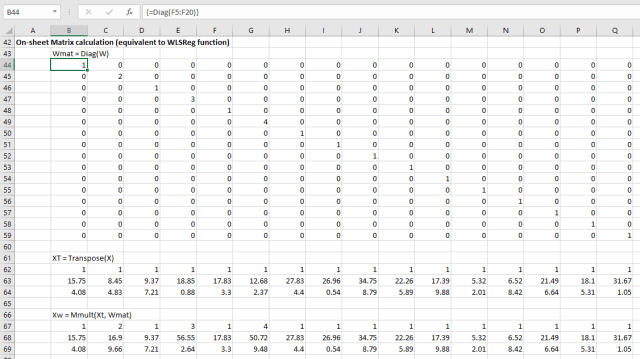
wlinest1-3

wlinest1-4

The Python Scipy library includes a least squares function, which is included in the xlw-SciPy spreadsheet.  A weighted version has now been added:
wlinest1-5

The Alglib library also has a least squares function, including both unweighted and weighted versions:

wlinest1-6

In the Alglib weighted function the weights are squared, as well as the error values (see Note 4 here).  The square root of the weights should therefore be used for consistency with the other functions.
Posted in AlgLib, Curve fitting, Excel, Link to Python, Maths, Newton, NumPy and SciPy, UDFs, VBA | Tagged , , , , , , | 9 Comments

Debugging with xlwings and PyCharm

The xlwings documentation covers de-bugging, but it is very brief and it took me some time to get everything working, so this article covers the process in a bit more detail.  The details are affected by the editor being used, and the process described here applies to PyCharm, Community Edition 2016.3.2.

The first example uses the xlwings Fibonnaci sample (download fibonnaci.zip).  The Python code must be amended as shown below, with the code for the standalone version commented out (or deleted), and code added to set up a “dummy caller”:

#if __name__ == "__main__":
#  Used for frozen executable
#    xl_fibonacci()

if __name__ == '__main__':
# Expects the Excel file next to this source file, adjust accordingly.
    xw.Book('fibonacci.xlsm').set_mock_caller()
    xl_fibonacci()

Note that:

  • The code must be modified for each routine to be de-bugged, with the name of the Excel file calling the Python routine, and the name of the Python function.
  • The current xlwings documentation, at the time of writing, has a typo.  The code uses the file name ‘myfile.xlsxm’, rather than ‘myfile.xlsm’, which causes a file not found error if copy and pasted. Update 30 Jan 2017:  Now fixed in the docs for Version 0.10.3.

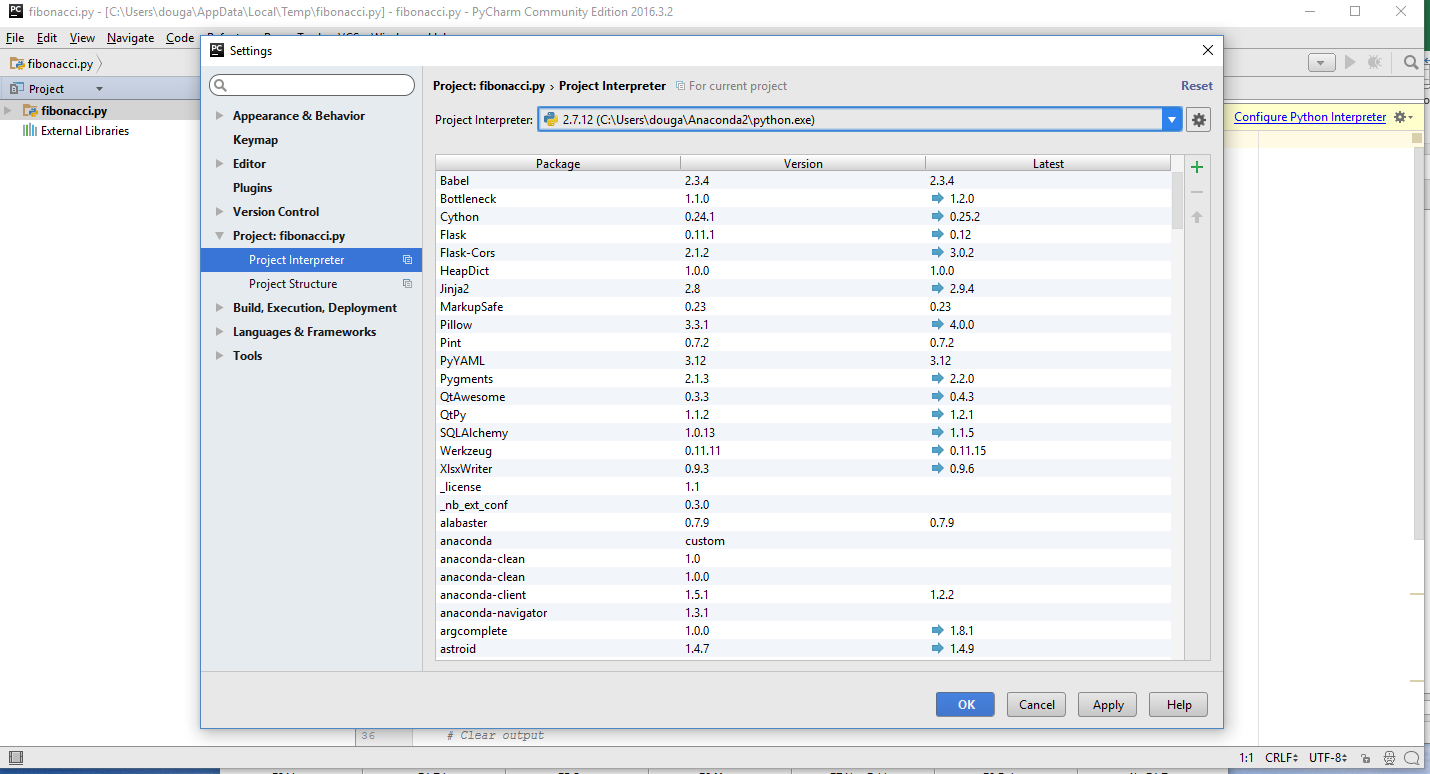
For a new installation of PyCharm the Python Interpreter must first be configured.  When a new py file is opened the editor displays a “Configure Python Interpreter” link in the top-right corner, where you can connect to your Python executable, as shown in the screen-shot below (click on any image for a full-size view):

debug1-0

The chosen file can be set as the default with the File-Default Settings-Project Interpreter menu.
Having set the interpreter a de-bug session can be initiated by:

  • Insert a break-point at the desired location in the code (click in the left hand margin).
  • Use the Run-Debug menu to start the chosen routine:

debug1-1

It is then possible to step through the code using either the Run menu, the associated function keys, or the de-bug step icons under the main edit window.

The value of active variables is shown both adjacent to the code, and in the Variables window.

After the first de-bug run, Run and De-bug icons become active in the top right hand corner, and these can be used to start a new run.

De-bugging a user-defined function (UDF) has a couple of differences.  The  if __name__ == ‘__main__’ statement must be changed as shown below:

if __name__ == '__main__':
    xw.serve()

In the VBA code, the xlwings function Settings is amended with:

  •     UDF_DEBUG_SERVER = True

The de-bug process is now initiated in the same way as before.  PyCharm will display:

Connected to pydev debugger (build 163.10154.50)
xlwings server running, clsid={506E67C3-55B5-48C3-A035-EED5DEEA7D6D}

To step through the chosen UDF, go to Excel, select any copy of the function in a worksheet, press F2 and then Enter (or Ctrl-Shift-Enter for an array function), as for a VBA function.  PyCharm should then run to the first break point:

debug1-2

Stepping through the code then has the same options as when running a subroutine:

debug1-3

nbsp;

Posted in Excel, Link to Python, UDFs, VBA | Tagged , , , , , , | Leave a comment

Some thoughts on Magic …

… from Alana Hicks, Leonard Cohen, and Buffy St Marie.

Alana Hicks is a friend of my daughter’s.  This is her story:

smoke-and-fire

… which reminded me of a song I heard once on the radio over 40 years ago, and I have always remembered. Words by Leonard Cohen, sung by Buffy St Marie:


Posted in Bach | Tagged , , , , , | 2 Comments

The Conjugate Beam Method

The Conjugate Beam Method is a variation of the Moment-Area Method that allows beam slopes and deflections to be calculated purely from the calculation of shear forces and bending moments of the beam with (in some cases) modified support conditions.  Both methods were developed by Christian Otto Mohr, although the Conjugate Beam Method is often attributed to others.  I will have a closer look at the history in a later post, but in this post I will look at how it works, with a simple Excel based example.

The basis of the method is:

  1. Calculate the bending moment diagram for the real beam with the actual support conditions.
  2. Apply the bending moment diagram divided by EI to the “conjugate beam”,  as a distributed load.  The conjugate beam is an imaginary beam of the same length, with support conditions modified as described below. (E = elastic modulus; I = second moment of area.  Note that both may vary along the length of the beam).
  3. Calculate the shear force and bending moment diagram for the conjugate beam.  At any cross section the numerical value of the shear force is then equal to the slope of the real beam, and the bending moment is equal to the deflection of the real beam.

The changes to the support conditions in the conjugate beam are based on the following requirements:

  • At any point where the deflection is zero the conjugate beam moment must be zero, requiring either a simple end support or free end, or an internal hinge.
  • Where the end slope is zero the conjugate beam shear must be zero, requiring a free end.
  • Similarly, where the deflection or slope is non-zero the conjugate beam must be able to generate a moment or shear force.
  • Where there is a discontinuity in the slope (at an internal hinge) the conjugate beam must have a simple support.

These modifications to the support conditions are illustrated below (from the Wikipedia Article):

conjugate1-0

The spreadsheet ConjugateBeam.zip provides a simple example of the method applied to a simply supported beam with two point loads:

conjugate1-1

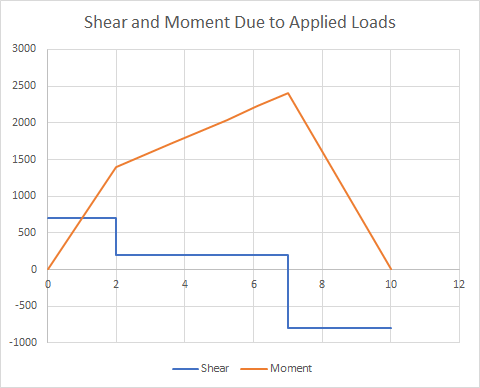
The shear and moment diagrams are calculated for the specified load positions and values, using the usual methods (Columns B and C above):

conjugate1-2

The bending moment due to the applied load is then divided by EI to give the applied load for the conjugate beam.  For a simply supported beam the conjugate beam supports are unchanged, but we need to calculate the reaction force at the supports.  A convenient way to do that is to treat the conjugate beam as a cantilever fixed at End 2, and calculate the shear and moment at End 2 (Columns E and F).  The End 1 shear force for the simply supported beam is then minus this moment, divided by the beam length, and this force is applied along the full length of the beam(Column G and below):

conjugate1-3

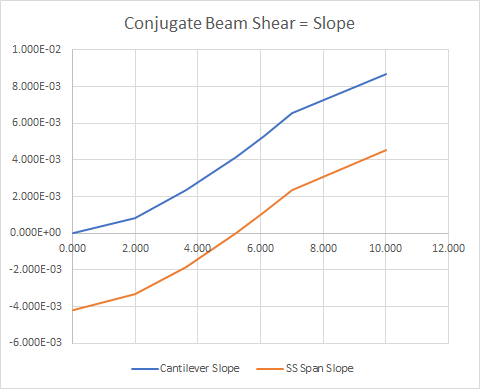
The conjugate beam bending moment diagram is now found for the simply supported shear diagram (Column H and below):

conjugate1-4

Note that the bending moment at End 2 is exactly zero, as would be expected.  The numerical values of the conjugate beam shear and bending moment are equal to the slope and displacement of the original beam.

An alternative calculation of the shear force at End 1 of the conjugate beam is shown below; taking moments about End 1, to find the reaction at End 2, and hence the End 1 force.  In both cases the calculation is equivalent to calculating the deflection at the end of a cantilever, and dividing by the beam length to find the rotation required to return the beam to horizontal.

conjugate1-5

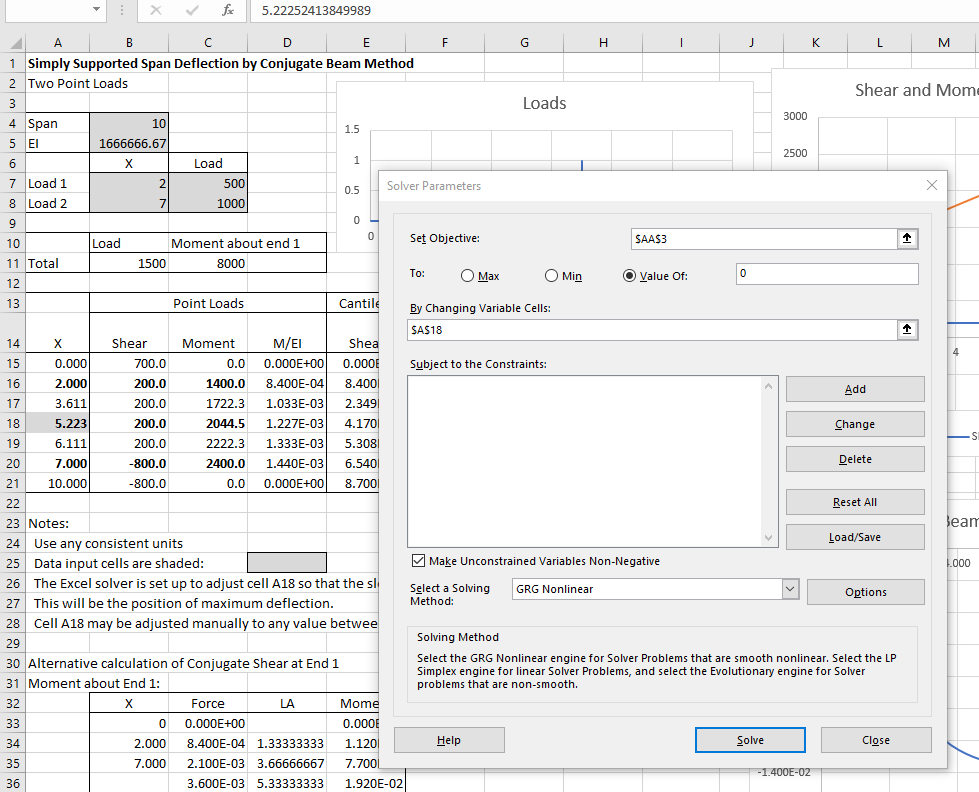
In general the maximum deflection of the beam will be intermediate between the two applied loads.  The Excel solver has been set up in the spreadsheet to find this location by adjusting the value in cell A18 so that the conjugate beam shear (equal to the original beam slope) is equal to zero.  This is the point of maximum bending moment in the conjugate beam, and maximum deflection in the original beam:

conjugate1-6

To run the solver, select the Data tab, click the solver icon (extreme right), then click solve.  If the solver icon does not display the solver must be installed from the File-Options-Add ins menu.

Posted in Beam Bending, Excel, Frame Analysis, Newton | Tagged , , , | 6 Comments

3D Frame analyses with spring releases – 2

The latest version of the 3DFrame spreadsheet (previously presented here) includes provision for spring end releases, allowing for either rotational or translational springs in any direction.  These springs are now incorporated in the model by adjustment of the beam properties, rather than by addition of new dummy spring members, as used in previous versions.  This avoids the creation of new nodes (which potentially made the stiffness matrix solution much less efficient for large models), but does require more work in setting up the model:

  • The structure stiffness matrix must be modified to allow for the increased flexibility of each member with any spring end releases.
  • The nodal loads must also be adjusted, with the loads being those that would be generated by the applied loads on a member with the specified spring restraints, rather than fully fixed  end conditions.
  • The frame analysis returns the deflections and rotations of each node, so the additional deflections of beam ends with spring releases must be added after the global analysis, if deflections along the length of the beam are required.

The adjusted stiffness matrix for a 2D beam with a rotational spring release at end 1 is:

3dframe5-1Ks is the spring stiffness in Moment/radian or Force/Length units.

For a 3D beam similar adjustments must be made for rotational and translation springs at both ends, for all three principal axes.  The VBA code is:

Function AddSprings3(km, SpringA, NDim)
Dim Beta As Double, OneOBeta As Double, Kt As Double, Ks As Double, i As Long, j As Long, BmEnd As Long, k As Long, i_s As Long
Dim km2 As Variant, kms(1 To 4, 1 To 4) As Double, ii As Long, jj As Long, io As Long, jo As Long, kk As Long, ia As Variant
Dim kmw As Variant

If TypeName(km) = "Range" Then
    kmw = km.Value2
Else
    ReDim kmw(1 To 12, 1 To 12)
    For i = 1 To 12
        For j = 1 To 12
            kmw(i, j) = km(i, j)
        Next j
    Next i
End If
If TypeName(SpringA) = "Range" Then SpringA = SpringA.Value2


Select Case NDim
Case 3

For i = 1 To 3
  ' Check if any spring releases exist
  Select Case i
    Case 1
        ia = Array(2, 4, 8, 10)
    Case 2
        ia = Array(1, 5, 7, 11)
    Case 3
        ia = Array(3, 6, 9, 12)
  End Select
    Ks = SpringA(1, ia(1)) + SpringA(1, ia(2)) + SpringA(1, ia(3)) + SpringA(1, ia(4))
    If Ks > 0 Then
        ' Copy the stiffnes values for Axis i to a 4x4 array
        ReDim km2(1 To 4, 1 To 4)
        For ii = 1 To 4
            For jj = 1 To 4
                km2(ii, jj) = km(ia(ii), ia(jj))
            Next jj
        Next ii
        
        For BmEnd = 1 To 2
            kk = i
            If i < 3 Then kk = 3 - i Kt = SpringA(1, (BmEnd - 1) * 6 + kk) If Kt > 0 Then ' Adjust matrix for translational springs
                kk = (BmEnd * 2) - 1
                Beta = Kt + km2(kk, kk)
                OneOBeta = 1 / Beta
                For ii = 1 To 4
                    kms(kk, ii) = OneOBeta * Kt * km2(kk, ii)
                    If ii <> kk Then kms(ii, kk) = kms(kk, ii)
                Next ii
                For ii = 1 To 4
                    If ii <> kk Then
                        For jj = 1 To 4 
                            If jj <> kk Then kms(ii, jj) = OneOBeta * (Beta * km2(ii, jj) - km2(ii, kk) * km2(kk, jj))
                        Next jj
                    End If
                Next ii
                For ii = 1 To 4
                    For jj = 1 To 4
                        km2(ii, jj) = kms(ii, jj)
                    Next jj
                Next ii
            End If
            
            Ks = SpringA(1, (BmEnd - 1) * 6 + 3 + i)
            If Ks > 0 Then  ' Adjust matrix for rotational springs
                kk = (BmEnd * 2)
                Beta = Ks + km2(kk, kk)
                OneOBeta = 1 / Beta
                For ii = 1 To 4
                    kms(kk, ii) = OneOBeta * Ks * km2(kk, ii)
                    If ii <> kk Then kms(ii, kk) = kms(kk, ii)
                Next ii
                For ii = 1 To 4
                    If ii <> kk Then
                        For jj = 1 To 4
                            If jj <> kk Then kms(ii, jj) = OneOBeta * (Beta * km2(ii, jj) - km2(ii, kk) * km2(kk, jj))
                        Next jj
                    End If
                Next ii
                If BmEnd = 1 Then
                    For ii = 1 To 4
                        For jj = 1 To 4
                            km2(ii, jj) = kms(ii, jj)
                        Next jj
                    Next ii
                End If
            End If
        Next BmEnd
        
    
            For ii = 1 To 4
                For jj = 1 To 4
                    kmw(ia(ii), ia(jj)) = kms(ii, jj)
                Next jj
            Next ii
    
        End If
    Next i


Case Else
AddSprings3 = "Invalid NDim"
End Select
AddSprings3 = kmw
End Function

Adjustments to the end forces are found using the REAct3D function, previously described here.  The procedure is:

  1. For each principal axis, find the reaction force and moment at End 1, and the deflection and slope at End2 of the beam, due to the applied loading, treating the beam as a cantilever fixed at End1, with any specified spring releases.
  2. Find the deflection and rotation at End2 due to unit applied force and moment, including the effect of spring releases.
  3. Calculate the end loads at End 2 required to return the beam to zero deflection and rotation.
  4. Combine the loads from Steps 1 and 3.

Note that in the current version the spring stiffness is required to be greater than zero.  Any end release with zero or negative stiffness, or left blank, is taken as a rigid connection.

The latest version of the spreadsheet, including full open-source code, can be downloaded from: 3DFrame.zip.

See 3DFrame with spring releases for more information, including links to installation instructions for the compiled solvers.


Posted in Beam Bending, Excel, Finite Element Analysis, Frame Analysis, Newton, Strand7, UDFs, VBA | Tagged , , , , , | Leave a comment