Concrete 2015

Concrete2015

This year the 27th biennial Conference of the Concrete Institute of Australia will be held in Melbourne from 31st August to 2nd September, in conjunction with RILEM Week.

Concrete 2015

On behalf of the organising and technical committees, we cordially invite you to join us at Concrete 2015. Concrete 2015 will be the 27th Biennial National Conference of the Concrete Institute of Australia in conjunction with the 69th RILEM Week conference.  This historic joint event will provide national delegates with valuable exposure to cutting edge research and development exchanges in the international forum of RILEM Week.

Concrete 2015 will focus on the theme Research into Practice. The conference is dedicated to bringing together global leaders in the concrete industry, covering all aspects of concrete design improvements, research, construction, maintenance and repair of concrete projects. Concrete 2015 will offer participants from around the world the opportunity to connect face to face and share innovative and interesting ideas on valuable research outcomes and latest construction practices.

The multidisciplinary theme of Concrete 2015 provides an excellent forum for networking and education and an opportunity to meet and interact with practitioners, engineers, scientists, researchers, academics, practitioners and professionals, and also to engage with international delegates from RILEM technical committees. Whether you attend technical sessions, sit in on multiple committee meetings, or network with friends and colleagues this conference will provide you with ample opportunity for professional growth.

On behalf of the Organising Committee, we look forward to meeting you at Concrete 2015 in Melbourne, Australia. 

Posted in Concrete, Excel, Newton | Tagged , , | Leave a comment

Blackwater Side; Bert Jansch and Anne Briggs

I have posted solo recordings of Blackwater Side from Bert Jansch and Anne Briggs before, but here they are together, about 30 years on:

Which led me to a video of Bert Jansch’s 60th Birthday concert:


Posted in Bach | Tagged , , , | Leave a comment

Filling Blanks with Go To-Special (and local help rant)

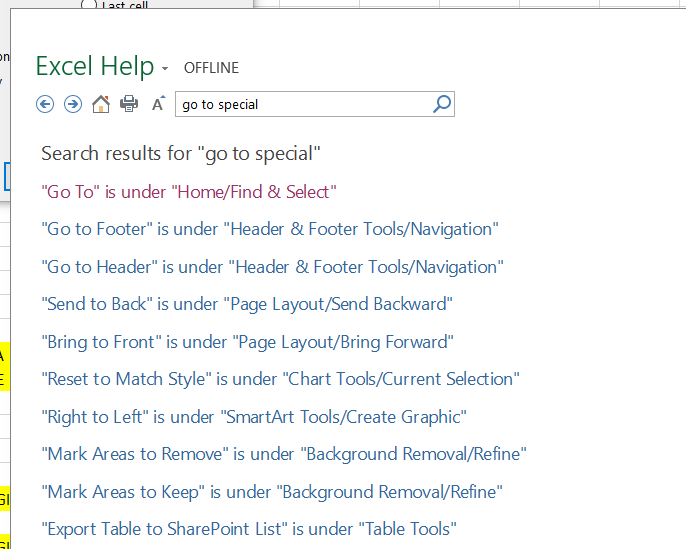
Recently a thread at the Eng-Tips forum prompted me to look for help on the Go To-Special function in Excel.  Pressing F5-Alt S, then clicking the help icon in the dialog box brought up:

FillBlanks2

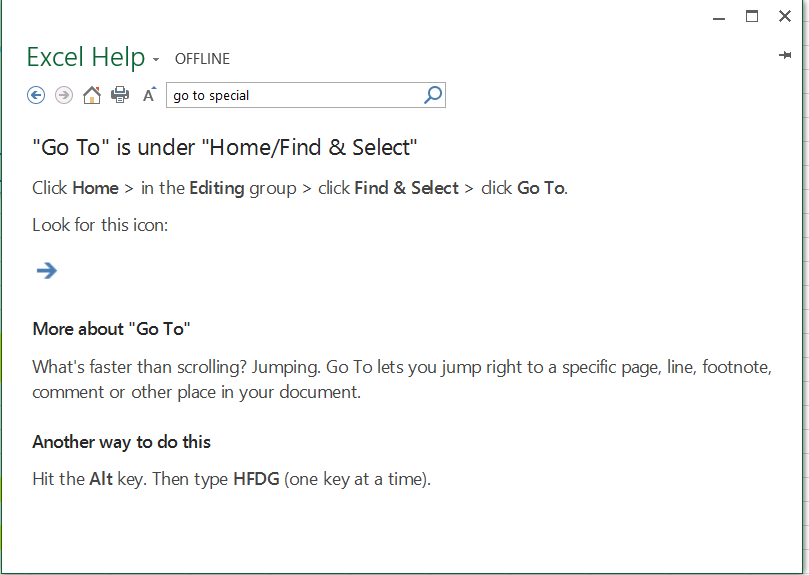
It seems that the offline help AI can’t work out that if you click the Help icon in the Go To-Special dialog, that is probably what you want help with.  If you give it a little hint, it gets the message:

FillBlanks3

Never mind that I had just come from the Go To dialog, so I must know how to find it, I’ll follow the link to the help.  Here it is in full:

FillBlanks4

That’s it, the full extent of the offline help: the Find and Select function lets you find and select things.  It doesn’t even mention using the F5 key, let alone give any details on the “Special” options.

Using the online help works better.  It takes you straight to help on using Go To Special, and it gives a reasonable amount of detail (although still no mention of the F5 key).

FillBlanks5

Now I know that Microsoft would really, really like us to use their on line help, but dumbing down the off line help to the point of making it totally useless really isn’t the way to go about it.  There are actually good reasons for using help off line:

  • It’s quicker
  • Many people still have slow and/or unreliable connections
  • Many people like to work when travelling, or otherwise not connected to the Internet

One of the things that made the Lotus 123 spreadsheet so popular in the early days of personal computing was that it gave near instant helpful and relevant help at the touch of the F1 key.  Now more than 30 years later, in spite of processing speeds and available storage increasing by factors of thousands, the help available in Excel doesn’t come close to matching what we had then.

OK rant over, let’s get back to what we can do with Go To-Special.  The discussion linked above asked how we could use VBA to fill a table containing blanks using the last entry above the blanks as the text, and filling down to the next non-blank cell.  Left to myself I would have looped through the table cell by cell in VBA, which would work OK, but there is a much simpler way (provided by the original poster in the discussion):

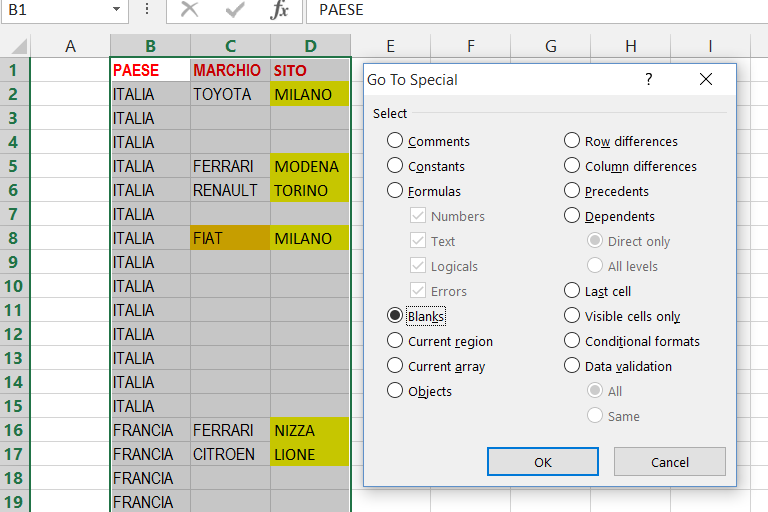
Select the range to be filled, then open the Go To-Special dialog (with F5 Alt-S), and select blanks (or press k):

FillBlanks6

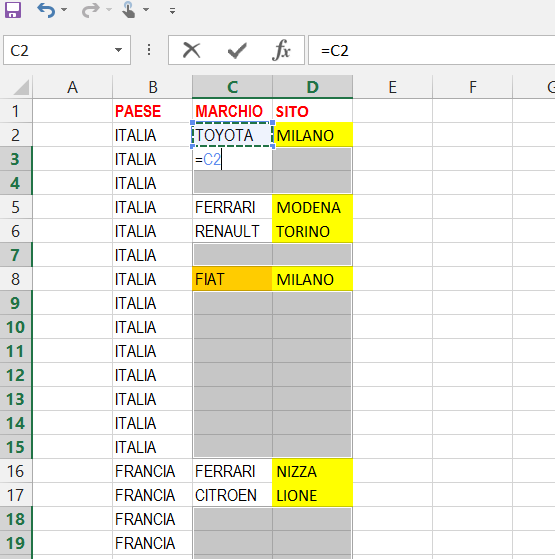
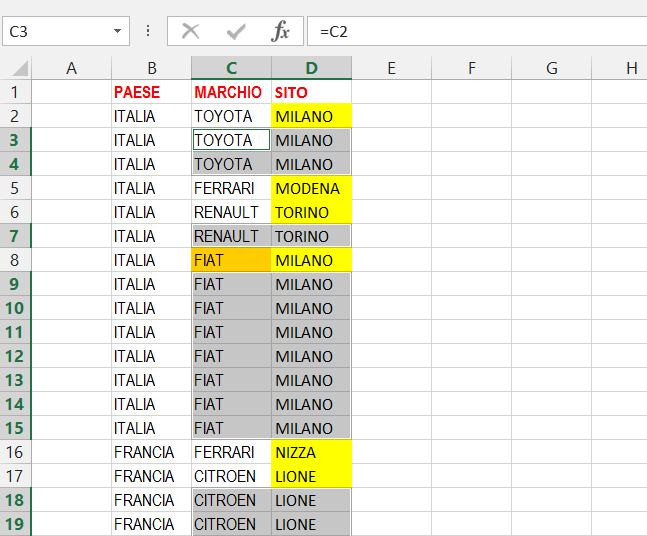
All the blank cells will be selected, and the cursor will move to the first blank cell.  Type “=” and select the cell immediately above:

FillBlanks7

then press Ctrl-Enter:

FillBlanks8

The table is instantly filled as required.  The remaining step is to convert all the generated formulas to text, which can be done quickly by selecting the entire table, press Ctrl-C, then Paste-Special as values.

A few lines of VBA will do all this automatically:

Sub FillInBlanks()
'select the range you want to fill in and generate formulas:
Selection.SpecialCells(xlCellTypeBlanks).FormulaR1C1 = "=+R[-1]C"

' Convert to text:
With Selection
.Copy
.PasteSpecial xlPasteValues
End With
End Sub

For more on using Go To-Special see these articles at Chandoo’s Blog:

Posted in Excel, VBA | Tagged , , , , , , | 13 Comments

Installing Windows 10 …

… did not go well.

After installing over night it needed another half hour or so to “just finish off a few things”, after which it briefly displayed the desktop, followed by a message saying that it was going to have to re-start because of an “INTERNAL_POWER_ERROR”.  Over the next half hour or so it repeated this three or four times.

Luckily someone here had the same problem and posted a very simple solution:

  • As soon as the “Windows” icon appears in the bottom left corner, right click and select Device Manager (or hold down the Windows key and press x).
  • Select Display adapters, double click the AMD driver, select the Driver tab, and click the disable button.

After that everything worked just fine, although re-starting was very slow.

Strangely, I have just checked the drivers, and the AMD driver seems to have re-enabled itself; but everything is still working.

As for opinions on Windows 10, it’s just an operating system.

Edit 4th August 2015:

I was going to say that at least the pdf content indexing and preview still worked, which it did on the day I did the upgrade, then yesterday the pdf preview stopped working.  No messages, just a blank space where the preview should be.  Looking at the Adobe site I found they now have a reader called Acrobat Reader DC, which I installed, and it worked.  I can’t say I like the new interface much, but it does the job.

Posted in Computing - general | Tagged , , , | 2 Comments

Indexing pdf content

I recently discovered that my 64 bit Windows 8.1 Search was not indexing the content of pdf files.  Since searching the content of pdf files is just about the only thing I want to do with a desktop search tool, it made the whole thing pretty pointless.  Fortunately the fix is pretty easy:

  • Go to: http://www.adobe.com/support/downloads/detail.jsp?ftpID=5542 and download PDFFilter64Setup.msi.
  • Run the download file
  • Go to “indexing options” in Control Panel (you might need to search for “search” to get it to display).
  • Click on Advanced, then the File Types tab
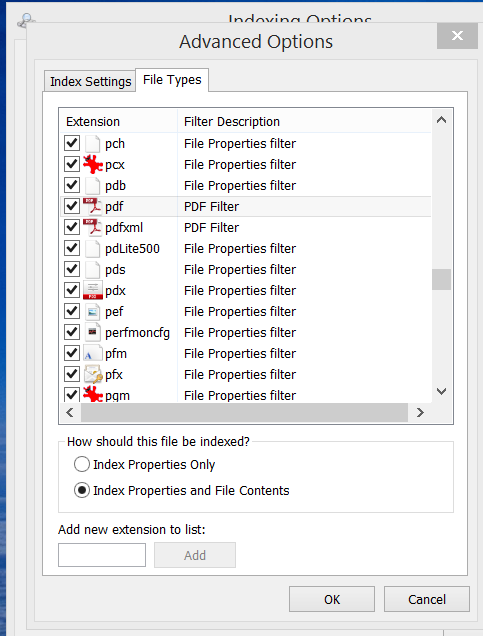
  • Make sure that the check box next to pdf is checked, it displays “PDF Filter” next to it, and when the pdf file line is selected the “Index Properties and File Contents” button is selected, as shown below:

pdf indexing  A few more points:

  • It seems that this problem has been around for years; it is beyond belief that it isn’t fixed yet.
  • It may or may not also be a problem with 32 bit Windows.  Make sure you install the right filter for your operating system.
  • Many reported “fixes” on the Web suggest editing the Registry, with mixed success.  I suggest trying the simple fix first.
  • I wonder what Windows 10 will do to this.

And finally:

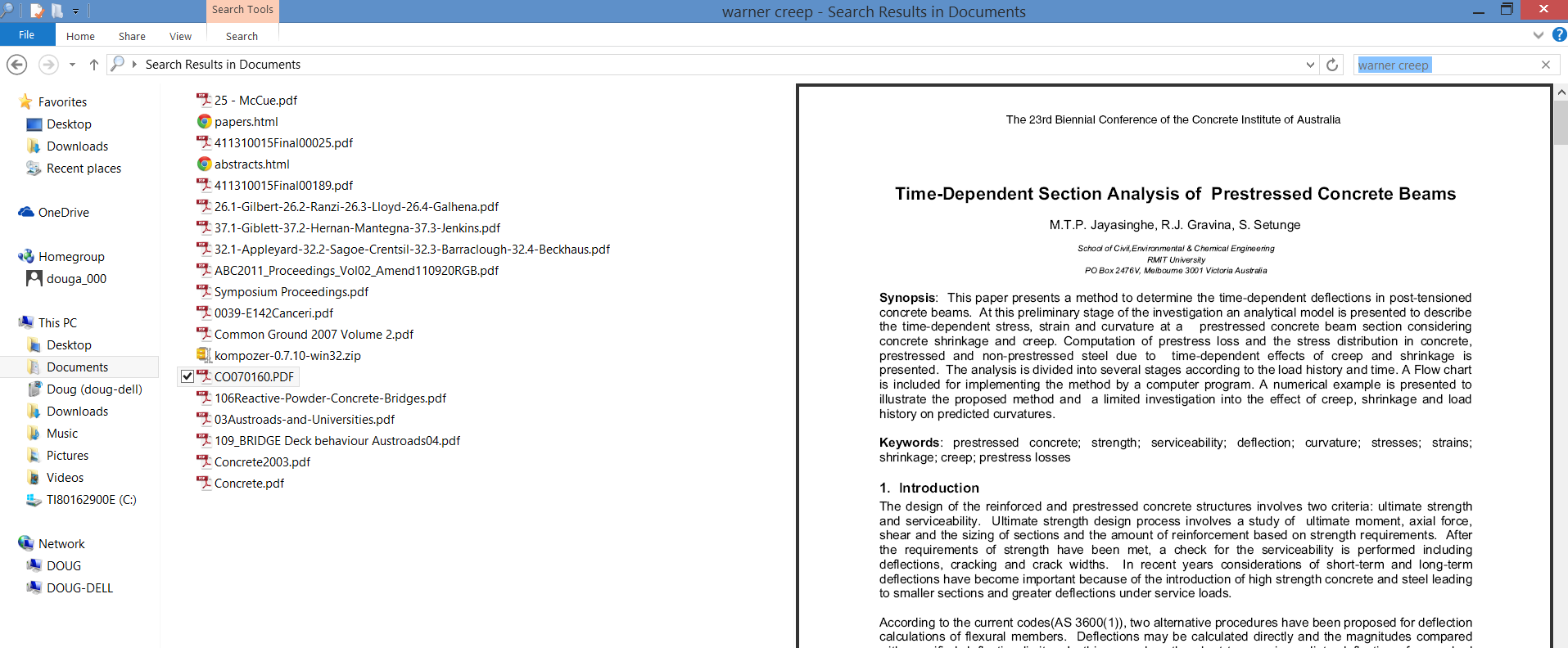
  • When you get the index working, and want to do a search, don’t use the very un-charming Windows 8 search tool. Open File Explorer and use the search box from there.  You then get a full list of results which you can sort by date or name, and better still you can get a preview which opens near instantly, and can even be dragged to provide a readable image:

pdf indexing2

Posted in Computing - general | Tagged , , , | 2 Comments