Frame4; now with added Alglib

Edit 29 Nov 2012: I have now added an xls version to the download zip file.  This also has a much smaller example model, which will solve quickly using the VBA solver, so will be more useable for anyone having problems with the Alglib solver.

The compiled matrix functions featured in recent posts (Compiled Matrix Functions for Excel; Using Regasm.exe), have now been incorporated into the Frame4 spreadsheet (Download here), and also Frame4Buckle (Download here).  Both spreadsheets include full open-source code, and the Frame4 download also includes the necessary interface files (ALMatrixLib.tlb and ALMatrixLib.dll), and the AlgLib dll file (Alglibnet2.dll).  Step by step installation instructions are given below; see the previous posts for some shortcuts, and details of how to compile the program yourself (not necessary, unless you want to modify the code, or just follow the process).

Installation:

  • Copy the files: ALMatrixLib.dll, ALMatrixLib.tlb, and alglibnet2.dll to your C:\Windows\System32\ folder.
  • Copy the spreadsheet files to any convenient directory.
  • Click on “Start” (bottom left)-Computer and find the latest Microsoft.NET\Framework folder.  On my machine this is at C:\Windows\Microsoft.NET\Framework\v4.0.30319
  • Right click on the final folder name (at the top of the window) and select “copy address as text”
  • Click on “Start” and enter cmd in the search box
  • Right click on the cmd icon under Programs(1) and select Run as Administrator
  • It is necesary to move to the folder containing the Regasm.exe file. In the command line window enter:  CD space , right click and paste the folder path name.
  • Ensure that you are in the correct folder then enter:
    regasm /codebase C:\Windows\System32\ALMatrixLib.dll /tlb
    (with path amended as required) or copy this line and right click at the command prompt to paste it.
  • Check that there is no error message.  If there is, check the spelling of the command and that you opened the cmd window “as administrator”.
  • If there is no error, close the command prompt window.
  • Open any of the three downloaded spreadsheets and check if the Alglib functions are working.  If not:
  • Press Alt-F11 to open the Visual Basic editor window.
  • Select Tools-References-Browse, go to \Windows\System32 and select ALMatrixLib.tlb.
  • Return to the spreadsheet, which should now work correctly.
  • This process should only be necessary once.
  • Any problems, let me know.

The new code gives a respectable improvement in performance; how much? – see below:

Speed increase with compiled solver; 2500x

To use the compiled code ensure that the necessary files are installed then simply click the “Use Alglib Sparse Solver” check-box as shown below.  Note that if the Alglib routines are not properly installed the solver will automatically revert to the VBA routine, and the check box will automatically de-select.
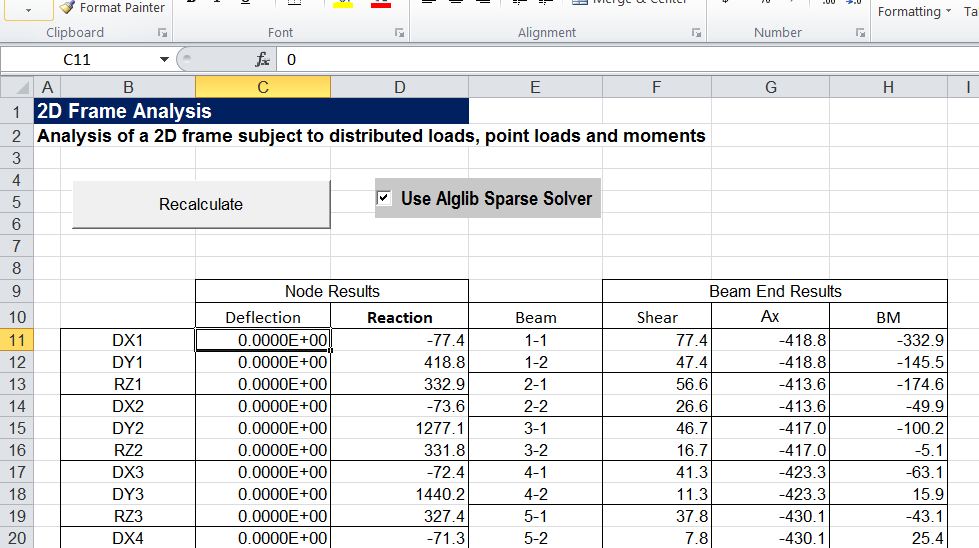
Frame4 Output sheet with Alglib Sparse Solver checkbox

The screenshots below show the frame included with the download spreadsheet, and an example of bending moment diagrams plotted for selected beams.

Example analysis deflected shape plot

Bending moment diagrams for selected beams

Posted in AlgLib, Beam Bending, Excel, Finite Element Analysis, Frame Analysis, Link to dll, Newton, UDFs, VBA | Tagged , , , , , | 24 Comments

Circle Limit III animation

Enjoy:

And papers by the artist on how to do it available at: http://bulatov.org/math/1107/

Update 16th Nov 12:

Comments and more links from PM2Ring:

That image is an example of a tessellation of the hyperbolic plane, in the
Poincaré disc projection. Escher learned about this stuff from H. S. M. Coxeter, probably the greatest geometer of the 20th
century.

Hyperbolic geometry is fun. And it’s much easier to create
regular & semi-regular tessellations in the hyperbolic plane than in the
Euclidean plane. John Baez discussed this topic a little while ago: Archimedean Tilings and Egyptian Fractions

Modern Dutch
graphic artist Jos Leys has done some nice work with hyperbolic tessellations:

In 2D: http://www.josleys.com/show_gallery.php?galid=262
In 3D: http://www.josleys.com/show_gallery.php?galid=342

Also see images by PM2Ring from and early post in this blog:

https://newtonexcelbach.wordpress.com/2008/06/30/pythagoras-penrose-and-pov-ray/


Posted in Animation, Bach, Newton | Tagged , , | Leave a comment

Using Regasm.exe

If you work through the process described in the previous post Visual Studio will create two files (ALMatrixLib.tlb and ALMatrixLib.dll) that will automatically be registered so that the Excel VBA routines will be able to use them.  On the other hand if you copy these two files from the download file to your Windows\System32 folder you will find that the Excel User Defined Functions (UDFs) return an error.

In order to get these functions working it is necessary to register the .dll and .tlb files using a program called Regasm.exe.  This is described in the “Deployment” section of A Beginner’s Guide to calling a .NET Library from Excel, but that guide appears to have been written in the days before Windows Vista and Windows 7, and the added security features in these versions make the procedure significantly more difficult.  The following three sections give step-by-step instructions for this procedure, depending on whether you have Visual Studio Express installed (easiest); you have a file manager with a command line installed, such as Total Commander (also pretty easy); or you have to use the built in Windows tools (not so easy).  In each case you need to run the Regasm program from the command line “as administrator”.

If you have Microsoft Visual Studio installed:

  • Click on the Windows “Start” Button (bottom left)
  • Click on “All Programs”
  • Click on Microsoft Visual Studio
  • Right click on Visual Studio Command Prompt
  • Select “Run as Administrator”
  • After clicking the confirmation box you should get a Command Prompt window as shown below
  • Enter (with the path amended as required) : regasm /codebase C:\Windows\System32\ALMatrixLib.dll /tlb
  • Close the Command Prompt Window; that’s all

Visual Studio Command Prompt

If you have Total Commander (or similar) installed:

  •  Right click on the Total Commander Icon and select “Run as Administrator”
  • Navigate to the Windows\Microsoft.NET\Framework\v4.0.30319\ folder (or the latest version installed on your machine)
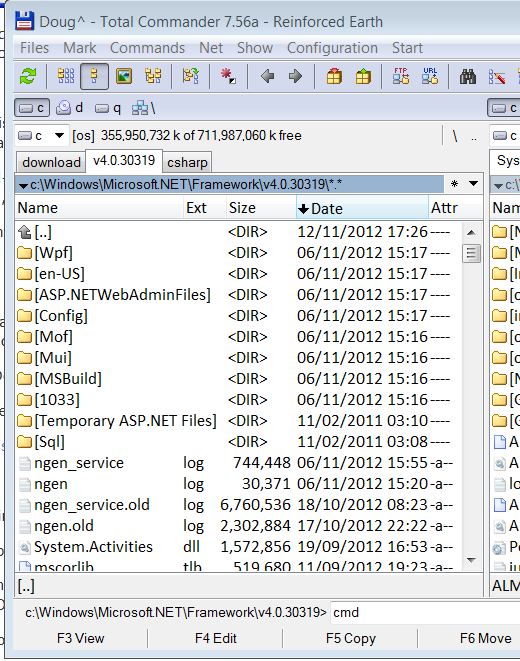
  • In the Total Commander Command Line enter: cmd
  • In the command prompt window that appears enter:  (with the path amended as required) : regasm /codebase C:\Windows\System32\ALMatrixLib.dll /tlb
  • Close the Command Prompt Window; that’s all

Total Commander with cmd command

Using only Windows built in tools:

  • Open the “Computer” window and navigate to C:\Windows\Microsoft.NET\Framework\v4.0.30319 (or the latest version on your computer)
  • Right click on the final folder name and select “copy as text”
  • Click on the Windows “Start” Button (bottom left)
  • Enter cmd in the search box
  • Right click on the cmd icon under Programs(1) and select Run as Administrator
  • It is necesary to move to the folder containing the Regasm.exe file.  In the command line window enter:
    CD C:\Windows\Microsoft.NET\Framework\v4.0.30319
    or enter CD , right click and paste the folder path name
  • Ensure that you are in the correct folder then enter:
    regasm /codebase C:\Windows\System32\ALMatrixLib.dll /tlb (with path amended as required)
  • Close the command prompt window

Moving to the .Net\Framework folder from the command line

After completing this procedure the Alglib functions in the Excel file should find the necessary dll files and work without a problem.  If not, try:

  • In the Visual Basic Editor, check that ALMatrixLib is listed as a reference under Tools-references.
  • If it isn’t, click browse and select the file ALMatrixLib.tlb
  • If it is, deselect it, close the references window, re-open it and click browse and select ALMatrixLib.tlb

Any problems remaining after all that, please let me know.

Posted in Excel, Link to dll, UDFs, VBA | Tagged , , , , , | 7 Comments

Compiled Matrix Functions for Excel

This is a follow on from the previous post, showing how the C# version of the ALGLIB maths library can be accessed from Excel, with very little additional coding.  The download file, Matrixdll-c#.zip includes compiled .dll and .tlb files which can be used immediately with the spreadsheet (Matrixdll-c#.xlsb) in conjunction with the Alglib compiled dll, alglibnet2.dll, but this post first describes how to set up the necessary linking code in VBA and Visual Studio Express C#.

The first step is to set up a new project in C# with the necessary COM links enabled, exactly as described in the previous post.  For this example I have set up a project called ALMatrixLib, with a single class called AlgLibMatrix, which will contain all the code linking to the matrix functions.

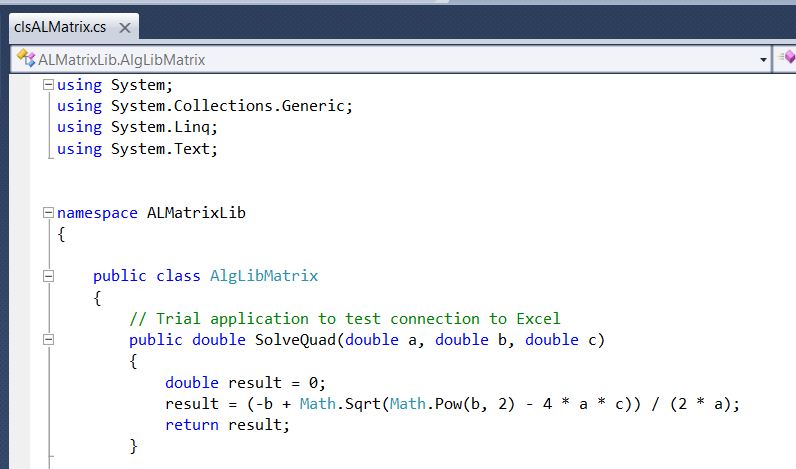
To test the system was working I first entered a short function not requiring the Alglib library:

Code for simple quadratic equation solver

Having successfully compiled that code it is necessary to add a few lines of VBA code in Excel to pass the data to the C# code:

Function ALSolveQuad(a As Double, b As Double, c As Double) As Double
Dim ALSolve As New AlgLibMatrix

ALSolveQuad = ALSolve.solvequad(a, b, c)

End Function

Note that the Alglib function is declared as a new instance of the Class AlgLibMatrix, and is called with the line: ALSolveQuad = ALSolve.solvequad(a, b, c).  The same procedure is used for all the other functions included in the AlgLibMatrix class.

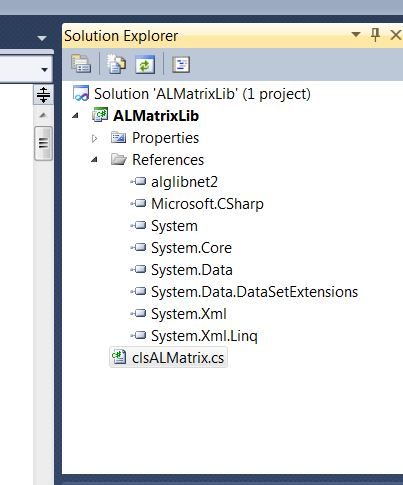
The other essential step is to provide a reference to the compiled AlgLib code in the ALMatrixLib project.  The simplest way to do this is to open the solution Explorer window, then simply drag the alglibnet2.dll file from Windows Explorer (or your file manager of choice) onto the References heading:

Reference to alglibnet2.dll

Then all that remains is to enter the code to call the AlgLib functions. The first two examples are shown below and full open source code for the interface functions is included in the download file. The AlgLib library is also open source and may be downloaded from their site.

 // Inverse of real matrix
public double [,]    alrminverse(double[,] ddata, out int info)
        {
            alglib.matinvreport rep;
alglib.rmatrixinverse(ref ddata, out info, out rep);
return ddata ;
        }

        // Inverse of real matrix using LU decomposition
public double[,] alrmluinverse(double[,] ddata, int m, out int info)
        {
            int[] pivots;
alglib.rmatrixlu(ref ddata, m, m, out pivots);
            alglib.matinvreport rep;
alglib.rmatrixluinverse(ref ddata, pivots, out info, out rep);
return ddata;
        }

The VBA code for the same two functions is:

Function ALRMatInv(MatrixA As Variant) As Variant
'  Inverse of real matrix
Dim n As Long, M As Long, Info As Long
Dim a2() As Double, iErr As Long, ResA As Variant
Dim MatInv As New AlgLibMatrix

iErr = VarAtoDouble2D_0(MatrixA, a2, M, n)

If iErr = 0 Then
ResA = MatInv.alrminverse(a2, Info)

If Info = 1 Then ALRMatInv = ResA
    Else
ALRMatInv = "Invalid data"
    End If
End Function

Function ALRMatLUInv(MatrixA As Variant) As Variant
' Inverse of real matrix using LU decomposition
Dim n As Long, M As Long, n2 As Long, Info As Long
Dim a2() As Double, iErr As Long, ResA As Variant
Dim MatInv As New AlgLibMatrix

iErr = VarAtoDouble2D_0(MatrixA, a2, M, n)
If iErr = 0 Then
ResA = MatInv.alrmluinverse(a2, M, Info)

If Info = 1 Then ALRMatLUInv = ResA
    Else
ALRMatLUInv = "Invalid data"
    End If
End Function

Having compiled the C# routines, and entered the VBA code, the C# routines should be linked to Excel using the VBE Tools-References menu, as described in the previous post.  The AlgLib functions should now be available in Excel under the User Defined category.  The screen-shot below shows a list of the available functions:

List of Matrix Functions in Matrixdll-c#.xlsb

Of particular interest is the sparse linear equation solver which provides an efficient solution to the systems of equations set up in structural analysis. A typical example is shown below; note the speed increase from the all VBA solution to the C# sparse matrix solver function (752 times speed increase!):

Sparse matrix solver example.

For those not wanting to delve into VBA and C# code the download file contains compiled versions of the routines described above, which together with the included spreadsheet and the AlgLib dll file (from the AlgLib site) will allow all the functions to be accessed without any coding.  It is however necessary to register the dll files with the .Net Framework, and the procedure for doing that will be described in the next post.

Posted in AlgLib, Arrays, Excel, Finite Element Analysis, Frame Analysis, Link to dll, Maths, Newton, UDFs, VBA | Tagged , , , , , , , , , , , | 4 Comments

Links to link VBA to C#

If you search the Internet for information on how to link Excel VBA to C# you will find thousands, if not millions, of links with details of how to connect to Excel from C#, but very few about going the other way, which is what I want to do.  The link below gives detailed, step by step, instructions for doing that, allowing functions in a C# library to be called from a VBA routine with the minimum of hassle.  The link gives a very simple “hello world” example, and I will be giving some more useful examples, linking to the ALGLIB library, in future posts.

A Beginner’s Guide to calling a .NET Library from Excel

Introduction

It’s actually very easy to call a .NET library directly from Excel, particularly if you are using Visual Studio 2005. You don’t need Visual Studio Tools for Office. However there doesn’t seem to be an easy guide on the internet anywhere. MSDN help is quite good on the subject, but can be a little confusing. This article is an attempt to redress the situation.

This article was updated 24th August 2007 to cover Excel 2007 and to clarify the issues with intellisense.

…    More at link

Reading the comments at the link, it seems there is a problem linking with the 64 bit version of Office 2010, so those wanting to do that have a look at the latest comments first.  There is no problem with 64 bit Windows 7, which is what I am using (with 32 bit Office 2010).

The second link is to the MSDN Library, giving details of how to link different data types to objects in C#.  I needed this for one of the ALGLIB routines I will be looking at.  It’s probably very basic stuff, but for those not familiar with C#, it’s not that easy to find.

Boxing and Unboxing (C# Programming Guide)

Boxing and unboxing enable value types to be treated as objects. Boxing a value type packages it inside an instance of the Object reference type. This allows the value type to be stored on the garbage collected heap. Unboxing extracts the value type from the object. In this example, the integer variable i is boxed and assigned to object o.

… see link for example code.

Posted in Excel, Link to dll, VBA | Tagged , , , , , | 11 Comments