Frame4 – with intermediate beam results

Back in March 2010, in response to this post with an update of the Frame4 spreadsheet: https://newtonexcelbach.wordpress.com/2009/12/31/frame4-xls-update2/ jscott (and later mettrox) asked if I had thought about adding output of the member forces at intervals along the member length, to which the response was, yes I’d thought about it.

But now I have done it, and the new version can be downloaded here: Download Frame4.zip.  As usual, the file includes full open source code.

Some examples of the new output options are shown below:

Beam results for beam ends and for beams divided into 8 segments (click for full size view)

Deflected shape plot, including deflections along the beam length

Bending moment results for selected beams

Shear force results for selected beams

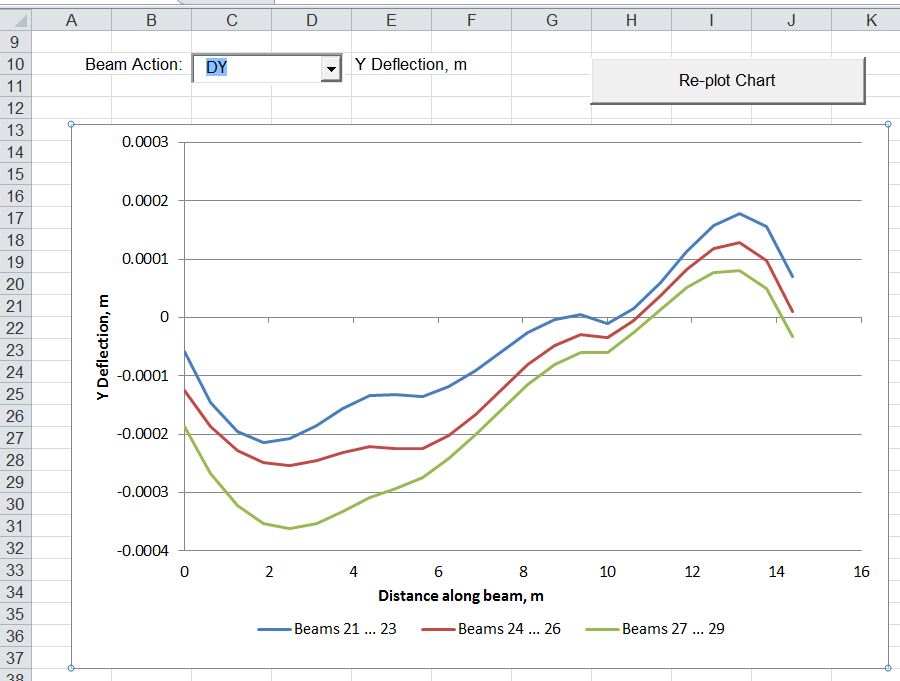
Y deflection results for selected beams

The spreadsheet includes verly little documentation, but the arrangement of input data is described in earlier posts in this series (search the blog for frame analysis), and if anything remains unclear, please ask.

Update 15 Sep 12:  There was a bug in the routine to calculate intermediate beam actions and deflections with point loads which is now fixed:  Download Frame4.zip.

Posted in Beam Bending, Excel, Finite Element Analysis, Frame Analysis, Newton, VBA | Tagged , , , | 5 Comments

Continuous Beam Spreadsheet – with Units

The spreadsheet previously known as Macaulay has been updated to include “unit aware” versions of all the included functions, and has been renamed “ConBeamU”, to make it more obvious what it does.  The new spreadsheet (including full opens source code) can be downloaded here: ConBeamU.zip

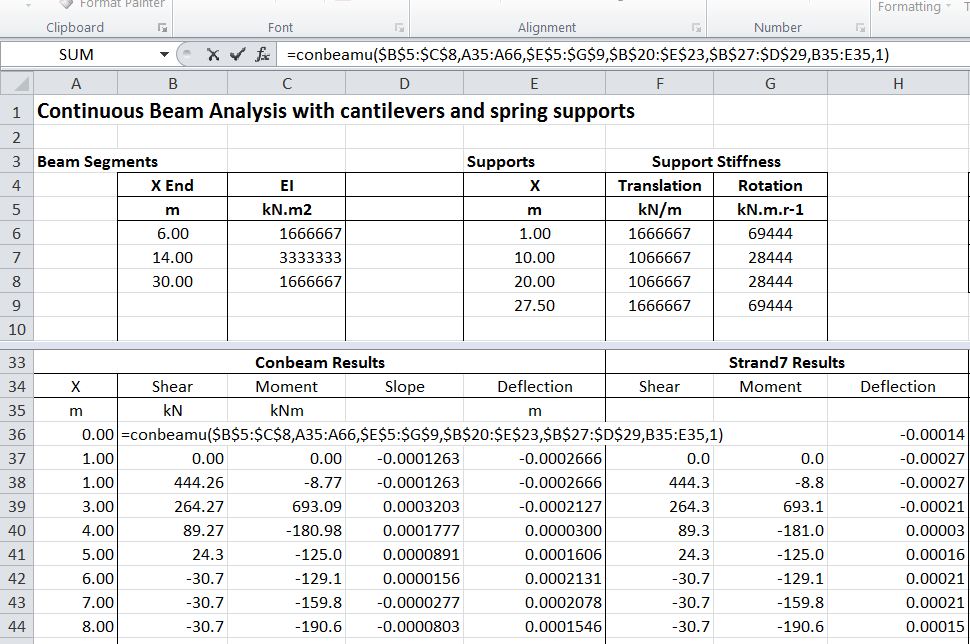
The screenshots below show an example of the new ConBeamU function in action:

Enter input data in columns headed by unit abbreviations:

Input and Output in SI Units

Change input units for beam segment lengths to feet, and use ConvertA function to find the exact equivalent lengths to the original input.  Output values in SI units are unchanged:

Input length values in feet, all other input and output in SI

Some unconventional units (such as the Smoot) are also recognised, and other units can easily be added to the table of non-SI units:

Input lengths in Smoot units, and output deflections in mm.

Also the EvalU function has been added, providing unit aware evaluation of formulae entered as text:

Evalu input in kipf and ft, output in kN and m

Posted in Beam Bending, Excel, Frame Analysis, Newton, UDFs, VBA | Tagged , , , , , | 21 Comments

When is an XY chart not an XY chart …?

… and whan is a blank cell not a blank cell?

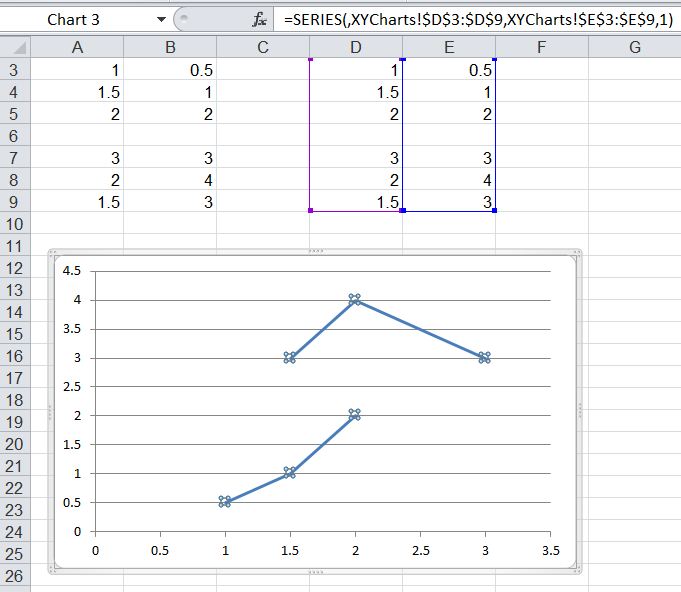
To answer the first one, create a simple XY chart, with a single data range of 7 rows, with a blank row in the middle.  This should display as two separate lines, as below:
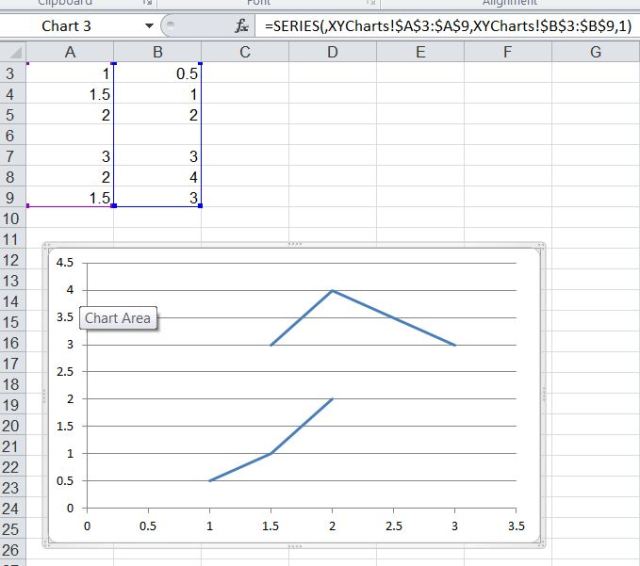
An XY Chart

Now enter a space in the blank row (Cell A6):

No longer an XY Chart

Excel has now converted your XY chart, into a line chart, without so much as a “it looks like you are trying to enter some text, can I help you mess your chart up?”  The obvious solution is to use the “Change chart type” command to change back to an XY chart, the only trouble being that Excel thinks it still is an XY chart:

You can’t change an XY chart to an XY chart

The other easy option of course is to just delete the space and make sure that the “blank” row is really blank; but this raises the second question, when is a blank cell not blank?

This question arose when I wrote a User Defined Function (UDF) returning an array of X,Y coordinates defining lines to be plotted in an XY chart, with each line separated by a “blank” row in the array.  The first effort was to not enter any value for the blank rows:

Function XYData(DataRange As Variant) As Variant
DataRange = DataRange.Value2
XYData = DataRange
End Function
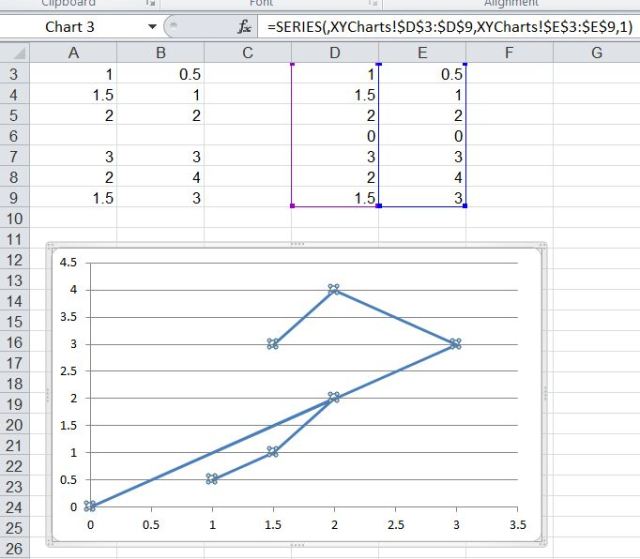
UDF returning array with “blank” row

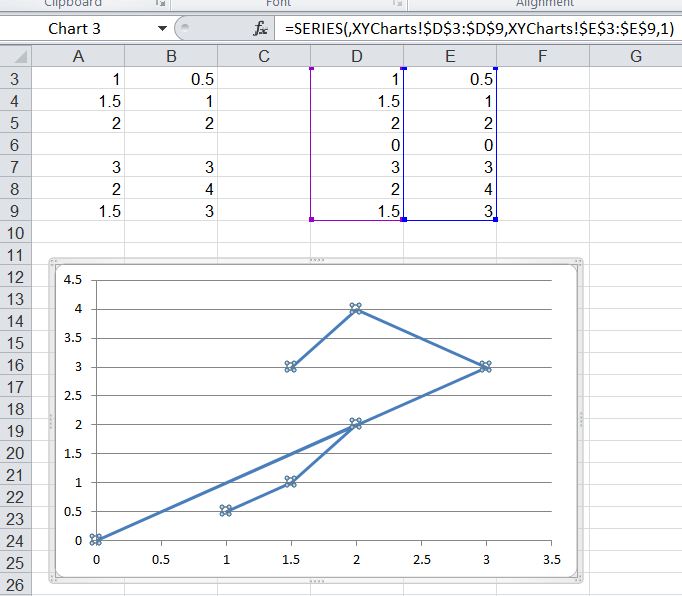
The blank rows are returned with a value of 0, which means the chart stays XY, but the two separate lines are now connected with two new lines through the origin.

The next attempt was to set the blank cells to be “Empty”:

Function XYData(DataRange As Variant) As Variant
DataRange = DataRange.Value2
DataRange(4, 1) = Empty
DataRange(4, 2) = Empty

XYData = DataRange
End Function

“Empty” array cells return zero

The “empty” array cells are still returned as zero.

I then tried assigning “” to the empty cells, rather than “Empty”:

Function XYData(DataRange As Variant) As Variant
DataRange = DataRange.Value2
DataRange(4, 1) = ""
DataRange(4, 2) = ""

XYData = DataRange
End Function

Blank cells that aren’t blank change XY charts into line charts

This appears to return blank cells, but the “blanks” still changes the XY chart into a line chart.

I didn’t find a way to return true blank cells with a UDF.  The best I could do was to use a Sub:

Sub XYDatasub()
Dim XYDat As Variant

XYDat = Range("datarange1").Value2
Range("datarange2").Value2 = XYDat
End Sub

XY chart and true blanks with a sub

If anyone knows a way to stop text in the X range from turning XY charts into line charts, or to return an array from a UDF that has “true blanks”, then I’d be very interested to hear from you.

Update 6 Sep 2012:

Another search today found some information on this “feature” from Jon Peltier back in 2003:

 Discussion on “Scatter plot changes to line plot with data gaps”

Microsoft Excel Charting FAQs by Jon Peltier – see “Gaps in Chart Series; Blanks Chart as Zero” and “X Axis Plots Like the Numbers 1, 2, 3, not Like the Actual Values; Points Drop to Zero”

It still seems surprising to me that this bug, I mean non-optimal feature, is still around.  Even if there are people out there who like their XY charts to turn into line charts without warning, surely we should have the option to turn it off.

On the question of returning a “true blank” from a UDF, unless I have missed something it looks like you can’t, so if you want to plot an XY chart with data with gaps from a macro it seems that a Sub is the only option.

Posted in Arrays, Charts, Charts, Excel, UDFs, VBA | Tagged , , , , , | 18 Comments

Units for Excel 5:

Previous post on Units for Excel

Download spreadsheet: Units4Excel.zip

I have posted a new update of the Units4Excel spreadsheet for download (link above).  The main changes are:

  • The ConvertA and ConvertA2 functions have been combined.
  • The ToSI and FromSI functions have been deleted, since with the use of scripting dictionaries the ConvertA function is very nearly as fast.
  • Functions have been added to convert to and from base SI units, and to work with multi-column ranges or arrays.  These are mainly intended for use with other VBA based routines.
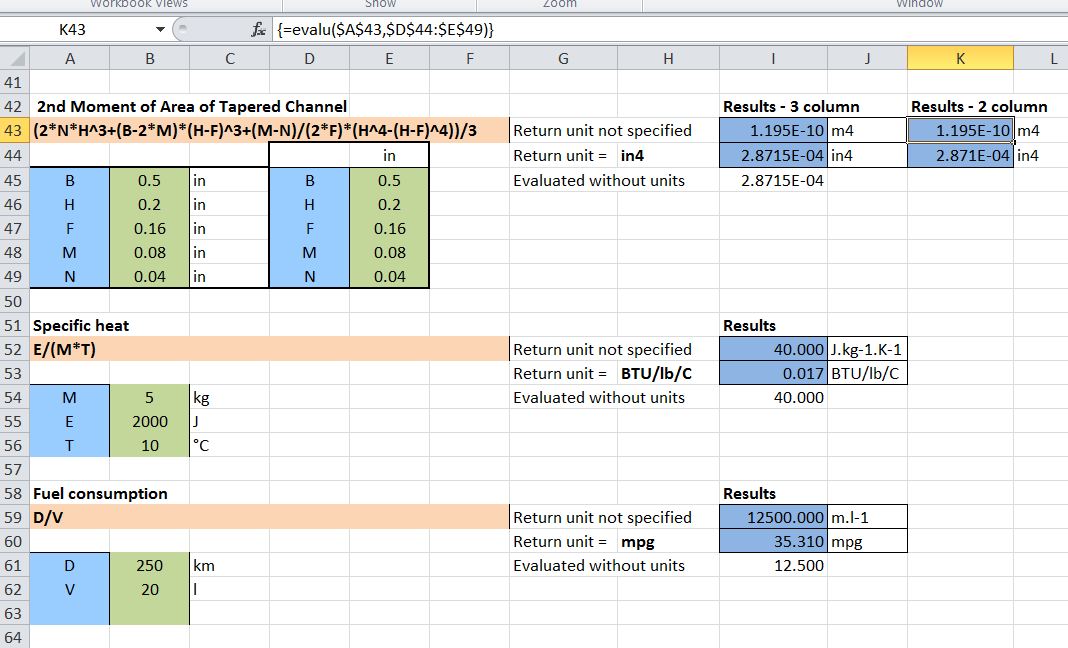
  • The ConvertA and EvalU functions have been modified so that when all the input values have the same units the unit may be specified at the top of the input range.
  • The updated file is also saved in add-in format.

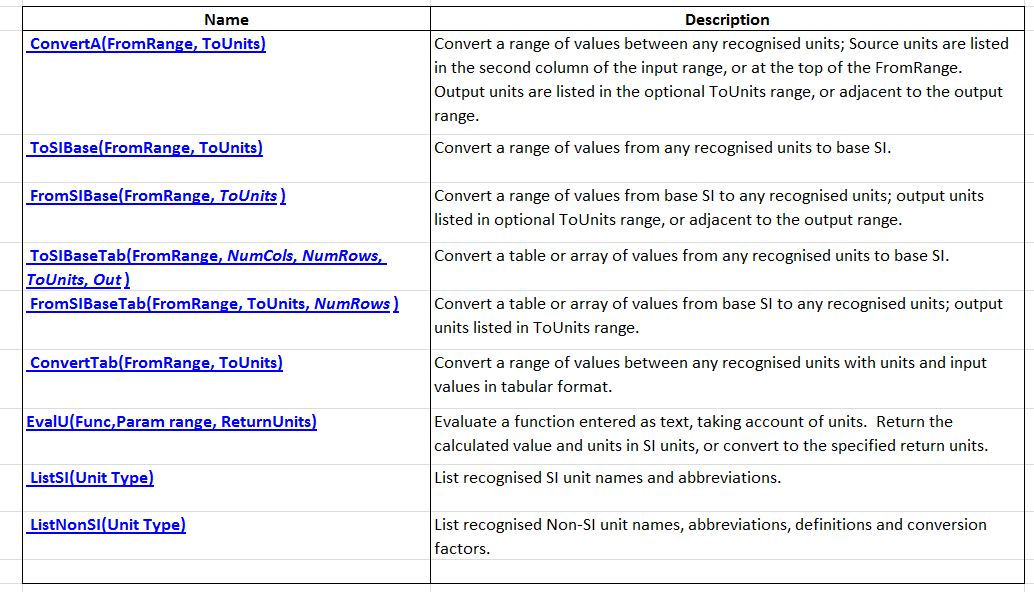
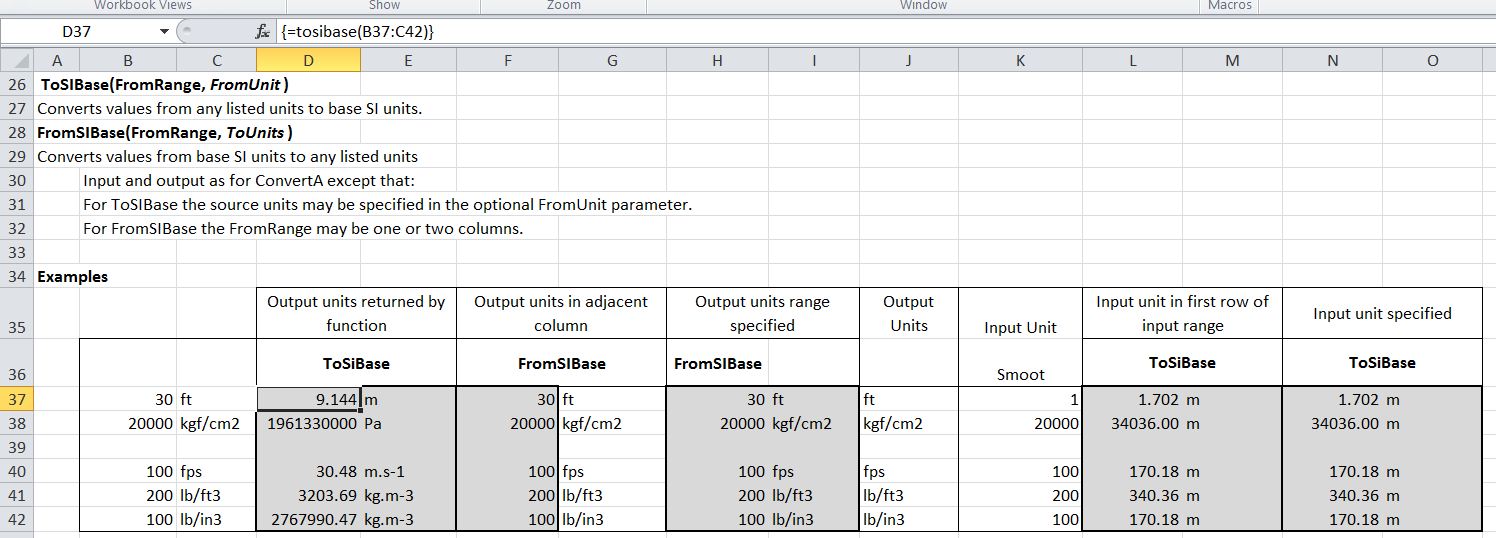
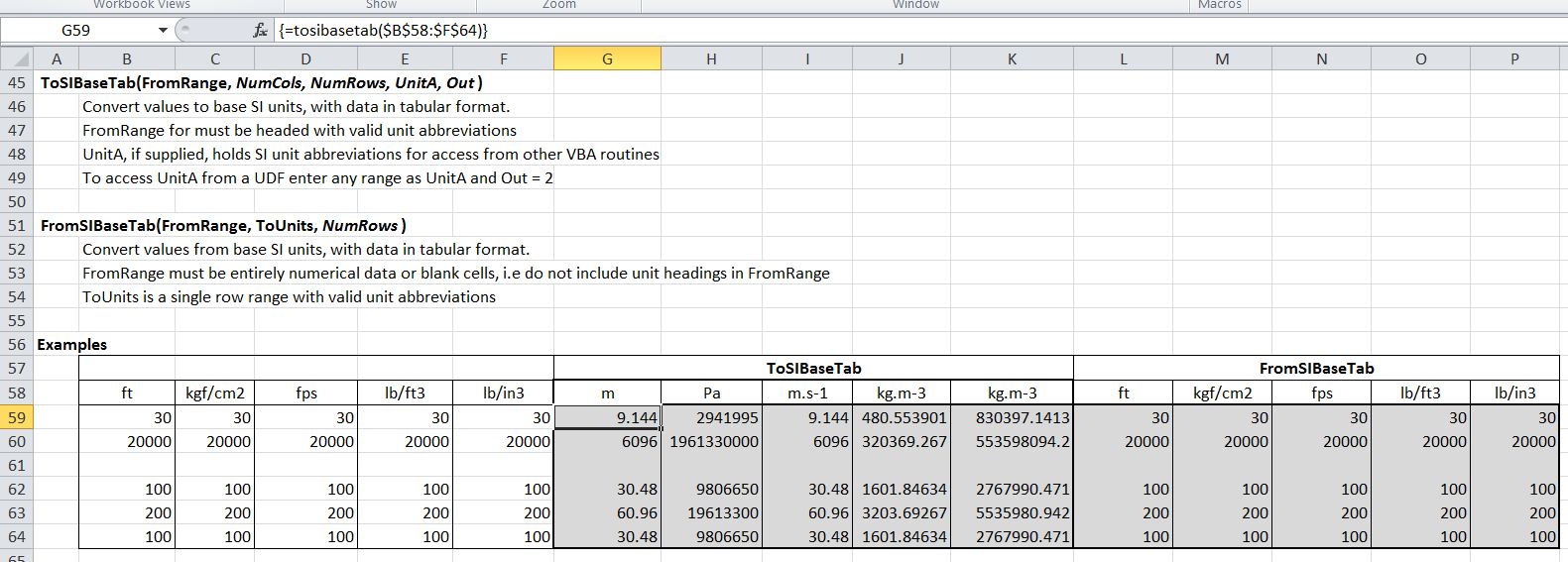
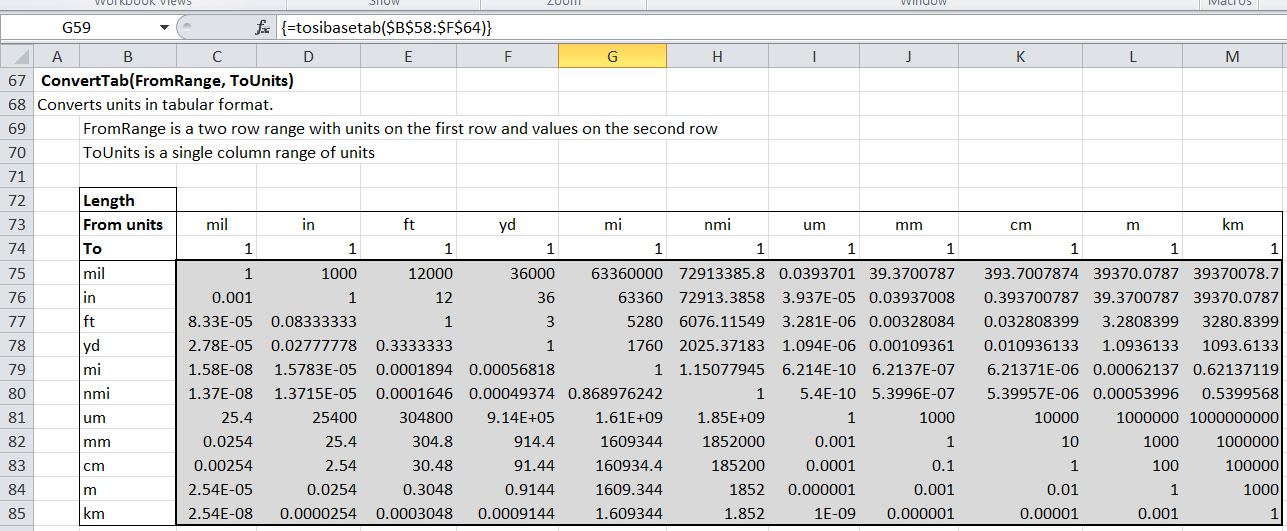
The download file includes documentation and examples of all the functions, as shown in the screen-shots below:

Function Index

ConvertA function with alternative input options.

ToSIBase and FromSIBase functions

ToSIBaseTab and FromSIBaseTab functions

ConvertTab function

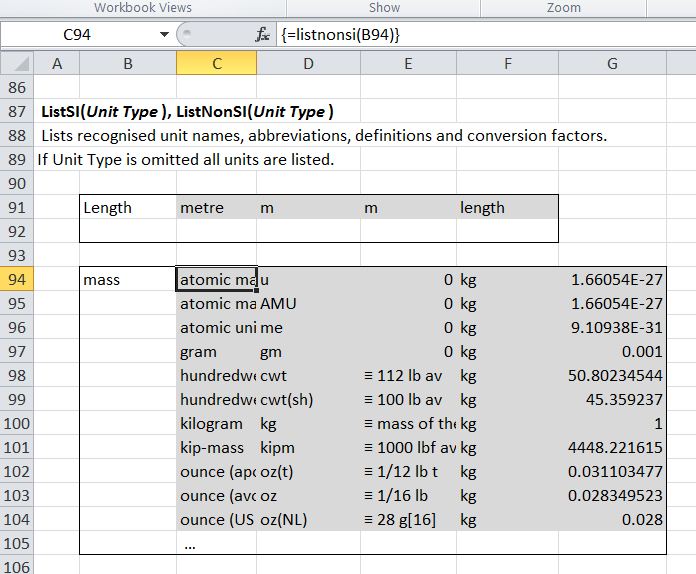
ListSI and ListNonSI functions

EvalU function, showing alternative input for the tapered channel example

Posted in Excel, Newton, UDFs, VBA | Tagged , , , , , | 3 Comments

Cantilevers with shear deflections

At the end of last year I updated the Macaulay spreadsheet to include shear deflections for continuous beams, but this facility was not added to the Cantilever function.  That has now been fixed in the latest version, that can be downloaded from: Macaulay.zip.

The screen-shots below show input including shear stiffness values, and output results compared with results from the Strand7 FEA program.  It can be seen that there is near exact agreement for shear force, moments, and deflections.

Cantilever Function input

Cantilever function output, compared with Strand7 results; click for full size view

Graphical output comparing Cantilever and Strand7 results

Posted in Beam Bending, Excel, Frame Analysis, Newton, UDFs, VBA | Tagged , , , , , , | 1 Comment