Retrieving unique values from a range or array …

… using the Scripting Dictionary object.

in a previous post I looked at using the dictionary object to count connected elements in a finite element model.  This post looks at a more general (and simpler) usage to return unique values from a worksheet range or VBA array.  It also looks at some more features of the dictionary object.  It was prompted by a discussion at the LinkedIn (private) Excel Blackbelts forum.  A spreadsheet with the examples shown below, and full open source code, may be downloaded from: GetUnique.xlsb

The Unique() User Defined Function (UDF) shown below returns a single column array containing all the unique values (numbers or text) in DRange, which is defined as a Variant so that it will accept a spreadsheet range or an array from another VBA routine.

Function Unique(DRange As Variant) As Variant

Dim Dict As Object
Dim i As Long, j As Long, NumRows As Long, NumCols As Long

'Convert range to array and count rows and columns
If TypeName(DRange) = "Range" Then DRange = DRange.Value2
NumRows = UBound(DRange)
NumCols = UBound(DRange, 2)

'put unique data elements in a dictionay
Set Dict = CreateObject("Scripting.Dictionary")
For i = 1 To NumCols
For j = 1 To NumRows
Dict(DRange(j, i)) = 1
 Next j
Next i

'Dict.Keys() is a Variant array of the unique values in DRange
 'which can be written directly to the spreadsheet
 'but transpose to a column array first

Unique = WorksheetFunction.Transpose(Dict.keys)

End Function
 

The line that does all the work:
Dict(DRange(j, i)) = 1
simply creates a new dictionary key if the contents of DRange(j,1) do not yet exist in the dictionary object, or writes over the old key with an identical new one if it does exist. The result is an array with one copy of each unique value from DRange.

Note that in this function the Dictionary Object is created with the line:
Set Dict = CreateObject(“Scripting.Dictionary”)
Dict having been dimensioned as an Object.

Using this method allows the Dictionary object to be created and accessed without having a VBA reference to the Scripting Library (at least in Excel 2010), but it does restrict some of the functionality of the object.  I haven’t tested this function in earlier versions, but if you find it doesn’t work going into the VB Editor and enabling the reference to the Microsoft Scripting Runtime should fix it.

I have written a second UDF, UniqueR(), which requires a reference to the Scripting Library in VBA, but allows greater control of the dictionary object.  Details of adding a reference to the Scripting Library are given in the previous post.

The UniqueR function has two optional parameters:

=Unique(Datarange) or UniqueR(DataRange, Cmode, Out)

CMode Options:
0 = BinaryCompare
1 = TextCompare
2 = DatabaseCompare

Out Options:
0 = Array of unique items
1 = Number of unique items followed by array
>1 = Number of unique items only

Examples of the use of the two functions (including instructions for entering an array formula) are shown in the screenshots below:

UDF options and instructions for entering array functions

Unique Function and Uniquer Function with TextCompare option

Uniquer Function with Out option = 2 and an input range of 10,000 rows

Microsoft documentation of the Dictionary object is fragmented, and mostly related to VB rather than VBA, but a reasonable introduction is given at: http://support.microsoft.com/kb/246067

Another site with more detailed information, nicely presented, is: http://www.stealthbot.net/wiki/Scripting.Dictionary.

Posted in Arrays, Excel, UDFs, VBA | Tagged , , , , | 20 Comments

The Switch Function (VBA and UDF)

Switch is a VBA function that operates in a similar way to the Select Case statement.  The function arguments are a series of pairs of values, the first of each pair being an expression that can be evaluated as TRUE or FALSE, and the second a value of any data type.  The function return value is the value immediately following the first expression that evaluates to TRUE.  If none of the expressions are true then the VBA function returns null.

I was recently reminded of an Excel User Defined Function (UDF) that works in a similar way, written by Eng-Tips regular “electricpete”.  The original version of the UDF appeared here: http://www.eng-tips.com/viewthread.cfm?qid=281108

This is both a useful function in it’s own right and a good illustration of the use of the VBA ParamArray function argument.  The code is shown below, and is also included in a sample spreadsheet that may be downloaded from SwitchPY. The spreadsheet includes several examples of the UDF used to generate soil PY curves for use in the analysis of piles under lateral loads.

Function SW(ParamArray invar()) As Variant

' Original function posted by "electricpete" on Eng-Tips forum: http://www.eng-tips.com/viewthread.cfm?qid=281108 12 Sep 2010
' Minor modifications by Doug Jenkins 27 Jan 2012

' implement logic similar to switch
' example call
'  =switch(boolean1, value1, boolean2, value2, boolean3, value3....)
'    returns the value corresponding to the first true boolean

' at least one of the boolean expressions must be true
' requires an even number of arguments
' the syntax is pretty much identical to vba switch, except that there is no explicit allowance for else value
' if you want an else clause, enter true for the next to last argument, followed by the associated value

' Note that indexing of invar starts at 0, regardless of Option Base statement

' Check to confirm even number of arguments (as required)

    Dim ctr As Long        ' loop counter
Dim tempswitch As Variant        ' variable which will hold the output value

If UBound(invar) Mod 2 <> 1 Then
        SW = "Error: Need even number of arguments for sw"
        Exit Function
    End If

    ctr = 0        ' initialize counter
    Do While True        ' loop until broken by exit command
        ' Check for boolean input
If VarType(invar(ctr)) <> vbBoolean Then
            SW = "Error 1st 3rd 5th etc arguments of sw must be boolean"
            Exit Function
        End If

If invar(ctr) Then        ' in this case have found a true value, assign function and exit
tempswitch = invar(ctr + 1)
SW = tempswitch
            Exit Do
        Else        ' Else have not found true yet, update counter and continue loop
ctr = ctr + 2
        End If

' Check for reaching end of invar without having found true
If ctr + 1 > UBound(invar) Then
            SW = "Error: sw needs at least one true boolean argument"
            Exit Function
        End If
    Loop

End Function

An example of the use of the UDF is shown in the screenshot below:

Switch Function used to generate PY curves

In Column D the UDF is used to select between two values, which has no real advantage over the use of a single IF function:

Simple use of the Sw UDF

A more complex example is shown below:

Complex Sw() UDF example

In this example the first expression checks if the depth of the section (D12) is below a calculated transition level (D16), and if so it returns the adjacent value in Column D:

  •  =sw($D$12>$D$16,D26,

The second statement checks if the pile deflection, B26, is less than 3 x the Y50 value (D15), and if so returns the adjacent value in Column D:

  • B26<=3*$D$15,D26,

The third statement checks if the pile deflection, is greater than 15 x the Y50 value (D15), and if so returns a calculated value:

  • B26>15*$D$15,$D$13*0.72*$D$12/$D$16,

Finally any remaining values are evaluated with a different formula:

  •  TRUE,$D$13*0.72*(1-(1-$D$12/$D$16)*(B26-$D$15*3)/(12*$D$15)))

The UDF includes error checking to check that there are an even number of inputs, the first input in each pair evaluates as a boolean (i.e. TRUE or FALSE), and that at least one of the boolean expressions is TRUE.  The only change I have made is to the message return method if an error is found.  The original function used a message box, which I have changed to the function returning a text error message (to avoid getting a million message boxes if a function with an error was copied to a million cells).

Posted in Excel, Geotechnical Engineering, Newton, UDFs, VBA | Tagged , , , , | 9 Comments

LatPilePY 1.03

The LatPilePY spreadsheet has been updated with detailed corrections to the function for generating PY curves.  The updated version can be downloaded from LatPilePY.zip.

See LatPilePY 1.02 for more details of the spreadsheet content and background.

Posted in Excel, Geotechnical Engineering, Newton, UDFs, VBA | Tagged , , , , , | 5 Comments

The Hawkesbury River Bridge at North Richmond, NSW

Hawkesbury River Bridge from the North-West

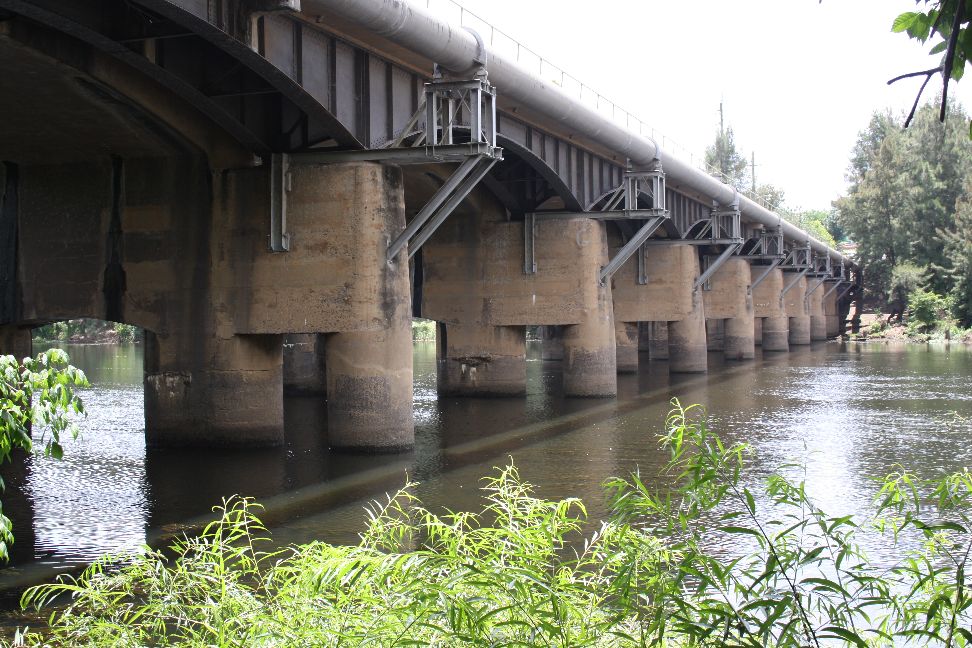
The bridge over the Hawkesbury River near North Richmond, North-West of Sydney, is one of the first reinforced concrete structures in Australia.  At the time of its construction it was the largest reinforced concrete bridge in the country, and it remained so for 25 years.

Hawkesbury River Bridge location

The bridge is one of a few examples of the Monier arch system in New South Wales.  The system was developed by Joseph Monier and licenced in Australia to the firm Carter Gummow and Co. and later to the firm Monash and Anderson.  Most of the structures built in Australia are in Victoria, including the Anderson Street Bridge in Melbourne.  The history of the structures in Victoria has been well documented, and can be found at Monash & Anderson’s Monier Arch Bridges.

The North Richmond Bridge is documented by the NSW Government Office of Environment and Heritage.

The original structure consists of 13 arch spans, monolithic with heavy concrete piers, consisting of twin concrete caissons founded on rock, joined by a deep headstock with curved soffit.

Arch spans monolithic with concrete piers

Caissons with curved soffit headstock

The northern end of the bridge can be accessed from Hanna Park, immediately to the north, which has an access path under the bridge, the path providing excellent views of the bridge and along the Hawkesbury River in both directions.

Access track under the northern span.

Hawkesbury River, looking West towards Blue Mountains

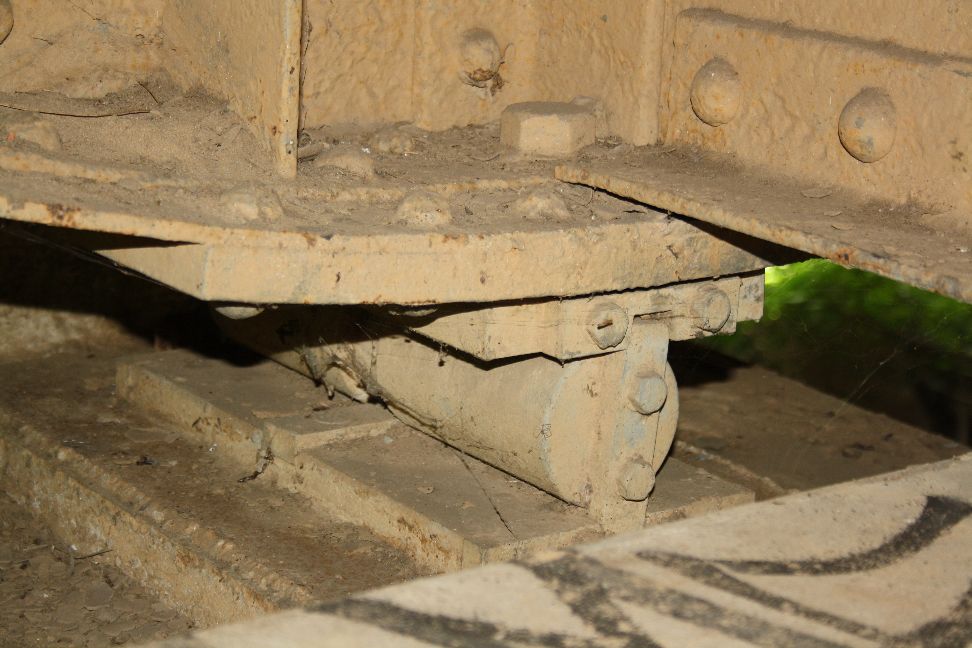
In 1926 the bridge was widened with the addittion of an additional pier and two steel girders, supported on steel rocker bearings, to provide a rail line, which has since been removed and replaced with an additional road lane.

Additional steel girder supports for rail line

Steel girder bearings

Steel girder addition viewed from the South-East

The south end of the bridge is not so easily accessible, the banks being heavily overgrown with weeds.

View from South West bank

Historic Bridges plaque

View from North-West

Posted in Arch structures, Historic Bridges, Newton | Tagged , , , | 2 Comments

LatPilePY 1.02

Following some discussion at Eng-Tips and elsewhere I have updated the LatPilePY spreadsheet, previously presented at Lateral pile analysis with PY curves …  This spreadsheet provides User Defined Functions (UDFs) to carry out the analysis of vertical piles under lateral loading, following the method described in the manual for the program COM624.  See the earlier posts for more details.  The new spreadsheet, including full open source code, can be downloaded from LatPilePY.zip .

The main change, as discussed in the Eng-Tips thread, is to the way in which the initial soil stiffness is calculated.  The soil stiffness is defined by a factor Ki which has units of Force/Length^3.  The previous version of the spreadsheet converted this factor to units of Force/unit deflection/unit length of pile by multiplying the Ki factor by the pile diameter (resulting in a factor independent of depth), whereas in COM624 the Ki factor is multiplied by the depth of the soil layer (resulting in a factor independent of pile diameter).  Both approaches clearly involve gross approximations, but to allow users to get a reasonable comparison with COM624 results I have now introduced an option to allow either method to be applied, with the COM624 method being the default (see screenshot below):

LatPile input; click for full sized view

Other significant changes are:
The calculation of the effective depth of layered soils has been amended to follow the COM624 method more closely.  Soil layers with varying strength and density affect the stiffness of lower layers in 3 ways:

  1. Where the ultimate soil resistance is controlled by wedge failure the failure load is affected by all the layers through which the wedge passes.
  2. Where the initial stiffness of a soil is related to the vertical pressure, this is affected by the density of the overlying soils.
  3. For deeper layers, where the ultimate resistance is controlled by soil flow around the pile, the failure stress of granular soils is related to the vertical pressure.

For this reason two separate effective depths are calculated at the top of each layer:

  1. The depth of soil, with the same properties as the layer, that would have the same ultimate resistance to wedge failure as the actual upper layers.
  2. The depth of soil, with the same density as the layer, that would have the same vertical pressure as the actual upper layers.

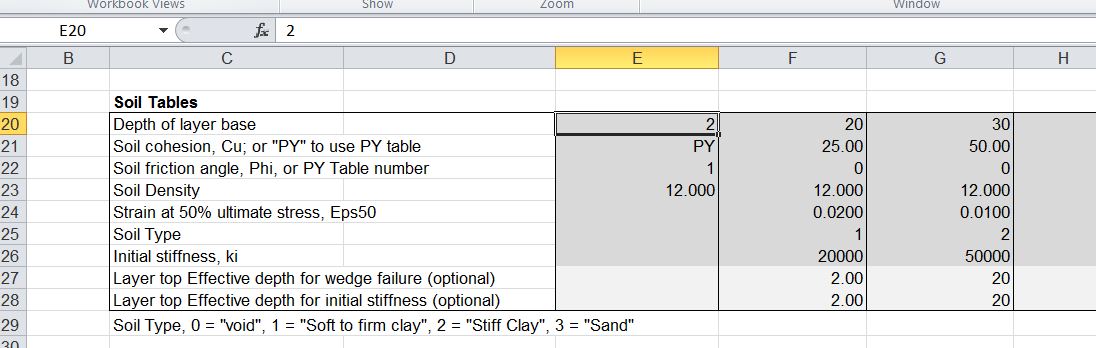
These two effective depths are calculated by the program, but provision has also been made to specify override values in the Soil Properties Tables; see screenshot below:

Soil property input, including new optional effective depth rows

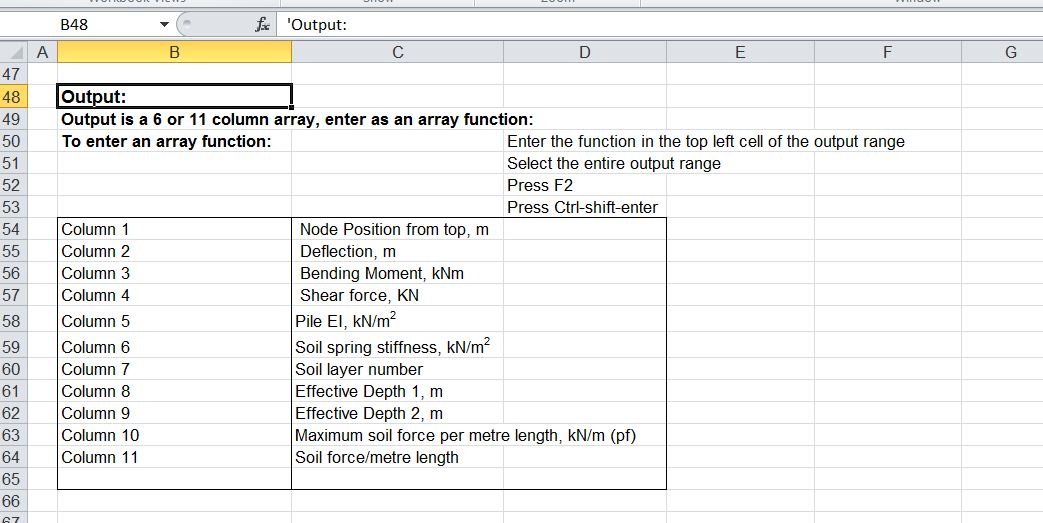
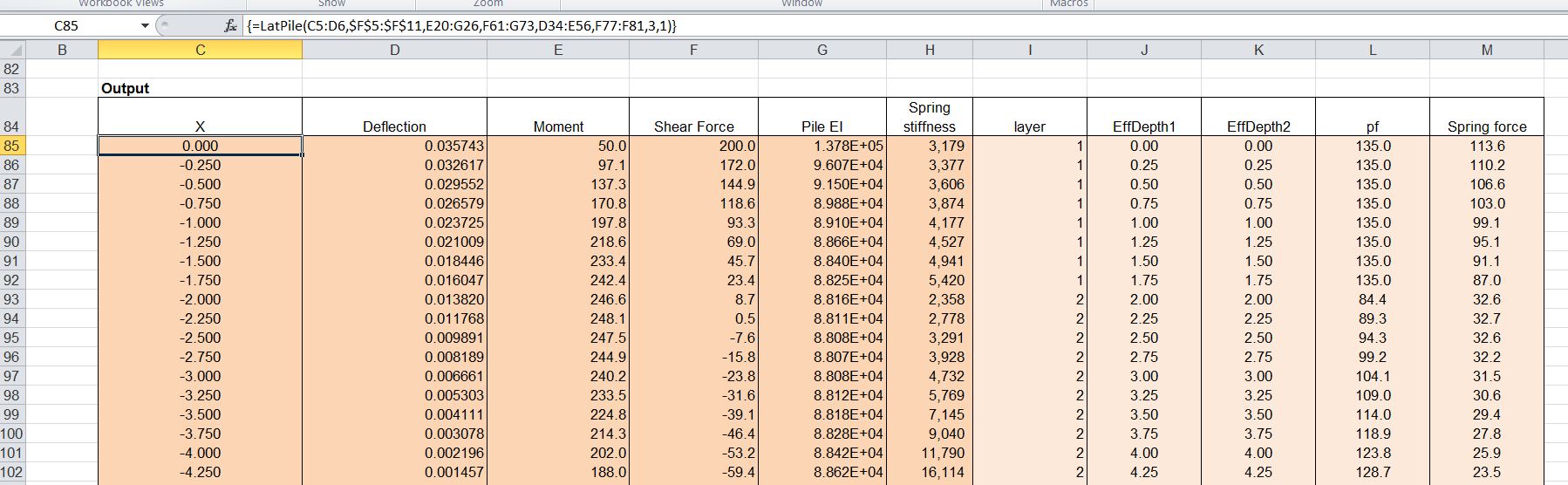
The other major change is that additional columns may (optionally) be added to the output array, providing details of the calculated effective depths, ultimate soil resistance, and calculated soil force/unit length of pile.

LatPile output options

LatPile output with Output Option 3 (11 columns)

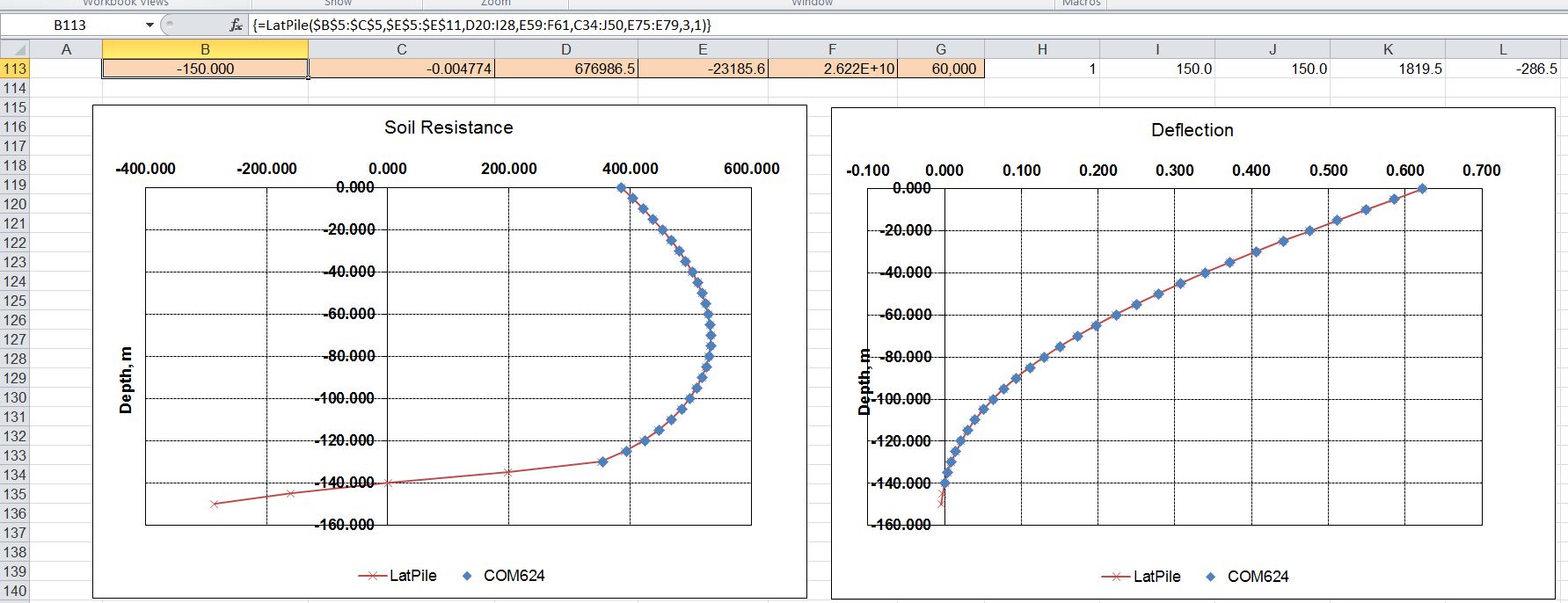
The spreadsheet results have been compared with 3 examples from the COM624 manual (full details are included in the download file). The first example is for a single layer soil, and shows very good agreement in all respects:

COM624 Example 1

COM624 Example 1

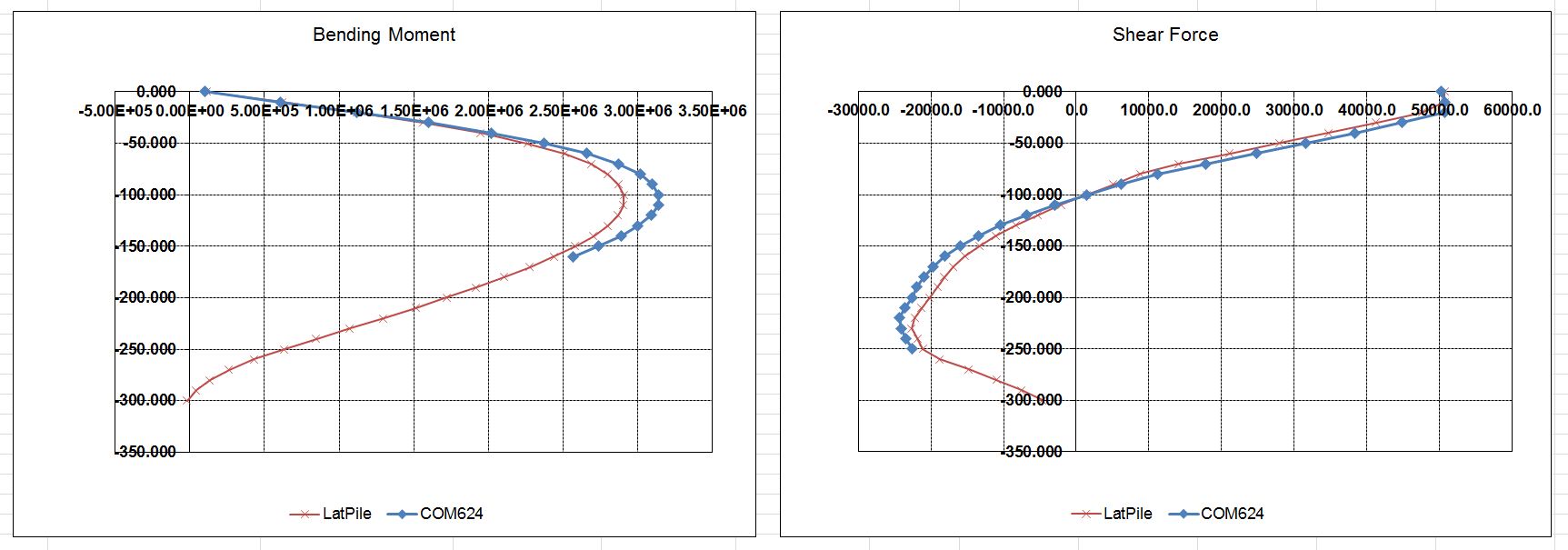
The second example is for a layered soil with varying soil types and densities.  When user defined effective depths have been used reasonably good agreement was found:

COM624 Example 2; User defined effective depths

COM624 Example 2; User defined effective depths

Where the effective depth has been calculated by the spreadsheet the agreement was less good, but maximum bending moments and shear forces are within about 10%.  The reason for the difference seems to be that the spreadsheet calculates an effective depth based on density, whereas COM 624 uses the actual depth in these cases.

COM624 Example 2; spreadsheet calculated effective depths

COM624 Example 2; spreadsheet calculated effective depths

The Example 2 file  also compares the PY Curves generated by the spreadsheet with those given in the COM624 manual, finding excellent agreement:

PY curves for COM624 Manual Example 2

The final example is Example 4 from the COM624 manual, which uses 7 user input PY curves. In this case the COM624 program interpolates stiffness values between the curves above and below for each point down the pile, whereas the spreadsheet uses the values from the specified curve to apply to each layer. The spreadsheet input for this example is shown below:

Input for COM624 Example 4

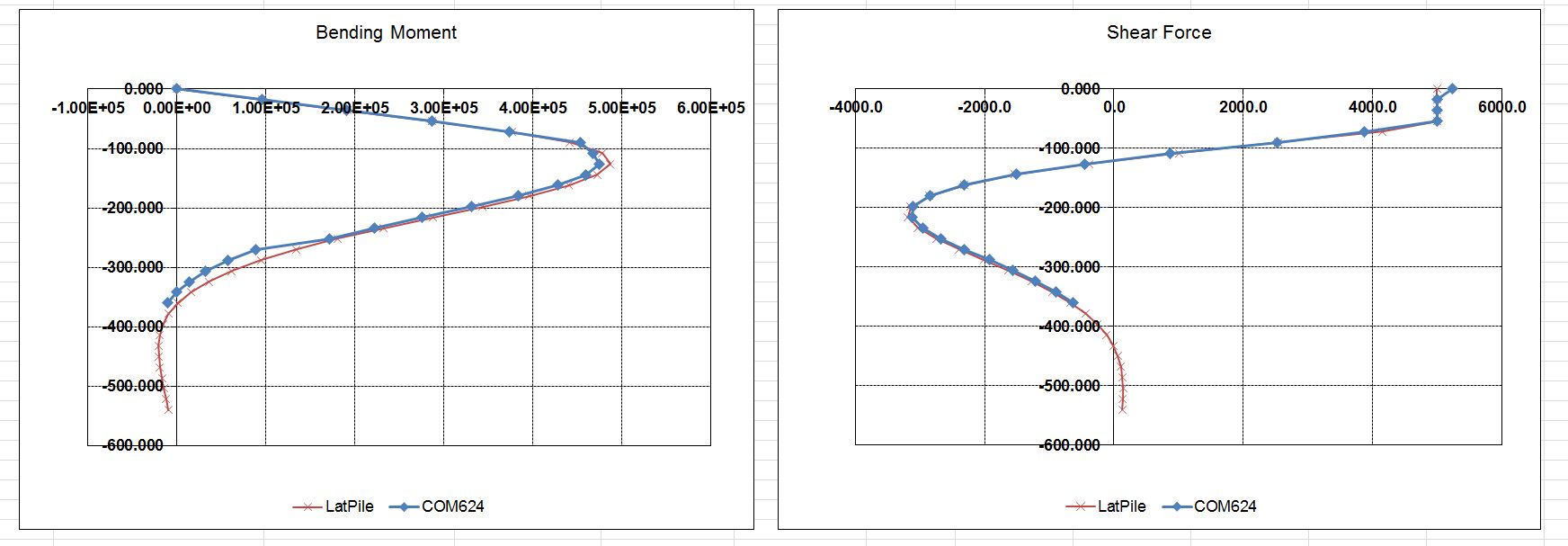
In spite of the different method of application of the stiffness from the PY curves, the spreadsheet shows good agreement with the COM624 results:

Results for COM624 Manual Example 4

Results for COM624 Manual Example 4

Posted in Concrete, Excel, Geotechnical Engineering, Newton, UDFs, VBA | Tagged , , , , , , | 3 Comments