Plotting Ferns

Over at Daily-Dose-of-Excel mrt has posted an interesting VBA version of a Matlab program that used an Iterated Transfer Function to plot a graph resembling a fern.  The original Matlab code came from Dr Tom Wood, and Michael’s VBA version works just fine, but I took the liberty of making a few changes to suit my own tastes: 

  • Michael’s code was pre-set to generate 32,000 points, which is the chart limit in pre-2007 versions of Excel.  I have changed this to an input from the spreadsheet, and in Excel 2010 it will happily plot over 1 million points.
  • The fern shape is governed by a four 2×2 matrices which were hard coded.  I also changed these to be read from the spreadsheet, so that it was easy to experiment with different parameters.
  • I added a check to see if the chart sheet existed, and if so to re-use it.
  • The algorithm involves a large number of matrix multiplications.  These are handled in the original code by using the Application.Worksheetfunction method.  This tends to be slower than keeping the code in VBA (especially in Excel 2007), so I added a short sub to handle the matrix multiplication.
  • Finally I wanted to check if there was a significant speed difference between operating entirely with Variant arrays or by copying the variant data input from the spreadsheet into double arrays, so I set up two different versions of the code and added to buttons to the spreadsheet, with calculation time reported underneath (actual time is considerably longer, because generating the chart takes over half the time).

The resulting spreadsheet, including full open source code, can be downloaded from Fern Chart.zip.  Note that I have changed the number of points to 1000 to keep the file size down.  Around 30,000 points will work with pre 2007 Excel, and also gives the most pleasing results. 

Here’s what the input screen looks like: 
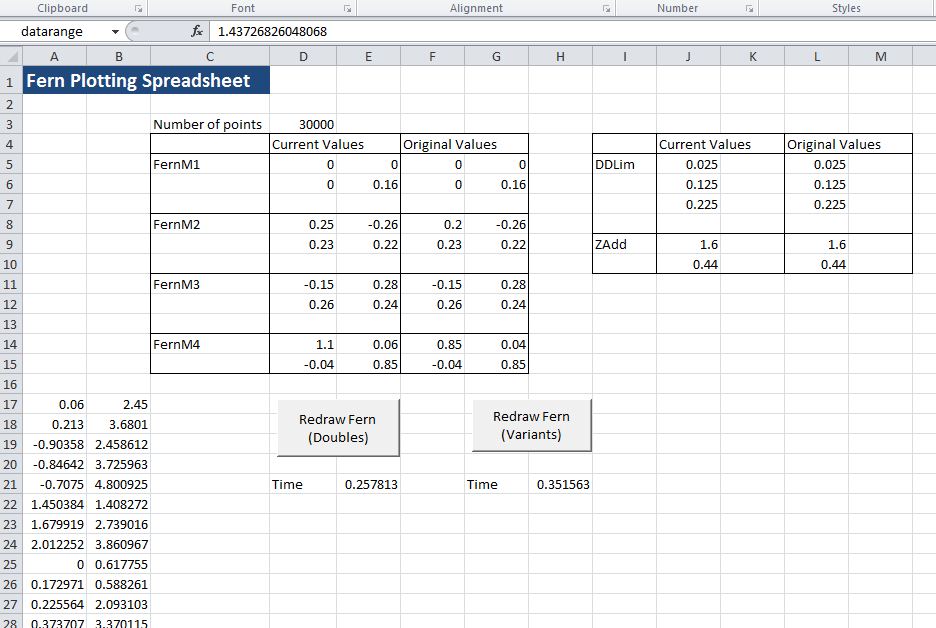
Input and top of output values for 30,000 points


And four different ferns generated with the FernM4(2,2) parameter varied between 0.8 and 1.05 

FernM4(2,2) = 0.8

 

FernM4(2,2) = 0.85
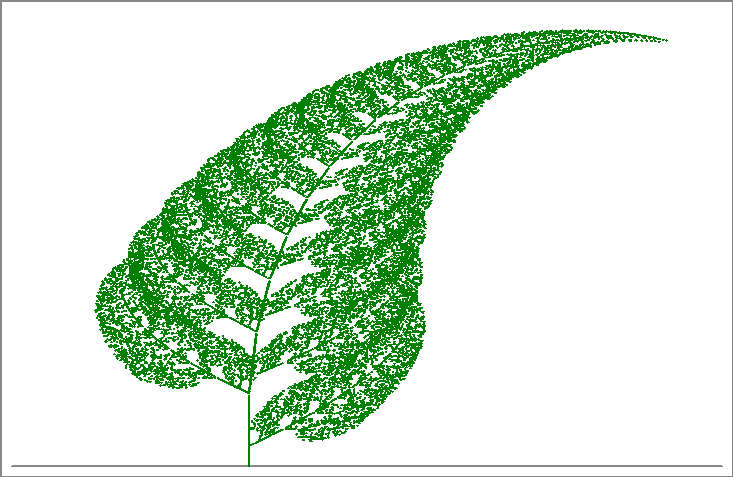
 

FernM4(2,2) = 0.9
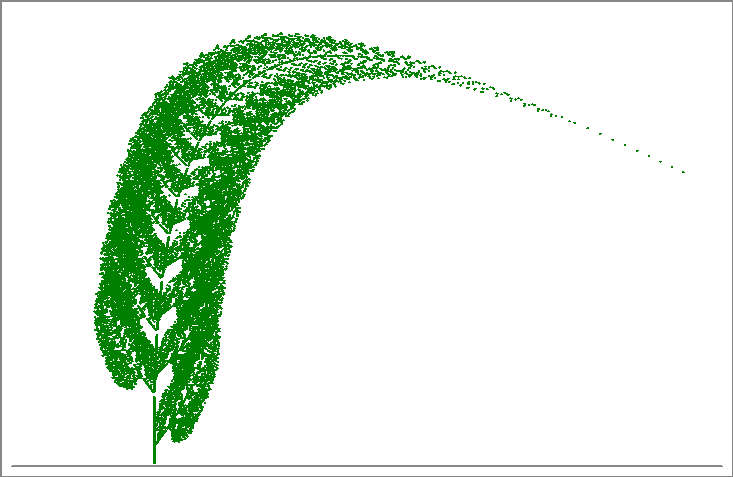
 

FernM4(2,2) = 1.05
Posted in Arrays, Charts, Drawing, Excel, Maths, Newton, VBA | Tagged , , , , | 5 Comments

Working with FEM data and using the dictionary object

This post features an Excel User Defined Function (UDF) to count the number of different element types (beams, plates, bricks and links) and the number of node restraints at each end of listed beams from a finite element model.  The example uses data from the FEM package Strand7, but could easily be adapted to data from other packages.  The most convenient way to transfer data from a Strand7 data file into an Excel spreadsheet is using the Strand7 API, which allows the data file to be read directly from VBA.  This will be examined in more detail in later posts, but for maximum generality this post will describe how the data may be easily transferred by copying and pasting, using the on-line editor. A spreadsheet including full open source code for the described UDF may be downloaded from BeamEnds.xls

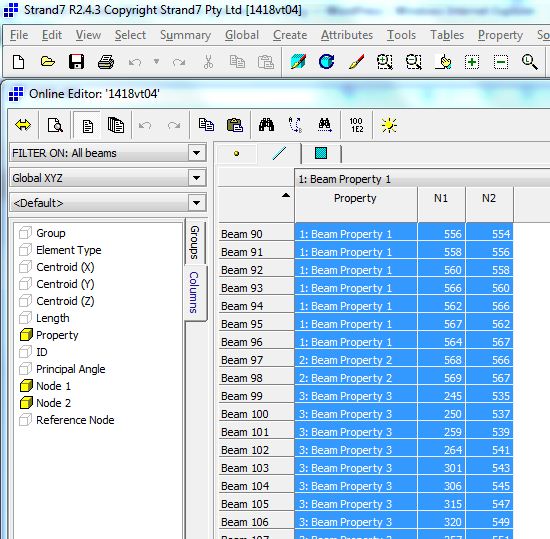
The screen shot below shows the Strand7 on-line editor displaying beam details.  The details to be displayed may be selected in the “Columns” tab, and for the present purposes the only ones required are the beam property type and the two end node numbers.  Having selected these columns for display the data may be selected using Ctrl-A and copied to the clipboard with Ctrl-Shift-C (or Ctrl-C to copy without beam numbers and column headers).

Copying beam data from Strand7

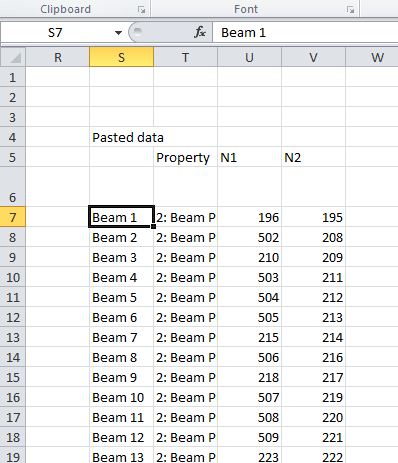
The data may then be pasted directly into the spreadsheet:

Beam data pasted into Excel

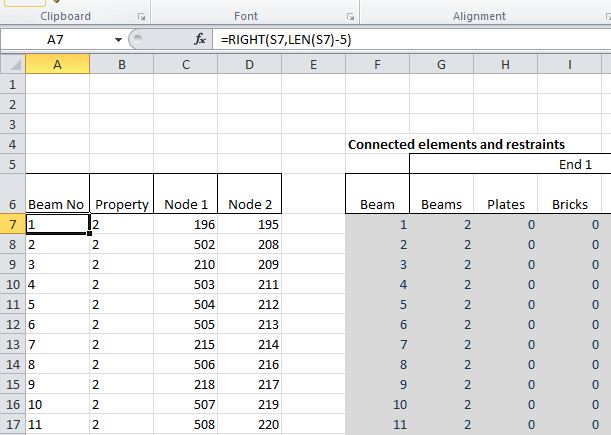
Note that the beam numbers and property types are pasted as text strings, rather than numbers.  The required values may be extracted with a simple string formula:

Extracting Beam numbers and property numbers as values

A similar procedure is used to import details of the other element types included in the model (plates, bricks, and links) and a list of restrained nodes.

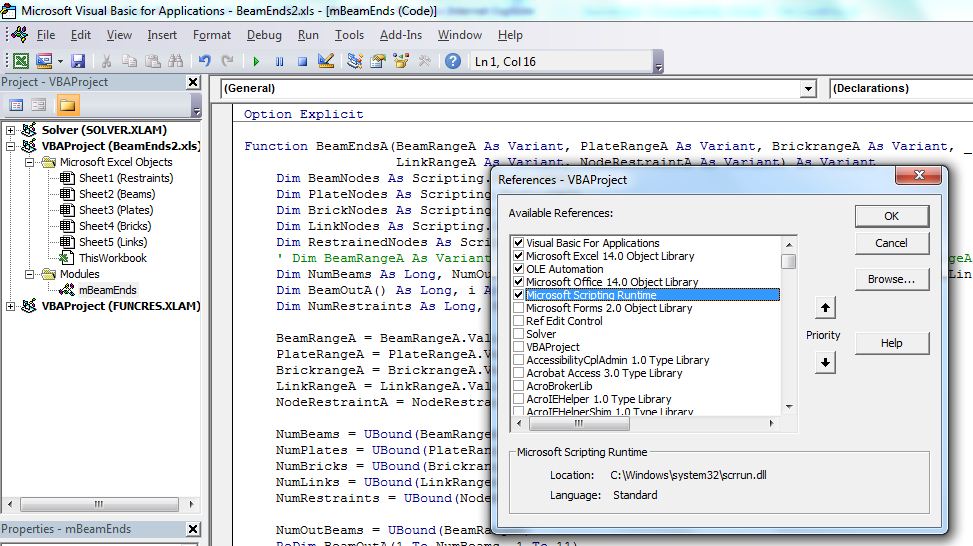
Having imported the data into Excel the nodes defining each element are read into a “dictionary object”.  The advantage of the dictionary object is that it has an “exists” method allowing the presence of any specific node in a list to be determined quickly and efficiently.  The dictionary object is part of the Microsoft Scripting Library, which is not enabled by default.  The library must therefore be selected in the Tools-References dialog of the VBE, as shown below:

Enabling Microsoft Scripting Library

Typical use of the dictionary object is shown in the code below:

  Dim BeamNodes As Scripting.Dictionary
..
    ' Set up element node dictionaries
  Set BeamNodes = New Scripting.Dictionary

  For i = 1 To NumBeams
        For j = 3 To 4
  sNodeNum = BeamRangeA(i, j)
  If BeamNodes.Exists(Key:=sNodeNum) = False Then
  BeamNodes.Add sNodeNum, 1
            Else
  ItemVal = BeamNodes.Item(sNodeNum) + 1
  BeamNodes.Remove sNodeNum
  BeamNodes.Add sNodeNum, ItemVal
            End If
        Next j
  Next i
..

      ' For each beam node, check if node exits in any element dictionaries

    For j = 3 To 4
  For i = 1 To NumOutBeams
  BeamOutA(i, 1) = BeamRangeA(i, 1)
  sNodeNum = BeamRangeA(i, j)
            If BeamNodes.Exists(sNodeNum) Then
  BeamOutA(i, (j - 3) * 5 + 2) = BeamNodes.Item(sNodeNum) - 1
            End If
  Next i

Note that:

  • Each entry in the dictionary has a string “key” and an associated “item” which may be any data type.  In this application the item is used to store the number of occurrences of the node number.  Since there is no provision to edit a dictionary item it must be deleted and recreated.
  • The “Exists” method is used to determine if each node is included in the dictionary object.  In the case of the beams the nodes at each end of the beams being checked are included in the count, so the node connection count is reduced by 1.

Full code is included in the download file.

Use of the BeamEndsA function is illustrated in the screen show below:

BeamEndsA Function

Note that the function returns an array with 1 row for each beam in the input range, and 11 columns and must be entered as an array function:

  • Enter the function
  • Select the output range
  • Press F2 to enter edit mode
  • Press ctrl-shift-enter
Posted in Arrays, Excel, Finite Element Analysis, Newton, UDFs, VBA | Tagged , , , , , | 5 Comments

PyXLL Links

This is really just a bookmark for me and anyone else who may be interested.

“PyXLL is an Excel addin that enables functions written in Python to be called in Excel.”

That’s all I know, but it looks interesting, and the few comments I’ve found on the Web have been positive.

Here’s the PyXLL Site

Any users out there like to comment?

Posted in Computing - general, Excel, Link to dll, UDFs | Tagged , | 1 Comment

Complex Numbers and Solving Quartic Polynomial Equations

It was recently pointed out to me that the User Defined Function (UDF) for solving quartic polynomial equations presented in this post returned an error for some input values.  In tracking down the source of the error I decided that it would be useful to have a UDF that would evaluate a polynomial for complex roots, and in writing that I added some new functions to the ALGLIB complex number spreadsheet presented in this post.  The end result of this work is:

Three new functions for the AL-Complex spreadsheet (as always, all the spreadsheets mentioned here are available for download, including full open source code)

ALGLIB Complex number functions, click for full size view

A new complex number function for the EvalPoly spreadsheet:

EvalPoly spreadsheet

And corrected code for the Quartic function in the Polynomial Spreadsheet, plus evaluation of the maximum error in the input function using the roots generated by the Quartic and CubicC functions:

Quartic spreadsheet

Posted in AlgLib, Excel, Maths, Newton, UDFs, VBA | Tagged , , , , , , | 2 Comments

Eval.xls and the ALGLIB integration functions.

In a comment on a previous post on numerical integration I mentioned that I might implement the ALGLIB integration functions using the same technique, that is using the VBA Evaluate function to evaluate functions entered as text in the spreadsheet.  Well here they are.  The spreadsheet provides both an efficient high precision integration technique, and a good example of the use of the VBA Evaluate function. 

The ALGLIB functions use the Gauss-Kronrod method, which is a variant of the Gaussian method used in previous versions of this spreadsheet.  The advantage of the Gauss-Kronrod method is that the integration points from previous iterations are re-used in successive iterations, thus saving a significant number of time consuming evaluations.  The spreadsheet with full open source code can be downloaded from Eval.zip

Input and results for the new functions are shown in the screen shots below:

ALGLIB Integration function documentation

Example 1

Example 2

Example 3

Note that the function links to 3 different ALGLIB functions; one for smooth functions, one for smooth functions with narrow bumps, and one for functions with singularities at either end of the integration range.  A later post will examine these options in more detail.

One of the problems with using the VBA versions of the current ALGLIB functions is locating the modules required to run any particular function.  The modules required in this case are listed below:

  • ablas.bas
  • ablasf.bas
  • ap.bas
  • autogk.bas
  • blas.bas
  • creflections.bas
  • evd.bas
  • gammafunc.bas
  • gkq.bas
  • gq.bas
  • hblas.bas
  • hsschur.bas
  • ortfac.bas
  • reflections.bas
  • rotations.bas
  • sblas.bas
  • tsort.bas

The key part of the code is shown below:


Do
' Replace the integration variable with the X value returned
' by the FState function
  EStep = Replace(Func, IntA(1, 1), FState.X)
' Evaluate the resulting expression
  FState.F = Evaluate(EStep)
' Return to ALGLIB iteration function
  ItState = AutoGKIteration(FState)
  Loop While ItState = True
' When ItState is false retrieve the results
  Call AutoGKResults(FState, V, Rep)

Finally, for those looking for efficient numerical integration techniques in Excel, watch out for an upcoming post which will cover a lesser known technique than the Gauss-Kronrod method that gives still greater efficiency for the same level of precision.

Posted in AlgLib, Excel, Maths, Newton, Numerical integration, UDFs, VBA | Tagged , , , , | 4 Comments