Since I wrote Using LINEST for non-linear curve fitting in 2011 it has been by far the most popular post on this blog. This post (in response to a recent question) provides some more detailed guidance on how to apply the function and use the results. It also provides some examples of using the related TREND function, and provides some general hints and warnings about using curve-fitting on a limited data set, particularly for the purposes of extrapolation.
The spreadsheet used in this post, and the original post, can be downloaded from Linest-poly-example.xls and Linest-poly.xls.
The data used in the examples is three points relating to the value of a futures contract. Please note that I do not know the details of how futures are priced. I have treated this question as simply one of fitting different functions to a given data set; in this case just three points, but the same procedures apply to any size of data.
The simplest approach is to treat the data as linear, and use the Linest function as documented in the Excel help. As in all the examples, the data consists of the columns of X data (A5:A7) and Y data (B5:B7). These two ranges have been named X_1 and Y_1, and the range names are used in all the examples:

The Linest function returns the slope and Y intercept of the straight line that most closely fits the data (values a and b above). Note that the function is entered in a single cell, and must be entered as an array function to display both results:
- Enter the function as usual
- Select the output range (A28:B28 in the example above)
- Press F2, then Ctrl-Shift-Enter
As can be seen above, the Linest function returns exactly the same results as using the trend line display on an XY graph.
To calculate the Y value for any given X enter the formula:
= a*X + b
where a, X, and b are the cell addresses containing the appropriate values.
The Trend function combines both steps in a single function, and returns exactly the same end result:
= Trend(Y_1, X_1, x)
The Linest and Trend functions will also work with non-linear data:

In this example the Y values in the Linest function have been replaced with their natural logarithm (using the LN function). The resulting “a” coefficient is exactly equal to the power coefficient returned by the chart trend line results for an exponential curve. To find the initial factor (1288.886) the “b” coefficient is entered in the Exp function. For interpolation the “a” and “b2” factors are entered in:
= b2 * Exp(a * x)
as shown above. Alternatively (and more conveniently) the “b1” coefficient may be used directly in:
= Exp(a * x + b1)
The second formulation may conveniently be used in the Trend function:
= Exp(Trend(Ln(Y_1), X_1, x))
which gives exactly the same result in a single step. In this case the exponential fit has given almost exactly the same results as the linear fit, but in other cases there will be a much greater difference, as will be seen below.
The workings of the exponential fit are shown more clearly in the example below, where the Ln values have been calculated on the worksheet, and plotted with a linear trend line:

Plotting Ln(Y_1) against X_1 it can be seen that the result is not an exact straight line, indicating that the data does not fit an exact exponential curve.
An alternative trend line for data with steadily increasing curvature is a quadratic curve:

A quadratic curve is of the form:
Y = a * x^2 + b * x +c
To generate the three coefficients using Linest enter:
=Linest(Y_1, X_1^{1, 2})
This returns three coefficients, a, b, c, which are exactly equal to the values generated by the chart quadratic curve fit. These values can be entered in the quadratic formula given above. Alternatively the Sumproduct function can be used:
=SumProduct((A93:C93), E93^{2,1,0})
The Trend function can again be used to conveniently generate the same result in a single step:
=Trend(Y_1, X_1^{1,2}, x^{1,2})
Note that using the trend function the x value must also be converted to an array consisting of x and x^2, using the notation x^{1,2}, as for the X_1 input data.
In some cases a cubic curve may provide a better fit than a quadratic. The curve coefficients may also be generated using LinEst:

The function format in this case is:
=Linest(Y_1, X_1^{1, 2,3})
which returns four coefficients, a, b, c, d, as shown above.
As before, these results can be used for interpolation using the cubic equation:
= a * x^3 + b * x^2 + c * x + d
The trend function can also be used with a similar format to the quadratic curve:
=Trend(Y_1, X_1^{1,2,3}, x^{1,2,3})
Comparing the Linest results with a chart cubic trend line we can now see that the coefficients returned are entirely different:
- The chart trend line has returned a quadratic function (with exactly the same coefficients as when quadratic was the chosen function).
- The LinEst function has returned a non-zero coefficient for the x^3 term, and zero for the x term.
For the interpolated value at 30 days the four different curves have all given different results, but the differences are small. When the same curves are used for extrapolation (i.e. finding Y for an x value outside the range of the original data) the results are very different:

The linear and exponential results are still fairly close (but they would diverge rapidly for longer time periods), but the quadratic result is now about 30% higher than the linear estimate, whereas the cubic reached a peak and has then gone negative. Note that not only has the cubic curve generated with the LinEst (or Trend) function given a result widely different from the quadratic curve, is equally distant from the result of using a chart cubic trend line!
This may look like a bug, but it is in fact a result of “over-fitting”. This can be illustrated using a third Excel option for curve fitting, the data analysis tools. In recent versions of Excel the Data Analysis tools are found at the right hand end of the Data Ribbon. In Earlier versions they are included in an analysis tool-pack, which needs to first be installed.
For the purposes of using the Regression Tools for fitting a polynomial curve (i.e. a quadratic, cubic, or curves with higher powers of x) the x data for each required power must be generated on the spreadsheet as shown below:

To carry out a regression analysis, having generated the required data, click the Data Analysis icon, then scroll down and select the Regression function, which will open a dialog box. If the chosen X range consists of the original three rows and three columns (i.e. x, x^2 and x^3) the message shown above will be returned.
The problem is that a cubic curve, being defined by four coefficients, needs four points to define a single curve. There are an infinite number of different cubic curves that will pass through any three points, including curves with a coefficient of zero for the x^3 term (as returned by the chart cubic trend line) and with a coefficient of zero for the x term (as returned by the LinEst function).
To get the regression tools to return results we need to define a fourth point, but if the fourth point is a duplicate of any one of the original three we get no complaint:

The results now are exactly as generated by LinEst (click on any image for a full size view):
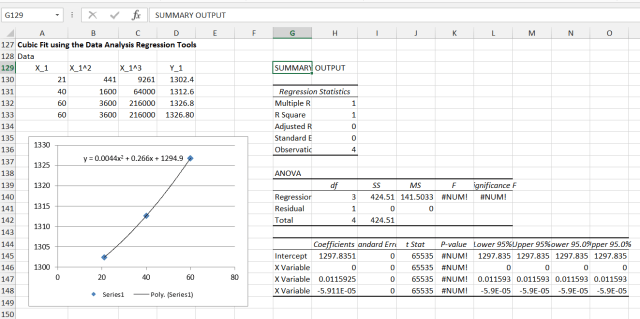
The additional detail provided by the regression tool shows that the generated line is an exact fit through each data point.
If we now change the fourth point to the value of Y generated by the quadratic fit for X = 30:

the returned coefficients are now exactly (to machine precision) the same as those returned by the LinEst function for a quadratic fit (and also the chart trend line for both quadratic and cubic trend lines). The error at each point is again zero, showing that the LinEst quadratic coefficients were also an exact fit for the original three points.
In Summary:
- There are many curves that will pass exactly through any three defined points, including a single quadratic or circular curve, or an infinite number of different cubic (or higher polynomial) curves or ellipses.
- Which is the “best fit” depends entirely on the nature of the base data.
- To choose the best fit requires either more data or an understanding of the process generating the numbers.
- In the case of futures pricing the exponential curve would probably be the best fit, but the fact that the generated curve was not an exact fit to the supplied data suggests that the analysis needs to be done by someone with a good understanding of how futures pricing works.
- Using Linest to fit a higher order polynomial to a small data set gives results that are mathematically correct, but may be misleading.
- Using the Trend function is convenient, but gives no hint of the hidden complications, so use with caution.


 Newton Excel Bach, not (just) an Excel Blog