I have posted solo recordings of Blackwater Side from Bert Jansch and Anne Briggs before, but here they are together, about 30 years on:
Which led me to a video of Bert Jansch’s 60th Birthday concert:

I have posted solo recordings of Blackwater Side from Bert Jansch and Anne Briggs before, but here they are together, about 30 years on:
Which led me to a video of Bert Jansch’s 60th Birthday concert:
Recently a thread at the Eng-Tips forum prompted me to look for help on the Go To-Special function in Excel. Pressing F5-Alt S, then clicking the help icon in the dialog box brought up:

It seems that the offline help AI can’t work out that if you click the Help icon in the Go To-Special dialog, that is probably what you want help with. If you give it a little hint, it gets the message:
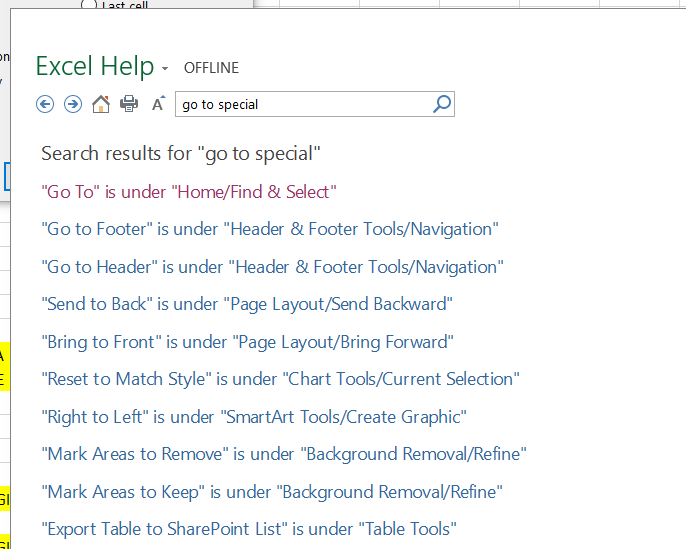
Never mind that I had just come from the Go To dialog, so I must know how to find it, I’ll follow the link to the help. Here it is in full:
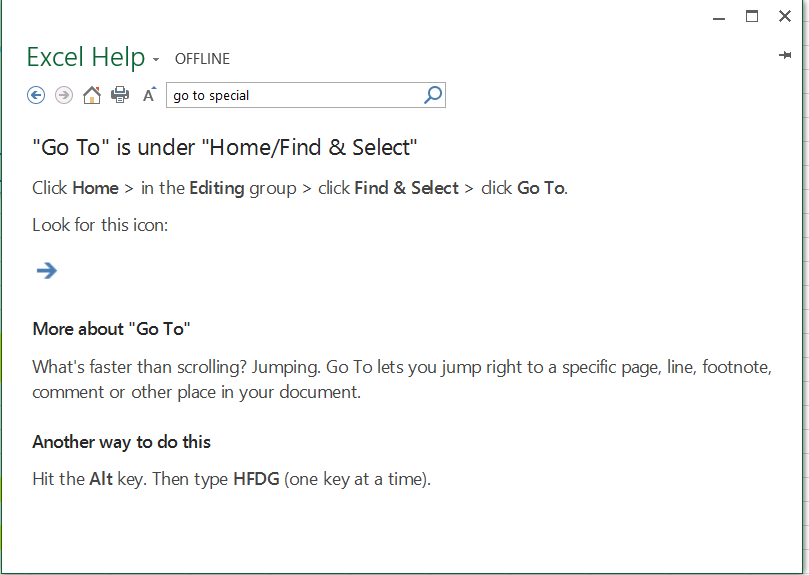
That’s it, the full extent of the offline help: the Find and Select function lets you find and select things. It doesn’t even mention using the F5 key, let alone give any details on the “Special” options.
Using the online help works better. It takes you straight to help on using Go To Special, and it gives a reasonable amount of detail (although still no mention of the F5 key).

Now I know that Microsoft would really, really like us to use their on line help, but dumbing down the off line help to the point of making it totally useless really isn’t the way to go about it. There are actually good reasons for using help off line:
One of the things that made the Lotus 123 spreadsheet so popular in the early days of personal computing was that it gave near instant helpful and relevant help at the touch of the F1 key. Now more than 30 years later, in spite of processing speeds and available storage increasing by factors of thousands, the help available in Excel doesn’t come close to matching what we had then.
OK rant over, let’s get back to what we can do with Go To-Special. The discussion linked above asked how we could use VBA to fill a table containing blanks using the last entry above the blanks as the text, and filling down to the next non-blank cell. Left to myself I would have looped through the table cell by cell in VBA, which would work OK, but there is a much simpler way (provided by the original poster in the discussion):
Select the range to be filled, then open the Go To-Special dialog (with F5 Alt-S), and select blanks (or press k):
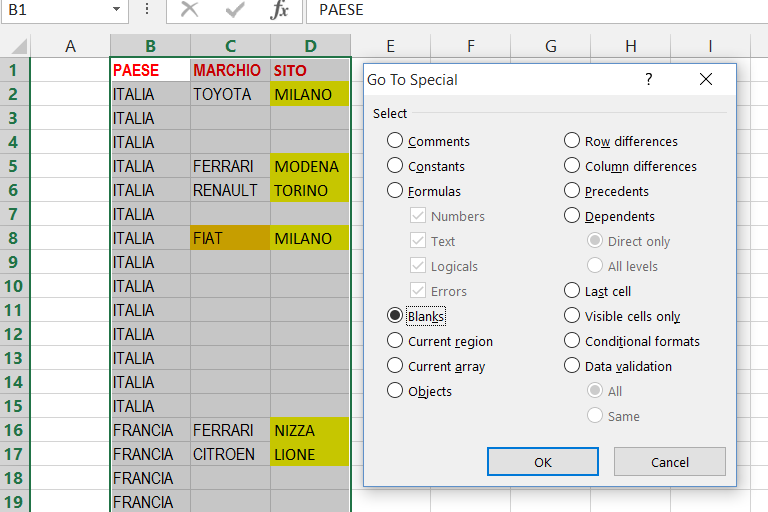
All the blank cells will be selected, and the cursor will move to the first blank cell. Type “=” and select the cell immediately above:
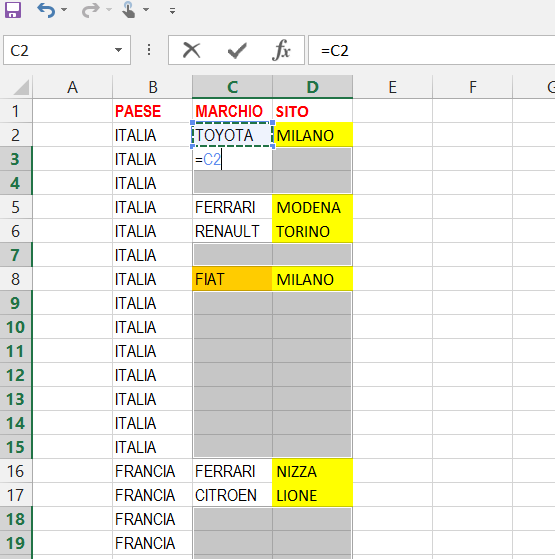
then press Ctrl-Enter:
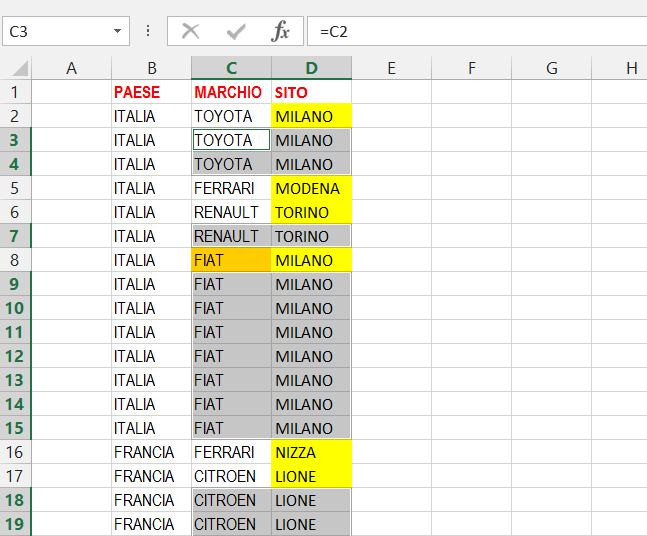
The table is instantly filled as required. The remaining step is to convert all the generated formulas to text, which can be done quickly by selecting the entire table, press Ctrl-C, then Paste-Special as values.
A few lines of VBA will do all this automatically:
Sub FillInBlanks()
'select the range you want to fill in and generate formulas:
Selection.SpecialCells(xlCellTypeBlanks).FormulaR1C1 = "=+R[-1]C"

' Convert to text:
With Selection
.Copy
.PasteSpecial xlPasteValues
End With
End Sub
For more on using Go To-Special see these articles at Chandoo’s Blog:
… did not go well.
After installing over night it needed another half hour or so to “just finish off a few things”, after which it briefly displayed the desktop, followed by a message saying that it was going to have to re-start because of an “INTERNAL_POWER_ERROR”. Over the next half hour or so it repeated this three or four times.
Luckily someone here had the same problem and posted a very simple solution:
After that everything worked just fine, although re-starting was very slow.
Strangely, I have just checked the drivers, and the AMD driver seems to have re-enabled itself; but everything is still working.
As for opinions on Windows 10, it’s just an operating system.
Edit 4th August 2015:
I was going to say that at least the pdf content indexing and preview still worked, which it did on the day I did the upgrade, then yesterday the pdf preview stopped working. No messages, just a blank space where the preview should be. Looking at the Adobe site I found they now have a reader called Acrobat Reader DC, which I installed, and it worked. I can’t say I like the new interface much, but it does the job.
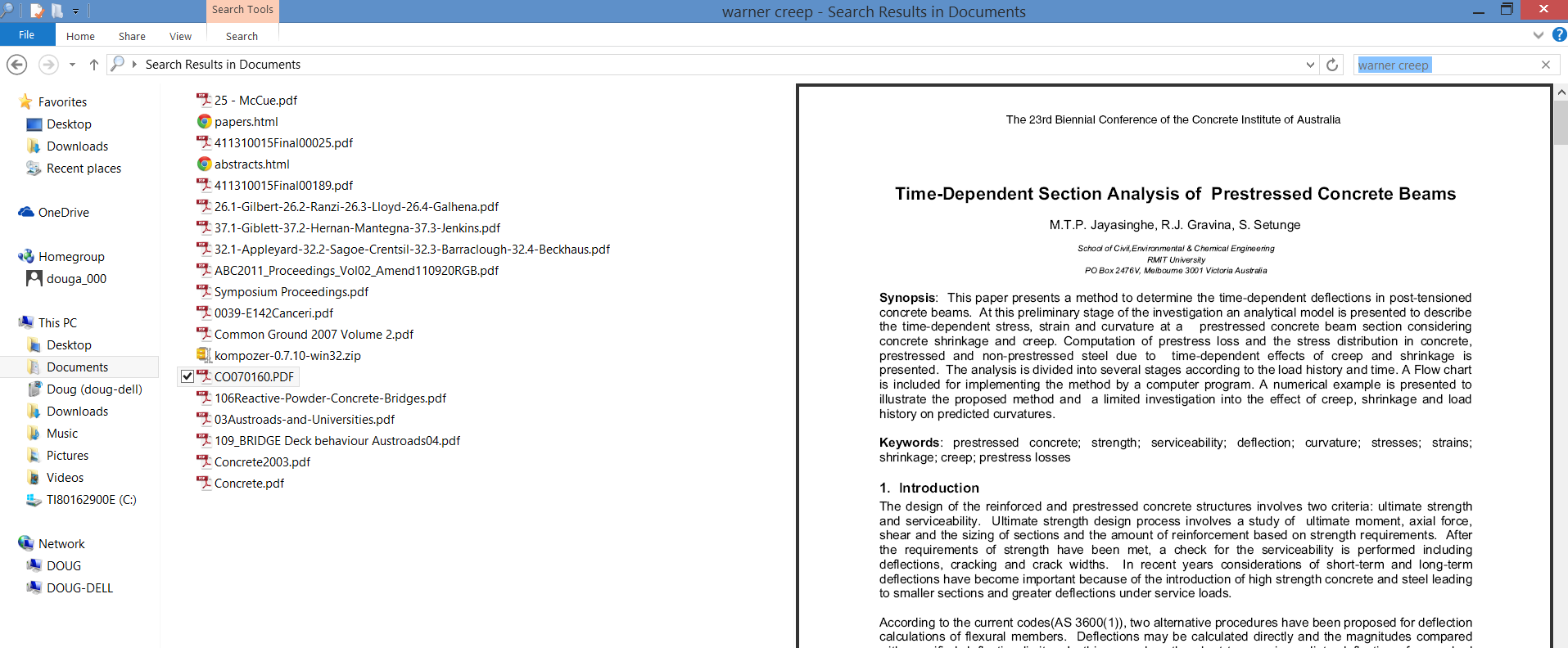
I recently discovered that my 64 bit Windows 8.1 Search was not indexing the content of pdf files. Since searching the content of pdf files is just about the only thing I want to do with a desktop search tool, it made the whole thing pretty pointless. Fortunately the fix is pretty easy:
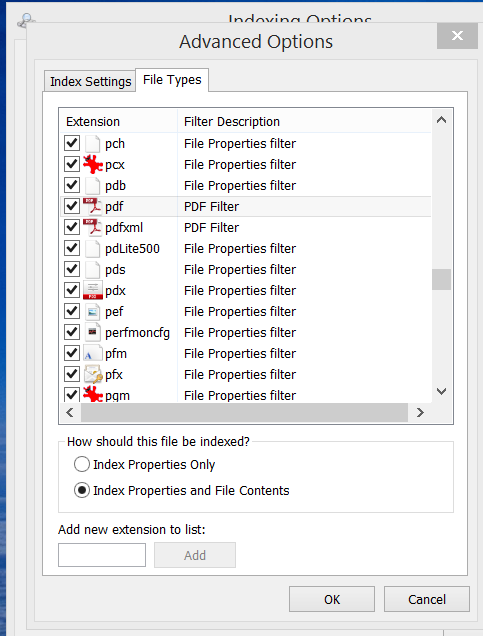 A few more points:
And finally:
Links to some really useful recently discovered sites:
OpenSolver is an Excel VBA add-in that extends Excel’s built-in Solver with more powerful solvers. It is developed and maintained by Andrew Mason and students at the Engineering Science department, University of Auckland, NZ. OpenSolver provides the following features:
- OpenSolver offers a range of solvers for use in Excel, including the excellent, Open Source, COIN-OR CBC optimization engine which can quickly solve large Linear and Integer problems.
- Compatible with your existing Solver models, so there is no need to change your spreadsheets
- No artificial limits on the size of problem you can solve
- OpenSolver is free, open source software.
Excel Formula Parsing:
Your IDE is about to enter the 21st century. Rubberduck is a free, open-source COM add-in under active development that integrates with the VBE to enable the features every programmer wants to have in their IDE.
From unit testing to source control, from code inspections to refactorings, programming in VBA will never be the same.
Add superpowers to Excel
Amazing tools to improve your spreadsheets
And finally, not a new link, but this looks like a really useful article:
Excel is a very powerful application with thousands of options and functions to help you build your models and reports and analyses. Oftentimes your daily job could do with some additional functionality. Something Excel does not offer “out of the box”.
With VBA, augmenting Excel with new functionality is possible. This article demonstrates how I created a small utility. It outlines all steps I used to create the tool. The principles I used in these steps may help you when set out to build your own add-in.


