Frame4 Version 3.04

In preparation for adding 3D functionality to the Frame4 spreadsheet I have rearranged the load input sheet, and in doing so I noticed that the fixed end reaction calculation was incorrect for cases where loads were applied to one member over two or more lines, and the fixed end moments were not equal.  That has now been fixed, along with some other minor amendments, and the new files (in xls and xlsb versions) may be downloaded from: Frame4.zip.

For details of installing the link to the compiled Alglib solvers see: https://newtonexcelbach.wordpress.com/2012/11/16/frame4-now-with-added-alglib ,
and in the event of problems registering the dll files see the comment from Tom dated December 5 2012.

New load input sheet

New load input sheet

Posted in Excel, Finite Element Analysis, Frame Analysis, Link to dll, Newton, VBA | Tagged , , , , | 1 Comment

Automating chart scale limits – update

I wrote about this function 2 1/2 years ago, and promptly forgot about it, but a few days ago brian provided an answer to a question that was raised shortly after it was first posted, concerning how to apply the function to secondary chart axes.

I have updated the spreadsheet to incorporate brian’s code (slightly modified), and the new version (including full open source code) can be downloaded from: SetScale2.zip

I have also added an example of the technique for plotting a function entered as text on the spreadsheet.  The procedure is:

  • Name cells containing the lower and upper limits for the X range: “xstart” and “xend” respectively.
  • Create a range “nsteps” with the value 1000 (or however many steps you would like in your graph)
  • Create a name “x” that will contain a rnge of x values, between the specified limits by entering: =xstart+xrange/(nsteps-1)*(ROW(OFFSET(Sheet1!$A$1,0,0,nsteps,1))-1) in the name “refers to” box (see picture below).
  • Create names “Y1vals” and “Y2vals” with the formulas: =EVALUATE(Sheet1!$B$17&”+x*0″) and =EVALUATE(Sheet1!$B$18&”+x*0″) (adjusting the cell references to the location of your function(s).
  • Create an XY (scatter) graph and set the data ranges to =SetScale.xls!x for the X range for both series and =SetScale.xls!Y1vals and =SetScale.xls!Y2vals for the two Y series

Posted in Charts, Excel, UDFs, VBA | Tagged , , , , | 13 Comments

Frame4; now with added Alglib

Edit 29 Nov 2012: I have now added an xls version to the download zip file.  This also has a much smaller example model, which will solve quickly using the VBA solver, so will be more useable for anyone having problems with the Alglib solver.

The compiled matrix functions featured in recent posts (Compiled Matrix Functions for Excel; Using Regasm.exe), have now been incorporated into the Frame4 spreadsheet (Download here), and also Frame4Buckle (Download here).  Both spreadsheets include full open-source code, and the Frame4 download also includes the necessary interface files (ALMatrixLib.tlb and ALMatrixLib.dll), and the AlgLib dll file (Alglibnet2.dll).  Step by step installation instructions are given below; see the previous posts for some shortcuts, and details of how to compile the program yourself (not necessary, unless you want to modify the code, or just follow the process).

Installation:

  • Copy the files: ALMatrixLib.dll, ALMatrixLib.tlb, and alglibnet2.dll to your C:\Windows\System32\ folder.
  • Copy the spreadsheet files to any convenient directory.
  • Click on “Start” (bottom left)-Computer and find the latest Microsoft.NET\Framework folder.  On my machine this is at C:\Windows\Microsoft.NET\Framework\v4.0.30319
  • Right click on the final folder name (at the top of the window) and select “copy address as text”
  • Click on “Start” and enter cmd in the search box
  • Right click on the cmd icon under Programs(1) and select Run as Administrator
  • It is necesary to move to the folder containing the Regasm.exe file. In the command line window enter:  CD space , right click and paste the folder path name.
  • Ensure that you are in the correct folder then enter:
    regasm /codebase C:\Windows\System32\ALMatrixLib.dll /tlb
    (with path amended as required) or copy this line and right click at the command prompt to paste it.
  • Check that there is no error message.  If there is, check the spelling of the command and that you opened the cmd window “as administrator”.
  • If there is no error, close the command prompt window.
  • Open any of the three downloaded spreadsheets and check if the Alglib functions are working.  If not:
  • Press Alt-F11 to open the Visual Basic editor window.
  • Select Tools-References-Browse, go to \Windows\System32 and select ALMatrixLib.tlb.
  • Return to the spreadsheet, which should now work correctly.
  • This process should only be necessary once.
  • Any problems, let me know.

The new code gives a respectable improvement in performance; how much? – see below:

Speed increase with compiled solver; 2500x

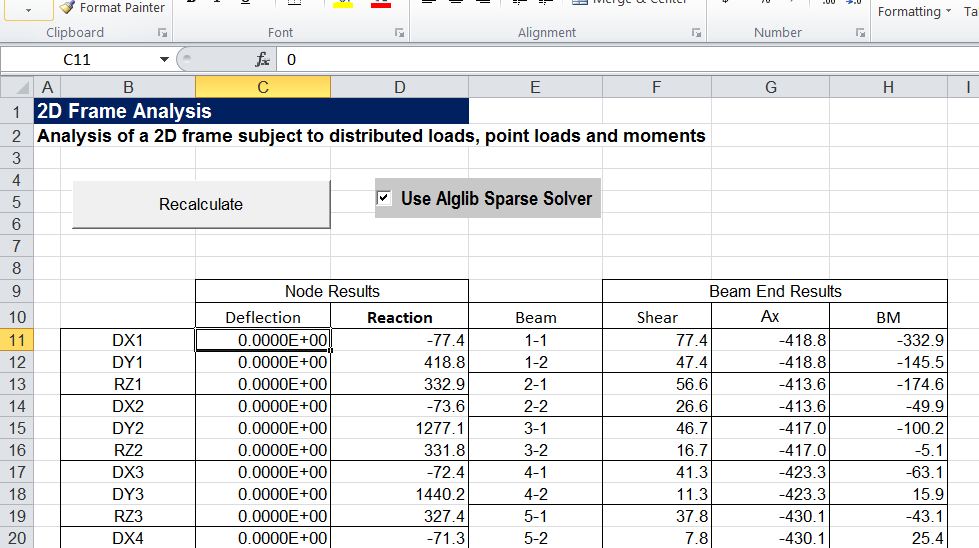
To use the compiled code ensure that the necessary files are installed then simply click the “Use Alglib Sparse Solver” check-box as shown below.  Note that if the Alglib routines are not properly installed the solver will automatically revert to the VBA routine, and the check box will automatically de-select.

Frame4 Output sheet with Alglib Sparse Solver checkbox

The screenshots below show the frame included with the download spreadsheet, and an example of bending moment diagrams plotted for selected beams.
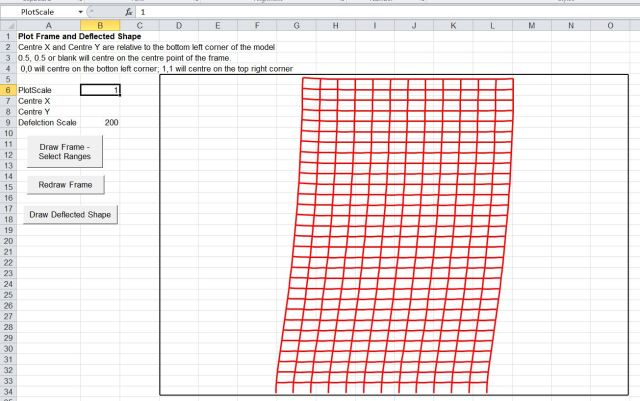
Example analysis deflected shape plot

Bending moment diagrams for selected beams

Posted in AlgLib, Beam Bending, Excel, Finite Element Analysis, Frame Analysis, Link to dll, Newton, UDFs, VBA | Tagged , , , , , | 24 Comments

Circle Limit III animation

Enjoy:

And papers by the artist on how to do it available at: http://bulatov.org/math/1107/

Update 16th Nov 12:

Comments and more links from PM2Ring:

That image is an example of a tessellation of the hyperbolic plane, in the
Poincaré disc projection. Escher learned about this stuff from H. S. M. Coxeter, probably the greatest geometer of the 20th
century.

Hyperbolic geometry is fun. And it’s much easier to create
regular & semi-regular tessellations in the hyperbolic plane than in the
Euclidean plane. John Baez discussed this topic a little while ago: Archimedean Tilings and Egyptian Fractions

Modern Dutch
graphic artist Jos Leys has done some nice work with hyperbolic tessellations:

In 2D: http://www.josleys.com/show_gallery.php?galid=262
In 3D: http://www.josleys.com/show_gallery.php?galid=342

Also see images by PM2Ring from and early post in this blog:

https://newtonexcelbach.wordpress.com/2008/06/30/pythagoras-penrose-and-pov-ray/


Posted in Animation, Bach, Newton | Tagged , , | Leave a comment

Using Regasm.exe

If you work through the process described in the previous post Visual Studio will create two files (ALMatrixLib.tlb and ALMatrixLib.dll) that will automatically be registered so that the Excel VBA routines will be able to use them.  On the other hand if you copy these two files from the download file to your Windows\System32 folder you will find that the Excel User Defined Functions (UDFs) return an error.

In order to get these functions working it is necessary to register the .dll and .tlb files using a program called Regasm.exe.  This is described in the “Deployment” section of A Beginner’s Guide to calling a .NET Library from Excel, but that guide appears to have been written in the days before Windows Vista and Windows 7, and the added security features in these versions make the procedure significantly more difficult.  The following three sections give step-by-step instructions for this procedure, depending on whether you have Visual Studio Express installed (easiest); you have a file manager with a command line installed, such as Total Commander (also pretty easy); or you have to use the built in Windows tools (not so easy).  In each case you need to run the Regasm program from the command line “as administrator”.

If you have Microsoft Visual Studio installed:

  • Click on the Windows “Start” Button (bottom left)
  • Click on “All Programs”
  • Click on Microsoft Visual Studio
  • Right click on Visual Studio Command Prompt
  • Select “Run as Administrator”
  • After clicking the confirmation box you should get a Command Prompt window as shown below
  • Enter (with the path amended as required) : regasm /codebase C:\Windows\System32\ALMatrixLib.dll /tlb
  • Close the Command Prompt Window; that’s all

Visual Studio Command Prompt

If you have Total Commander (or similar) installed:

  •  Right click on the Total Commander Icon and select “Run as Administrator”
  • Navigate to the Windows\Microsoft.NET\Framework\v4.0.30319\ folder (or the latest version installed on your machine)
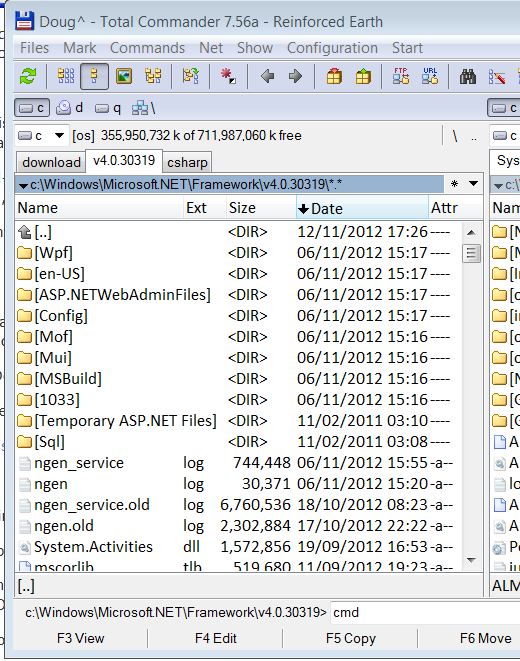
  • In the Total Commander Command Line enter: cmd
  • In the command prompt window that appears enter:  (with the path amended as required) : regasm /codebase C:\Windows\System32\ALMatrixLib.dll /tlb
  • Close the Command Prompt Window; that’s all

Total Commander with cmd command

Using only Windows built in tools:

  • Open the “Computer” window and navigate to C:\Windows\Microsoft.NET\Framework\v4.0.30319 (or the latest version on your computer)
  • Right click on the final folder name and select “copy as text”
  • Click on the Windows “Start” Button (bottom left)
  • Enter cmd in the search box
  • Right click on the cmd icon under Programs(1) and select Run as Administrator
  • It is necesary to move to the folder containing the Regasm.exe file.  In the command line window enter:
    CD C:\Windows\Microsoft.NET\Framework\v4.0.30319
    or enter CD , right click and paste the folder path name
  • Ensure that you are in the correct folder then enter:
    regasm /codebase C:\Windows\System32\ALMatrixLib.dll /tlb (with path amended as required)
  • Close the command prompt window

Moving to the .Net\Framework folder from the command line

After completing this procedure the Alglib functions in the Excel file should find the necessary dll files and work without a problem.  If not, try:

  • In the Visual Basic Editor, check that ALMatrixLib is listed as a reference under Tools-references.
  • If it isn’t, click browse and select the file ALMatrixLib.tlb
  • If it is, deselect it, close the references window, re-open it and click browse and select ALMatrixLib.tlb

Any problems remaining after all that, please let me know.

Posted in Excel, Link to dll, UDFs, VBA | Tagged , , , , , | 7 Comments