Units for Excel 3 – Editing the units table

I have made several changes to the Units4Excel spreadsheet:

  • Litres added as the base SI unit of fluid volume.
  • Units added for specific heat
  • Units added for fuel consumption in both km/litre and litres/100 km form

As before, the revisions are currently only in the standalone version; the add-in version will be updated at a later date. The revised spreadsheet may be downloaded from: Units4Excel

Since there are a huge number of other units in use in various contexts it is difficult, if not impossible, to cater for all eventualities, so I will describe how the unit tables may be edited to change unit names or abbreviations and to introduce new units.

The editable tables are all on the “Ext Unit List” and “SIDims” sheets, the tables on the “XLUnit_List” sheet are the units used by the built-in Convert function, and are for reference only.  Editing the Non-SI units table for existing units or unit types is straightforward; for instance:

To change default gallon units from Imperial to US fluid units change the table as shown below:

Existing Gallon units

Gallon Units modified for US fluid gallon default

     To insert a new unit, with an existing unit type, insert a blank row in the appropriate range, and enter details following the pattern of the other entries.
    Entering a new unit type is a little more complicated.  The screen shots below show the addition of the new “fuel consumption” and “inverse fuel consumption” units:

Insert the new unit details in the Non-SI Units Table.

Insert rows for the new unit types in the SI Units table

Add unit details. Note that the row numbers in Col F and G are generated by functions copied from the row below

Add new rows in the “Dimensions of SI Units” Table

In order  to recognise the new units the spreadsheet must be saved and re-opened.

In future versions this process will be simplified, using the VBA “scripting dictionary” object, which will also improve performance, but the current system allows the addition of any new unit types required.
Posted in Excel, Newton, UDFs, VBA | Tagged , , , , , | 1 Comment

Units for Excel 2 – Unit aware evaluation of functions

The Units4Excel spreadsheet described in the first post of this series provides functions to convert values from one set of units to another, but does not allow for automatic evaluation of functions, taking account of the specified units, as performed by programs such as MathCad and SMath.  I have now rectified this omission with the addition of the User Defined Function (UDF) EvalU().  The revised spreadsheet may be downloaded from  Units4Excel.zip, including full open source code.  At the moment the new function has only been added to the stand-alone spreadsheet (Units4Excel.xlsb).  It will be added to the add-in version at a later date.

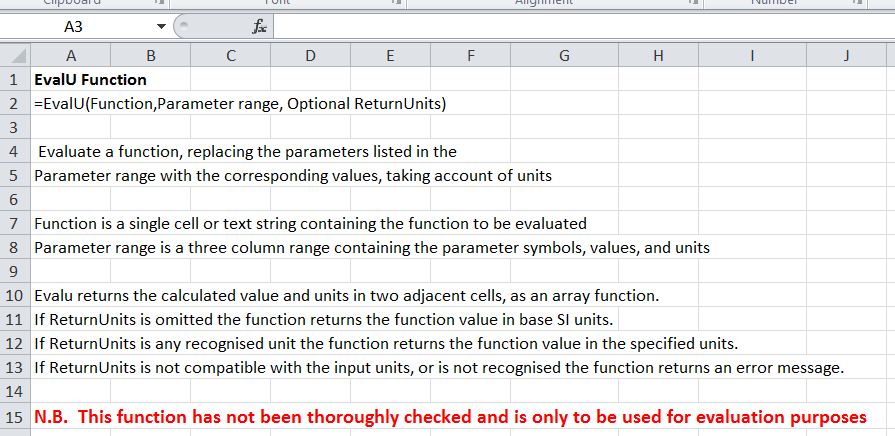
The UDF input and output options are described in the screenshot below:

EvalU Function input and output

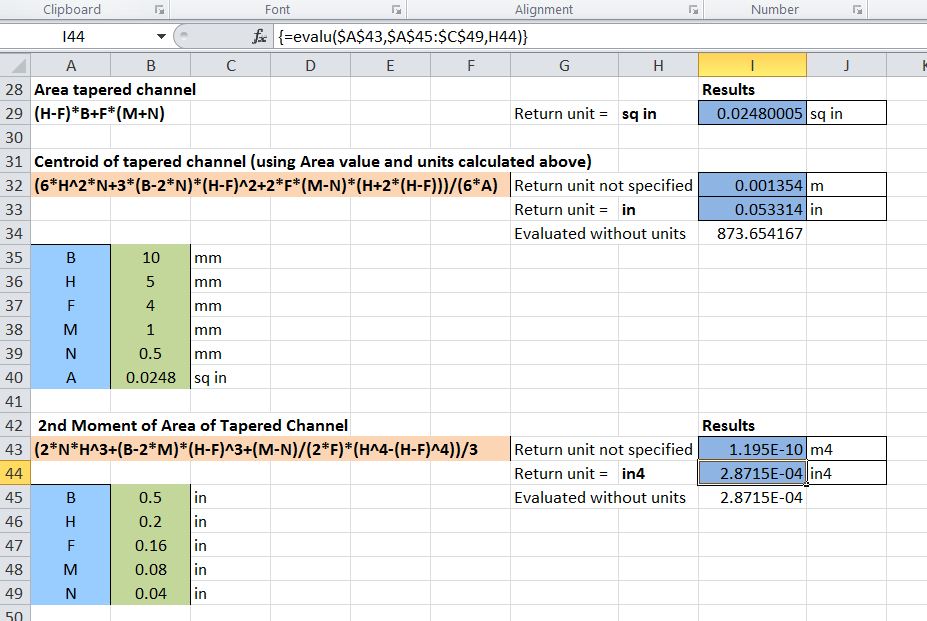
Typical usage is shown below, with the evaluation of the deflection of a cantilever with a single point load at the end.  Note that the input values are in a mixture of kips and psi for forces, and inches and feet for length.  The first EvalU (Cells I20:J20) function calculates that the function value has units of length, and returns the value in metre units, together with the unit type.  If the optional ReturnUnits value is given (as in I21:J21) the function converts the output to the specified units, or if the units are inconsistent returns an error message.  Cell I22 shows the result of the Eval UDF (also included in the spreadsheet), which evaluates the function ignoring units. 

Evaluation of cantilever deflection with mixed units.

The second example shows the output of one function (cells I29:J29) used in the input to another function, including the unit type. The final example shows that where the input values have consistent units, and the specified return units are also consistent (in^4 in the example shown), then the EvalU and Eval functions give the same result.

Section Properties of a Tapered Channel

Please take note of the warning in large red type. Any comments or suggestions will be gratefully received.

Posted in Excel, Newton, UDFs, VBA | Tagged , , , , , | Leave a comment

Random Connections

A song by Anne Briggs:

A song about Anne Briggs:

Another song by Anne Briggs

The Pond and the Stream; Reynardine

Posted in Bach | Tagged | Leave a comment

Alglib Spline Functions 1.32

Following a comment to AlgLib Spline Functions, the AL-Spline-Matrix spreadsheets have been updated, and may be downloaded from AL-Spline-Matrix03 for Excel 2003 and earlier and AL-Spline-Matrix07 for Excel 2007 and 2010.

Posted in AlgLib, Excel, Maths, Newton, UDFs, VBA | Tagged , , , , , , , , , , | Leave a comment

Ping Back Ping Backs

One of the nice things about writing a blog is that when people follow a link to your site you get a link to where they came from, which often leads to interesting places you would not have otherwise found.

Two received today are:

RAD Excel (now added to blog roll)

I started the RAD Excel blog at the end of 2011. My intention is to post once or twice per month, primarily focusing on Excel and VBA. Through my employment I’m now learning other technologies such as SQL Server and .Net, so you may see posts on those – particularly if they’re linked back to Excel in some way. I hope you enjoy reading the blog as much as I do writing it!

The second is an article from EE times: Analyze FIR filters using high-school algebra, where the author used my polynomial solver UDF to find the real and complex roots of a 14th degree polynomial equation, apparently successfully.

Let’s take our example filter, find the roots and therefore the individual factors. I used an Excel root finderthat seemed to work well.

From EE Times ; http://www.eetimes.com/

Table 1: All the roots of the polynomial in equation [2].

There are fourteen roots – which is good, because it was a fourteenth order polynomial (the fifteenth tap is the constant term, i.e. it multiplies the zeroth power of z) – of which four are purely real and the rest come in complex conjugate pairs. Remember that classic formula for the solutions of a quadratic equation? When the expression inside the square root is negative, that’s where the imaginary part of the root comes from, and the plus-or-minus sign tells you there are two of them, with opposite signs of the imaginary part.

Posted in Excel, Newton, VBA | Tagged , , , , | Leave a comment