The py_Numpy spreadsheet presented at Calling Numpy polynomial functions from Excel has had a minor upgrade to the py_Polyfit function, which was previously returning an error message if the optional “full” argument was set to False. The new version can be downloaded from:
The recent post More long numbers with Python was also supposed to link to py_Numpy, but I had linked to the wrong file, which has now been fixed. That post noted that the Numba JIT compiler was not working with Python release 11. That has now been fixed, and Numba release 0.57 is working with the latest Python without a problem.
As before the py_Numpy.zip file contains two versions, py_Numpy-JIT.py and py_Numpy-noJIT.py. Just copy whichever one you want to the py_Numpy.py file.
The screen-shot below shows some of the polynomial functions available from py_Numpy. See the link at the top of the post for more details.
Microsoft are continuing their quest to make downloading spreadsheets with macros ever more difficult, and now any downloaded spreadsheet has VBA code disabled by default. Unblocking the code (if you know and trust the source of the file) is quite easy. Find the file in File Explorer, right-click and select Properties, then select “unblock” down the bottom:
If you leave the file blocked however, and try to enable the macros, Microsoft will take you to a page on their website that says:
A potentially dangerous macro has been blocked Macros can add a lot of functionality to Microsoft 365, but they are often used by people with bad intentions to distribute malware to unsuspecting victims.
Which is fair enough, but then it says:
Macros aren’t required for everyday use like reading or editing a document in Word or using Excel workbooks. In most cases you can do everything you need to do in Microsoft 365 without allowing macros to run.
Which is rather like saying you can do everything you need to do in your car without enabling top gear.
Coincidentally, the same day I had the problem with the download I found a new website dealing with using Excel with VBA for structural engineering design:
My Windows search function recently once again stopped indexing pdf files, probably associated with an upgrade to Windows 11. Previously this was fixed by downloading the file PDFFilter64Setup.msi from the Adobe site, but that download no longer works, and there is nothing useful from Adobe or from Windows help. After much searching I eventually found a Wikipedia article with a working link:
In A not so easy problem I looked at using Python with Excel (via pyxll) to work with very long integers, using the MPMath package. For high precision calculations involving decimal values MPMath is required, but for simple operations entirely on integers the native Python integers can be of any length, so this post looks at using Python integers from Excel. The examples below have been added to the py_Numpy spreadsheet, which can be downloaded with the associated Python code from:
Note that the Python code comes in two version, with or without calls to the Numba just-in-time compiler. I am currently using the latter, since the standard installation of Numba does not yet support Python 3.11.
The first example uses Python integers to return the factors of integers of any length:
The function returns the factors of any given integer, followed by the calculation time. The first example (row 6) took about 20 seconds to return the results, so has been converted to text, but the example on row 9 is any active function, which takes less than 0.08 seconds to run.
The factorization function calls gcd(), which returns the greatest common divisor of two integers, and can be called from Excel using py_gcd:
The two integers are passed as strings (since Excel can’t handle very long integers), then converted to integers and passed to gcd(). The integer return value is than converted to a string for return to Excel.
Three functions are provided for integer division:
int_mod(n1, n2) returns the remainder of n1 divided by n2. The example confirms that 112969501600351915928116 is indeed an exact factor of 11193123069125255733930404403495413078162092382549228
int_floor(n1, n2) returns the integer part of n1, divided by n2, using the Python // operator, whereas int_div(n1, n2) returns the complete result of the division, including any decimal part, using the / operator. Note that division of two integers using / in Python always returns a float, even if the divisor is an exact factor, as in this case. The code returns the resulting value to Excel as a string, but all digits after the 16th are lost. To retain the full precision with long integers use the int_floor function.
The multiplication, addition and subtraction functions are more straightforward, since the results of these operations will always be another integer:
I have now converted my ULS Design Functions spreadsheet (last presented here) to Python. The new spreadsheet and open source Python code can be downloaded from:
The spreadsheet has the same functionality as the VBA version, providing ULS analysis of any reinforced concrete section divided into trapezoidal layers, to Australian codes, Eurocode 2, and ACI 318. It also has the added functionality of design for shear (currently to Australian codes only), and a function allowing simplified input for rectangular sections.
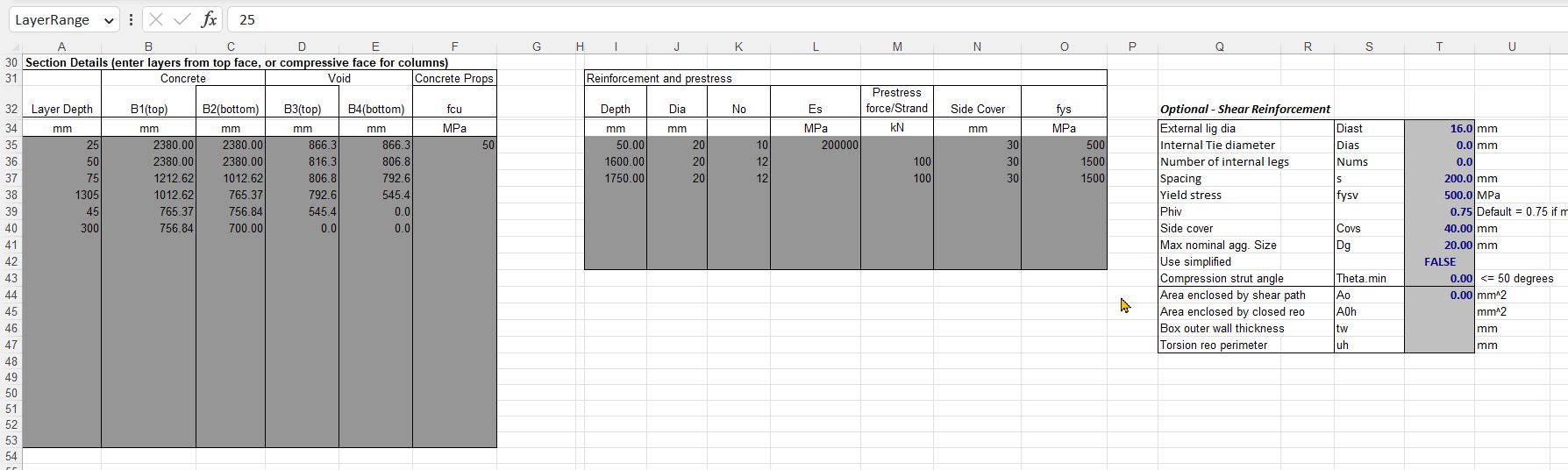
Input is in the same format as the VBA version, with the optional addition of shear data input where required (click any image for full-size view):
Note that for shear design:
The design shear force and torsion, and the associated bending moment must be entered in the range D5:F5.
For any hollow or non-rectangular section, or a section with prestressing ducts, the effective web width must be entered in cell F8.
For box sections the additional data in range T44:T47 is required.
The tendon angle entered in cell F9 is currently only used for shear design.
Output is also in similar format, with the addition of shear related results:
The py_UmomR function has simplified input for rectangular sections with two layers of reinforcement:




 Newton Excel Bach, not (just) an Excel Blog