64 bit Excel and PtrSafe

Installing my Office 365 subscription on a new computer I discovered it had decided (without asking) to upgrade itself to the 64 bit version, which resulted in some of my spreadsheets not working on the new system.  The main problem is that where VBA code calls an external dll or xll file with a Declare statement, the Declare must be followed by PtrSafe for 64 bit Excel.

A comprehensive article dealing with this problem can be found at: Declaring API functions in 64 bit Office.

The following article deals with one simple example, how to deal with calls to the microtimer function, which is the main offender amongst my spreadsheets.

Revised code from the RC Design Functions spreadsheet is shown below:

#If VBA7 Then
  Private Declare PtrSafe Function getFrequency Lib "kernel32" _
  Alias "QueryPerformanceFrequency" (cyFrequency As Currency) As Long
  Private Declare PtrSafe Function getTickCount Lib "kernel32" _
  Alias "QueryPerformanceCounter" (cyTickCount As Currency) As Long
#Else
  Private Declare Function getFrequency Lib "kernel32" _
  Alias "QueryPerformanceFrequency" (cyFrequency As Currency) As Long
  Private Declare Function getTickCount Lib "kernel32" _
  Alias "QueryPerformanceCounter" (cyTickCount As Currency) As Long
#End If

Note that:

  • “PtrSafe” must be inserted for 64 bit Excel, and will work with recent 32 bit versions (those using VBA7), but will raise an error with earlier versions of VBA.
  • With 64 bit Excel the VBA editor will show the lines without PtrSafe in red, and may raise an error during editing, but the code will run without problems with all VBA versions.

The updated version of the spreadsheet can be downloaded from: RC Design Functions8.zip

I will be progressively updating my spreadsheets as I use them, but please let me know if you are using 64 bit Excel and find a spreadsheet that has problems.

 

Posted in Excel, VBA | Tagged , , , , | 1 Comment

Concrete 2019

The Concrete Institute of Australia’s biennial conference is this year being held in Sydney from 8-11 September, and early-bird registration has now been extended to 15th July, so register now and save!

For more details of the conference see:

Concrete in Practice – Progress through knowledge

and for a lightning tour of Sydney and surrounds see:

Posted in Concrete, Newton | Tagged , , , | 2 Comments

Installing Adobe Reader non-DC version.

Edit 3rd Jan 2026:  As noted in the comments, as far as I know, the old versions of Adobe Reader are no longer available from Adobe, and the links given in this post no longer work.

The option to install a non-DC version of Adobe Reader used to be hidden away under a menu on the DC installation screen.  It seems that Adobe would really, really like you to use the DC version, because the other options have been removed.

Non DC versions are still available though from this link. The link takes you first to a forum page, then directly on to the download page, but may take some time before the download box appears.

The link was provided at response No. 14 (thegeneticbytemare) at Where can I get Acrobat Reader without DC .  That response also includes links to the latest upgrade and other language versions, but note that you have to install the full version before you can install an upgrade.

Posted in Computing - general | Tagged , , | 4 Comments

Solving the Lagrangian Point equation for the Moon

This post was prompted by a recent question at Fitting high order polynomials, asking for Excel methods to solve the equations for the radius of the Moon’s Lagrangian Point 1. All the methods described in this post have been added to the ItSolve Functions2 spreadsheet, which can be downloaded from:

ItSolve.zip

The question asked for a solution to two equations:

  • Simplified: r = R*(Mm/(3*Me))^(1/3)
  • Detailed:   Find r so that (Me/(R+r)^2)+(Mm/r^2)=(Me/R^2)+r*(Me+Mm)/R^3

The simplified equation may be easily solved by entering as a spreadsheet formula:
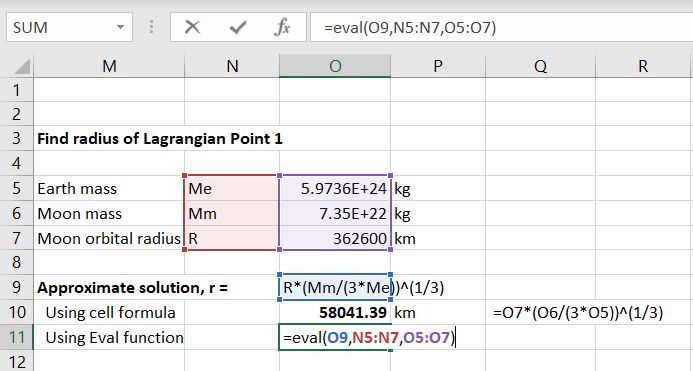
=O7*(O6/(3*O5))^(1/3)
The spreadsheet also includes a User Defined Function (UDF) called Eval, that will evaluate a formula entered as a text string, as shown below:

The Eval UDF returns the same result as the spreadsheet formula:

The simplest way to solve the more complex formula is to use the built in Goal Seek function (on the Data Tab), under What-if Analysis.  To use Goal Seek first enter a guessed value for the radius, r, then enter a cell formula to evaluate the function:
(Me/(R+r)^2)+(Mm/r^2)-((Me/R^2)+r*(Me+Mm)/R^3)
as shown below:

Then call the Goal Seek function (Data – What-if analysis – Goal Seek):

Goal Seek will adjust the value in the selected changing cell (O15) so that the “set cell” (O18) evaluates to the selected value (0):

The Goal Seek function is built-in, and is the most convenient for a one-off solution, but it is slow and cumbersome to use for a large range of data.  The UDFs QuadBrent and QuadBrentT are much quicker and more convenient to use on tabular data.  The input for the QuadbrentT function is shown below:

Entering the function returns exactly the same result:

Finally the function may be rearranged as a quintic polynomial, that can be solved with the RPolyJT function:

RPolyJT returns all 5 solutions of the quintic polynomial as an array function, but in this case there is only one real solution, which is the first value in the results array.

More details of the UDFs described above can be found at:

Posted in Excel, Maths, Newton, UDFs, VBA | Tagged , , , , , , | 4 Comments

Malinda sings A Song About Nothing

Malinda Kathleen Reese mostly sings popular songs, after passing the lyrics through Google Translate multiple times.

But this is something else:

Posted in Bach | Tagged , , | Leave a comment