Ping Back Ping Backs

One of the nice things about writing a blog is that when people follow a link to your site you get a link to where they came from, which often leads to interesting places you would not have otherwise found.

Two received today are:

RAD Excel (now added to blog roll)

I started the RAD Excel blog at the end of 2011. My intention is to post once or twice per month, primarily focusing on Excel and VBA. Through my employment I’m now learning other technologies such as SQL Server and .Net, so you may see posts on those – particularly if they’re linked back to Excel in some way. I hope you enjoy reading the blog as much as I do writing it!

The second is an article from EE times: Analyze FIR filters using high-school algebra, where the author used my polynomial solver UDF to find the real and complex roots of a 14th degree polynomial equation, apparently successfully.

Let’s take our example filter, find the roots and therefore the individual factors. I used an Excel root finderthat seemed to work well.

From EE Times ; http://www.eetimes.com/

Table 1: All the roots of the polynomial in equation [2].

There are fourteen roots – which is good, because it was a fourteenth order polynomial (the fifteenth tap is the constant term, i.e. it multiplies the zeroth power of z) – of which four are purely real and the rest come in complex conjugate pairs. Remember that classic formula for the solutions of a quadratic equation? When the expression inside the square root is negative, that’s where the imaginary part of the root comes from, and the plus-or-minus sign tells you there are two of them, with opposite signs of the imaginary part.

Posted in Excel, Newton, VBA | Tagged , , , , | Leave a comment

Cracks in the Dome

On 28 July 1987 (close to 25 years ago) The New York Times Reported

Cracks in a Great Dome in Florence May Point to Impending Disaster

… but those caring for the dome worry that it has recently embarked on a course of self-destruction. When or if a disaster could take place is anybody’s guess, experts say. What is certain is that for two years four fissures that run from the top of the dome to the church foundations church and from the inside walls to the outer skin have been steadily getting wider.

None of the experts on the commission is sure exactly what is happening inside the dome right now, under the hot sun of the Tuscan summer. They believe the concrete acts as a fulcrum so that when the masses push together below the holes, they are forced apart above. Last summer measurements showed that the A fissures in the dome widened instead of closed during the hot season for the first time. The same phenomenon is being repeated this year.

Not to be outdone, on 23rd October 1987 the California based Merced Sun-Star reported:

Merced Sun-Star 23 Oct 1987

By this time cracks which the NY Times had reported as opening “to a width of about three millimetres in winter”, were said to be increasing in width at a rate of 3 inches (75 mm) per century:

Cracks growing at “three inches per century”

Needless to say, the growth rate of 3 inches per century was a case of journalistic misunderstanding (to be charitable), but nonetheless there was evidently genuine cause for concern at the time, and as a result the extent and sophistication of the crack monitoring systems (which had been in place since 1955) were greatly increased in 1987, and this monitoring has been continuing ever since.

In January of this year a conference on “The Monitoring of Great Historical Structures” was held in Florence, which (naturally) included a paper on the monitoring of the dome of Santa Maria del Fiore, which is included in full (or at least a greatly extended abstract) at: http://www.opamonitoring.com/docs/abstract.pdf

Quite apart from the alarmist newspaper articles, there has been much debate over the centuries about the cause of the cracks.  The two diagrams below, it seems to me, explain their cause and position quite clearly:

Cracking mechanism

Larger and older cracks occurred in the segments with least restraint

Other interesting data concerns the development of the cracks over time, and the seasonal variation in the cracks.  The graph below shows that far from having increased suddenly in the recent past, the cracks have developed over the full history of the structure, with a steady decline in the rate of growth, to a current rate of about 6 mm/century:

The causes for alarm in 1987 appear to have been that:

  1. The rate of increase of crack width had increased at the time of the start of restoration works  on the dome frescos.
  2. The previous pattern of cracks opening in winter and closing in summer had reversed.

The chart below shows that far from increasing, the rate of crack growth was markedly reduced during the time that scaffolding was erected for work on the frescos (1980 – 1996), and returned to the old rate after removal of the scaffolding:

Evolution of crack widths; 1955 to 2009

The question of seasonal variation shows a stranger still variation from the reports of 1987.  The graph above does not clearly distinguish the seasons, but does show that the maximum crack widths occurred at the same time of year before, during, and after the scaffolding works.  Moreover the graph below, relating crack width to temperature, clearly shows a positive correlation, i.e. the maximum crack width occurring in summer, not winter:

In conclusion it is clear that the newspaper reports of 1987 were unnecessarily alarmist, and that the cracking of the dome has developed reasonably uniformly over the life of the structure.  On the other hand the paper referred to here does not consider exceptional events, such as a “direct hit earthquake”, and other sources suggest that investigation of the response of the structure to this sort of event are still incomplete.  This suggests that, given the importance of the structure, the comparatively small cost of reinforcement around the base of the dome would provide worthwhile insurance both against rare seismic events, and the continued work of regular seasonal variations.

Posted in Dome Structures, Newton | Tagged , , | Leave a comment

Reynardine

Reynardine (if Wikipedia is to be believed) is an early 20th century re-interpretation of a 18th or 19th century folk song, overlaying mystic overtones on a straightforward story of a young woman being waylaid by some rake.

Whatever its history, the three versions I have posted here are amongst my favourite performances from the respective artists.

The first one from Bert Jansch I first heard on BBC radio on a show featuring The Pentangle in 1971.  I recall John Renbourne (the other Pentangle guitarist) commenting after the performance; “that was amazing”.  I agreed then, and I still do.

The second is from Fairport Convention’s 1969 Liege and Lief album.  A Youtube commenter says ” This is a masterpiece. It’s even better now than it was in ’69”.  I agree with that as well.

Finally a very different version from Sheila Chandra, called The Enchantment, it re-interprets the reinterpretation of Reynardine.  From an interview at: http://www.innerviews.org/inner/chandra.html

Following the Indipop albums, Chandra signed a series of one-off deals for three albums released through Peter Gabriel’s Real World label. Weaving My Ancestors Voices, The Zen Kiss and Abonecronedrone found her delving deeper into solo voice and drone than ever before. Their beautifully naked, minimalist pieces explore Indian, Irish, Scottish and Arabic influences. And rather than highlight the differences between the cultures, Chandra successfully depicts how similar and seamless they can be.

Posted in Bach | Tagged , , , | 2 Comments

Units for Excel

One of the reasons that programs like MathCad tend to be preferred to Excel for engineering and scientific applications is that they have much better facilities for dealing with different units of measurement.  This isn’t difficult, since the only built-in function provided by Excel has a very limited range of units, and does not deal with compound units at all, even for something as basic as measures of area or acceleration.

Looking for a spreadsheet or add-in that would provide better functionality my requirements are:

  • Provision of User Defined Functions (UDF’s) for unit conversion, so that the conversion may be easily applied to tabular data anywhere in any spreadsheet.
  • A wide range of output units, including all “customary units” used for engineering applications in the USA.
  • Editable unit data tables so that new units may be added or corrected.
  • Output of converted data in array form, so that the data may be easily used in other UDF’s.
  • Preferably free and open source.

None of the existing unit conversion spreadsheets that I’m aware of meet all these requirements (most don’t even come close), so I decided to write my own.

The resulting spreadsheets may be downloaded from Units4Excel.zip.  The download file includes two spreadsheets (both with full open-source code).  Units4Excel.xlsb is a stand-alone spreadsheet including documentation and examples of each function.  Units4Excel.xlam is an add-in file, allowing the functions to be accessed more easily from any other spreadsheet; see below for installation instructions.

The UDF’s included in the spreadsheets are shown in the screenshot below:
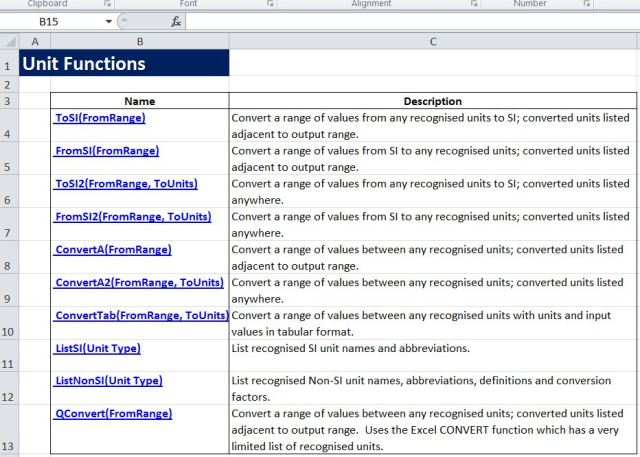
Unit Conversion Functions

The functions ToSI and FromSI are for use when either all of the destination units or all of the source units are recognised SI basic or derived units. When non-SI units are included in both the source and destination list the slower ConvertA function must be used. Each of these functions comes in two versions; if the destination units are listed next to the output range then the basic form of the functions may be used, and it is only necessary to specify the two column range listing the source values and their units. If the list of output units is located anywhere else on the spreadsheet it is necessary to use the second version of the functions, and specify both the source data and the list of output units.

All of these functions may be either used on a single row, two column range of input values, or may be used with a multi-row range, in which case the function must be entered as an array function:

  • Enter the function
  • Select the entire extent of the output range
  • Press F2 (edit)
  • Press Ctrl-Shift-Enter

See https://newtonexcelbach.wordpress.com/2011/05/10/using-array-formulas/ for more details.

Examples of the use of these functions are shown in the screenshots below:
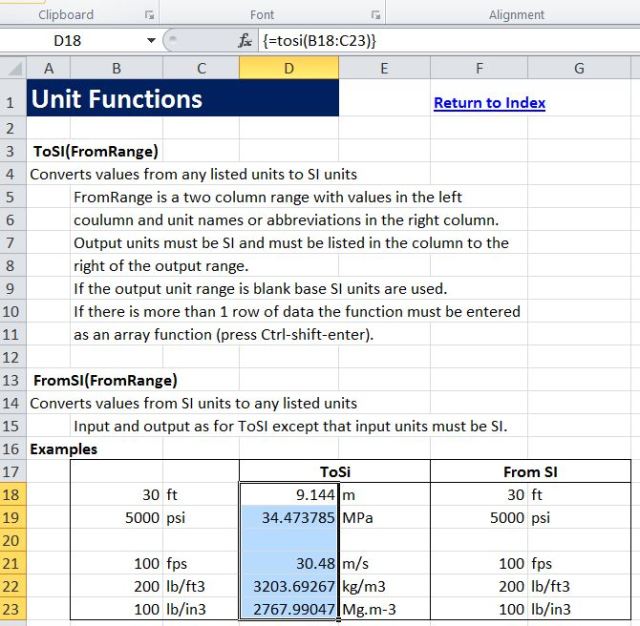
ToSI and FromSI Functions
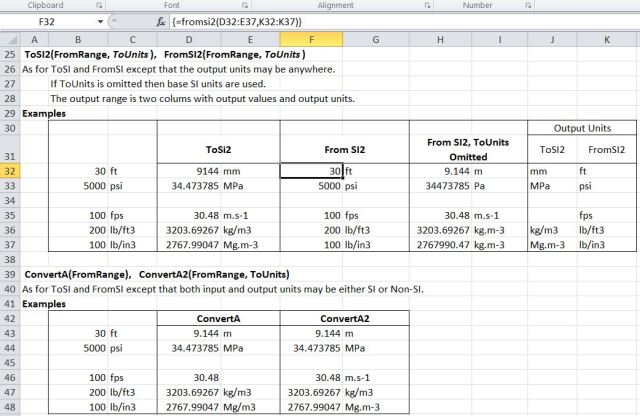
ToSI2, FromSI2, ConvertA and ConvertA2 functions

The functions shown above are for use where the source data is listed in two columns (values and units), and the destination units are listed in a single column. In cases where a tabular output is required, with source data listed horizontally across the top of the table, and destination units listed down the left hand side, the ConvertTab function may be used, as shown below:
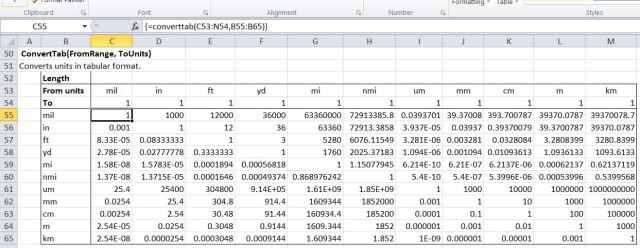
ConvertTab Function

For all these functions it is important to use the correct name and spelling of the units, and correct case for the abbreviations. These are documented by the ListSI and ListNonSI functions, which provide a list of unit names and abbreviations, and also definitions and conversion factors for the non-SI units. If the “Unit Type” parameter is omitted the functions will return a complete list of all unit names. If the unit type is specified only units of that type will be returned, as shown below:

ListSI and ListNonSI functions

All the functions listed above will recognise all the units in the NonSI unit list (currently 344 items), and also all the recognised compound SI units, such as area, velocity and acceleration. The function QConvert is a front end for the Excel built-in Convert function, and will only recognise the limited list of units included in the Convert list. It does however allow use as an array function, and provides more informative error messages in the case of unrecognised or incompatible units. The screenshot below shows the output of QConvert compared with the buit-in Convert function and the ToSI UDF:
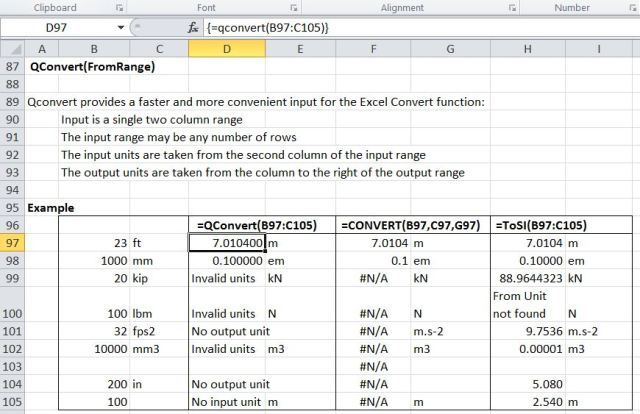
QConvert function

The spreadsheet Units4Excel.xlsb lists all the units recognised by the UDF’s together with abbreviations, definitions, and conversion values. This table has been copied from Wikipedia at: http://en.wikipedia.org/wiki/Conversion_of_units

Note that in many cases there are significant differences between definitions of the same unit used in different countries or different applications.  The table in the spreadsheet (as shown below) gives a summary of the definitions, but refer to the Wikipedia table for more details and references.

NonSI Unit List

In cases of multiple definitions one default (shortest) abbreviation has been selected for one definition (usually the one with the widest international use).  It is possible to edit the abbreviations, but it must be ensured that each definition with a different conversion factor has its own unique abbreviation.

The Units4Excel.xlsb spreadsheet provides documentation and examples of all the UDF’s, as well as a full list of all units and their definitions; however for use of the functions in other spreadsheets an add-in is more convenient, and for this reason the add-in version Units4Excel.xlam has been provided.

To install the add-in:

  • Copy Units4Excel.xlam to any convenient folder
  • Open Excel and select: File – Options – Add-ins
  • Check that the “Manage” drop-down box displays Excel Add-ins and click “Go”
  • Click “Browse” and select the folder containing the add-in
  • The add-in will appear on the list of Add-ins available; ensure that the check box is ticked.

All the UDFs described above will now be available for use in other spreadsheets, as illustrated below:

Unit Functions used in RC analysis spreadsheet

Finally note that this is version 0.0 and has only had limited testing.  As always, any results found using this spreadsheet must be independently verified.

Posted in Excel, Newton, UDFs, VBA | Tagged , , , , , | 8 Comments

Bare Pictures

From Youngest Daughter’s new web site:

http://barepictures.net/

Hey guys,

Welcome to the Bare Pictures site!

We haven’t overloaded this website with a load of information as we think what we do is pretty simple.

We make music videos.

For us it’s about making a clip that works with the song, showing it off and making the band’s image come alive. Trying different ideas, different styles, and always working hard to make sure the video can grab an audience’s attention.

We hope you enjoy what you see and if you want to talk to us about getting a treatment for your song – email us at barepictures@gmail.com or give us a call. Numbers are on our contact page.

Cheers muchly.

http://barepictures.net/

And don’t forget to click on:

INDIEGOGO CROWDFUNDING PAGE:

http://www.indiegogo.com/DancingInFilm?a=553266

Posted in Bach, Films | Tagged , | Leave a comment