… especially User Defined Functions (UDF’s).
This post (and most likely several to follow) was prompted by a recent discussion at Daily Dose of Excel about various alternative debugging techniques. It reminded me (if I had ever known) of the Debug.Assert command, but also that there are many ways to reach the same end when debugging, and the methods habitually used may not be the most efficient.
The steps in debugging an application are:
- Find the ways in which it does not work as intended (and for all but the most trivial application there will be some).
- Find the source of the errors
- Fix them
- Return to 1 until there are no more errors to be found
For any application, but particularly for engineering applications, proper attention to stage 1 is of key importance, but it’s stage 2 that tends to get all the attention. Where possible, I like to set up an on-spreadsheet (no VBA code) prototype of any application, and use this in the debugging process. The intermediate results of VBA code can then be compared with the values on the spreadsheet, allowing detailed comparison and detection of errors with minimum effort.
This post will describe the tools and techniques that I tend to use, and following ones will look at some of the alternatives. The example application will be a UDF to find the ultimate bending capacity of a circular reinforced concrete section, using a parabolic/rectangular stress block. The stages in the analysis are:
- Determine the stress block shape, depending on the strength of the concrete, following the Eurocode 2 procedure.
- Find the depth of the neutral axis (by iteration) such that the total reaction force in the concrete and steel is equal to the specified applied axial load.
- Take moments of all the forces about the centre of the section.
- Apply the reduction factors specified in the applicable code.
The main UDF (CircU) calls a number of other functions to perform the necessary calculations, and these have been written so that they can also be called directly from the spreadsheet, which greatly aids the debugging process. As an illustration, the screenshot below shows the code window for the function StrainLim(), which calculates the strain limits defining the stress block shape. A “break point” has been set up in the code window, by clicking in the left margin, adjacent to a line of executable code (i.e. not a blank line, comment or Dim statement). The function has then been initiated from the spreadsheet by:
- Selecting a cell containing a call to the function (cell K4 in this case)
- Press F2 to enter edit mode
- Press Ctrl-Shift-Enter to exit edit mode, causing the function to recalculate. (Ctrl-Shift-Enter is required because the function Strainlim returns an array. Ordinary functions returning a single value are entered just with the Enter key)
This procedure is required because the procedures for running a Sub procedure from the VBE code window do not work with a function.
When the function is recalculated the code runs as normal until it reaches the break point, where it stops with the line of code highlighted in yellow. At this point the code window (as displayed below) displays the value of any variable if you place the cursor over the variable name, and also lists all the variables in the current routine in the “locals” window, to be seen underneath the code window. In the screen shot the StrainA array has been expanded to display the value of each item. There are also other methods to retrieve the current value of any code variable, which will be examined in later posts, but they all share two major inconveniences:
- Viewing data in a large array is slow and cumbersome
- The data is not available for use on the spreadsheet, making comparisons with spreadsheet data difficult.
Both of these problems are avoided by writing the data back to the spreadsheet in the form of a UDF array. In the screenshot column J (rows 6 to 12) shows the spreadsheet calculated values, and column K contains the UDF values, which can quickly be checked to be identical.
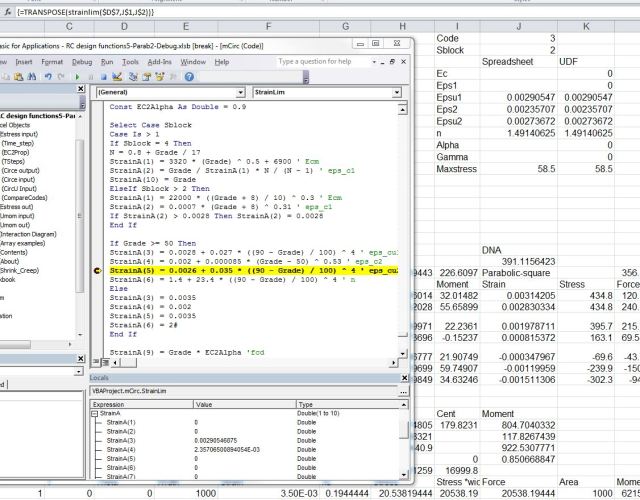
Returning results from the Strainlim function directly (click for full size view)
An alternative approach is to insert code in the main function (Circu) to return the results of the call to the Strainlim function, if a specific flag is set. In this case the Circu function has a parameter “out1” which controls the output type. If out1 is set to -1 the function will return the StrainA array, via the Circu function (where Circu calls Strainlim):
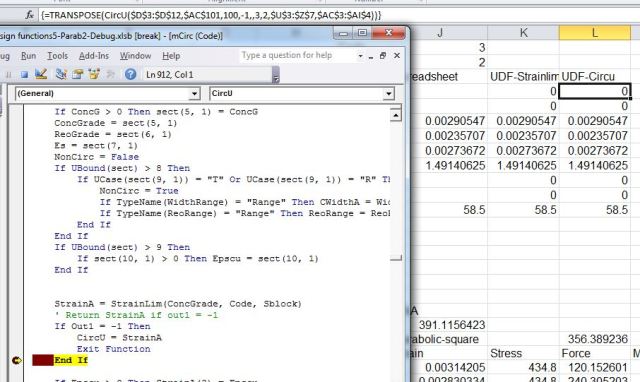
Strainlim results called via the Circu function
In this case either approach could be used because all the input to strainlim is available on the spreadsheet, but in cases where the called function requires data calculated within the VBA routine the second approach is necessary.
Having checked the results of the Strainlim function the options are:
- Press F5 to continue running the code following the break point, either until completion, or if the break point was in a loop until execution returns back to the break point.
- Press F8 to step line by line through the code.
- When the code reaches a sub-routine (or function) press F8 to step through the subroutine or Shift-F8 to run the sub-routine code and stop at the next line in the main code.
- To run through to a subsequent line in the code, either enter a new break point and press F5, or select the line and select “Run to cursor” from the Debug menu or the right-click menu
- To run the code from a line other than the following line, select the line (which may be either before or after the break line) and select “Set next statement” from the Debug menu or the right-click menu.











 Newton Excel Bach, not (just) an Excel Blog