
Recent posts have described how to fit linear equations (or equations that can be made linear) to a set of data, using the Excel Linest functions, or User Defined Functions (UDF’s) linking to the ALGLIB library (see Using LINEST for non-linear curve fitting and ALGLIB linear and polynomial fitting functions).
This post will describe how to perform non-linear regression using the Excel Solver, and the following one using ALGLIB non-linear regression functions, and the relative advantages and disadvantages of the two methods.
Non-linear regression uses an iterative process to minimise the square of the difference between the values in the data being fitted, and the values generated by the regression equation. This is exactly the sort of problem that the Excel Solver is designed to solve, and setting up the solution is fairly straightforward. The steps are:
- Paste the base data into a spreadsheet, with independent variables and dependent variable in adjacent columns.
- Enter a list of coefficients that will be used in the regression function, using guessed values.
- Enter the regression function in a cell adjacent to the top row of data, using absolute addresses for the coefficients, and relative addresses for the variables.
- In the adjacent column enter a formula returning the square of the difference between data values and the value of the regression function
- Copy these two cells down over the full list of data.
- Sum the “square of the difference” column
- Use the Solver to minimise the sum of the squares by adjusting the regression function coefficients.
This process is illustrated in the spreadsheet NonLinFit-Solver.zip (click to download), which uses the Solver to fit two alternative functions to data for concrete shrinkage.
The screenshot below shows the top of the data, and the columns calculating the square of the differences for each function:

Non-linear regression using Solver (click for full size view)
The values to be minimised are in cells E23 and G23, by adjusting the values in ranges B15:B18 and D15:D20 respectively. This is done (in two separate operations) by simply entering these ranges into the Solver dialog box, and clicking the Solve button. The set-up for the first equation is shown in the screenshot below:
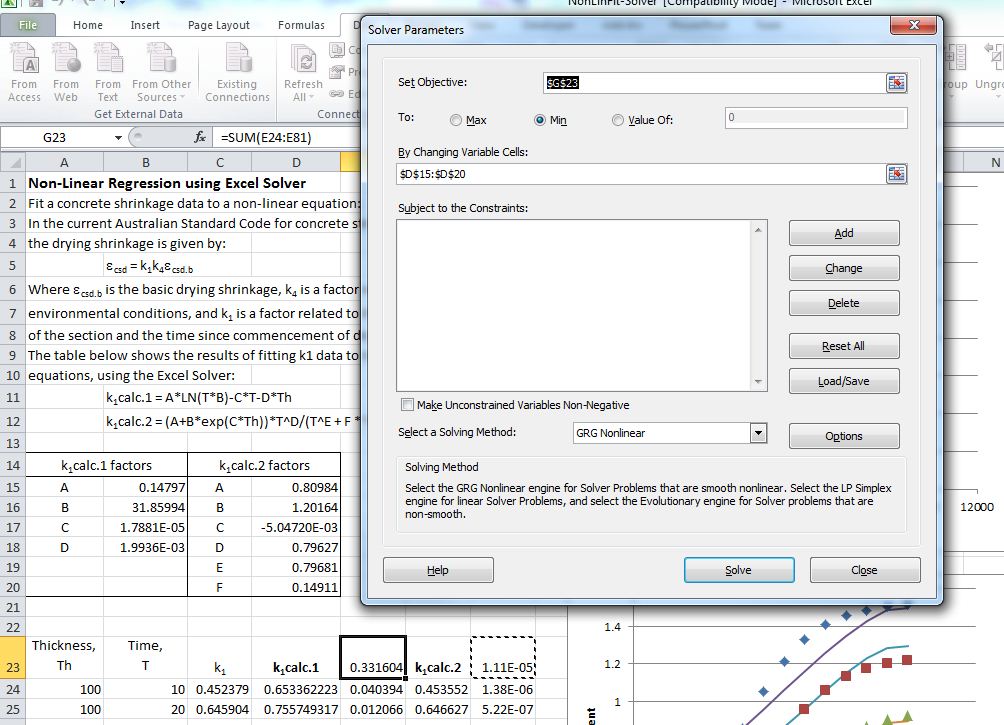
Solver dialog box
The results for the first function are seen in the screen shots below:

k1calc.1 = A*LN(T*B)-C*T-D*Th; natural scale

k1calc.1 = A*LN(T*B)-C*T-D*Th; Log scale
It can be seen that although the general trend has been captured there is still a considerable difference between the regression lines and the data points in some place.
The second function provides a much better fit:
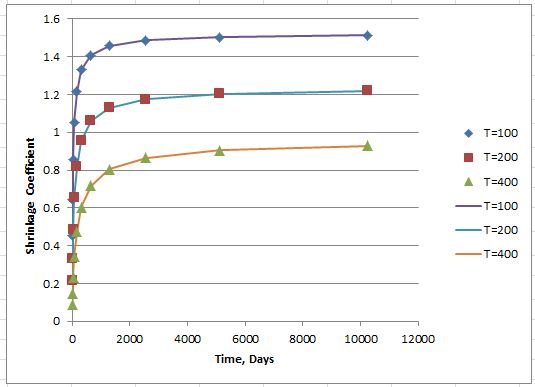
k1calc.2 = (A+B*exp(C*Th))*T^D/(T^E + F * Th); natural scale
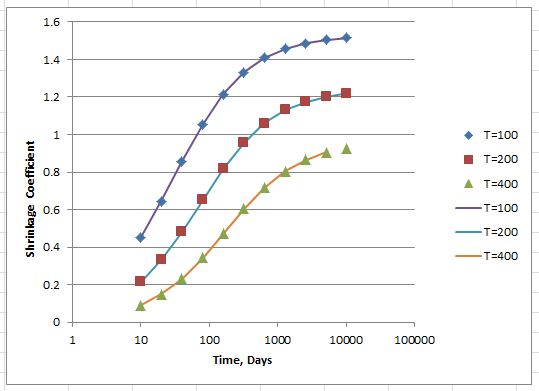
k1calc.2 = (A+B*exp(C*Th))*T^D/(T^E + F * Th); log scale
The good fit is to be expected, because the base data was generated with an equation of the same form. The solver analysis has generated coefficients (A to F) that are close to those used to generate the data, but not an exact fit. The performance of the ALGLIB functions with the same data will be examined in the next post.







 Newton Excel Bach, not (just) an Excel Blog