Read all about it: Things We Like

Read all about it: Things We Like
Another data conversion option offered by the latest xlwings release is Pandas dataframes and dataseries. This post will look at how to pass an Excel range as a dataframe or dataseries in a User Defined Function (UDF), and some simple statistical applications, but this is barely scratching the surface of the potential of the Pandas Python Data Analysis Library.
To use the Pandas data structures, import pandas and xlwings; the data type can then be defined with an xw.arg decorator:
import pandas as pd
import xlwings as xw

@xw.arg('datrange', pd.DataFrame, index = 0, header = 0)
def rtnpdframe(datrange):
    return datrange

@xw.arg('datrange', pd.Series, header = 0)
def rtnpdseries(datrange):
    return datrange
The Python functions can then be called from VBA:
Function GetDFrame(DRange As Variant)
On Error GoTo rtnerr:
    GetDFrame = Py.CallUDF(ModName, "rtnpdframe", Array(DRange), ThisWorkbook)
    Exit Function
rtnerr:
    GetDFrame = Err.Description
End Function

Function GetDSeries(DRange As Variant)
On Error GoTo rtnerr:
    GetDSeries = Py.CallUDF(ModName, "rtnpdseries", Array(DRange), ThisWorkbook)
    Exit Function
rtnerr:
    GetDSeries = Err.Description
End Function
Use of these functions is shown in the screenshots below:

The xl_Corr UDF shown above is taken from the xlwings documentation:
@xw.func
@xw.arg('x', pd.DataFrame, index=False, header=False)
@xw.ret(index=False, header=False)
def xl_Correl(x):
    return x.corr()
I have added a simple extension to allow an Excel UDF to call any of the dataframe methods:
@xw.func
@xw.arg('x', pd.DataFrame, index=False, header=False)
@xw.ret(index=False, header=False)
def xl_Stats(x, stat):
    method = getattr(x, stat)
    return method()
Use of this UDF with four different statistics functions is shown below. In these examples the statistic is a single value, and the results for each of the three columns of the input range are returned as a single column with three rows.

The “describe” method returns 8 values for each column in the input range:

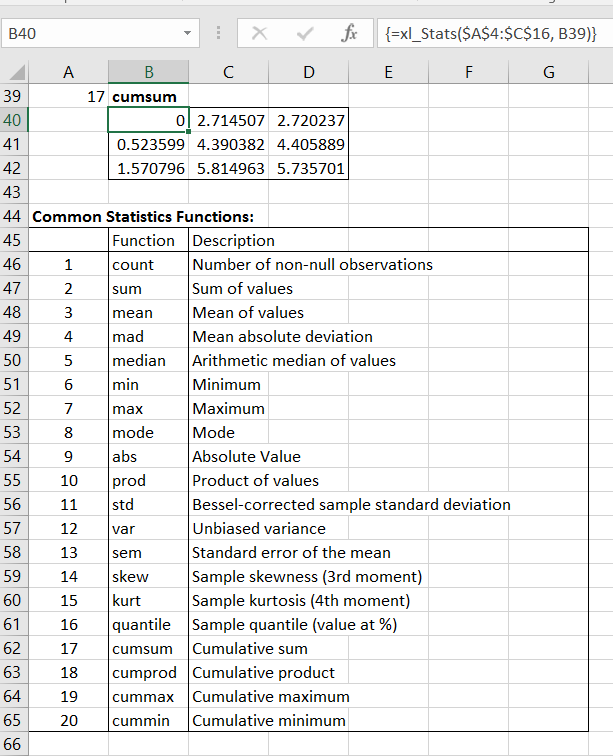
The Pandas documentation lists 20 common statistics functions available as dataframe methods. The screenshot below shows the use of the xl_Stats UDF, in conjunction with the Index function to call any of these 20 functions. In the example shown the cumsum function returns one row for each row of the input data (only the first three are shown):
The functions shown above have been added to:
xlwDict.zip
available for free download, with full open source code.
xlwings 0.7.0 was published at the beginning of March, and introduced direct support for Python dictionaries, which I have used to demonstrate various options for dealing with optional arguments in Excel User Defined Functions (UDFs). The latest version, 0.7.1, published earlier this week, now has built in support for optional arguments, but the code I developed still makes a good example of the transfer of dictionaries from Excel to Python.
Also note that the new xlwings version appears to be incompatible with some code written for earlier versions, so I will be updating my spreadsheets for the new version in the near future.
The use of optional arguments and dictionaries is illustrated in the file:
xlwDict.zip
which includes full open source code.
The spreadsheet includes several alternative VBA UDFs that call the Python curve_fit function, from the Scipy Optimize module. For the functions to work you will need Python and Scipy installed, as well as the latest xlwings package (0.7.1).
The screen-shot below shows input to fit a curve of the form:
a * exp(b*x) + c * x + d
to a series of point generated by the same function, plus a random component.

The fitting function must be entered as a text string in Python lambda function format:
lambda x, a, b, c, d: a * np.exp(b*x) + c * x + d
The screen-shot below shows results of 3 different versions of the VBA code to call the Scipy function:

The Scipy curve_fit function has three required arguments (the fitting function, and the x and y data for the data points), six named optional arguments, and a dictionary of additional optional arguments passed by curve_fit to the functions leastsq or least_squares. The three VBA functions shown above list the six named optional arguments, and have a seventh optional variant argument, optargs2:
Function xl_Curve_fit(FitFunc As String, x As Variant, y As Variant, Optional p0 As Variant, _
        Optional Sigma As Variant, Optional absolute_sigma As Boolean = False, _
        Optional check_finite As Boolean = True, Optional bounds As Variant, _
        Optional sMethod As String = vbNullString, Optional optargs As Variant) As Variant
xl_Curve_fit handles the six named optional arguments by assigning the default value to all arguments not supplied. This in most cases involves some coding in both the VBA and Python to get the right data type. The additional optional arguments are passed as a 1D array of pairs of argument names and values, which is converted to a dictionary in Python with the function getkwargs:
def xl_Curve_fit(func, x, y, p0, sigma, absolute_sigma,check_finite, bounds, method, args):
    stime = time.clock()
    try:
        fun = globals()[func]
    except:
        try:
            fun = eval(func)
        except:
            return "Invalid function"
    if p0 == "" : p0 = None
    if sigma == "" : sigma = None
    if bounds == "" : bounds = [-np.inf, np.inf]
    if method == "" : method = None
    if args == "":
        res = sopt.curve_fit(fun, x, y, p0, sigma, absolute_sigma, check_finite, bounds, method)
    else:
        kwargs = getkwargs(args)
        res = sopt.curve_fit(fun, x, y, p0, sigma, absolute_sigma,check_finite, bounds, method, **kwargs)
    return res

def getkwargs(args):
    kwargs = {}
    for i in range(1, int(args[0])+1,2):
        if type(args[i+1]) == unicode:
            kwargs[args[i]] = str(args[i+1])
        else:
            kwargs[args[i]] = (args[i+1])
    return kwargs
xl_Curve_fitD creates a 2D array of function names and values for any of the 6 named arguments that are supplied, then adds the arguments from the optargs2 range:
    ReDim Optargs1(1 To 2, 1 To 8)
    If IsMissing(p0) = False Then
        NumA = NumA + 1
        Optargs1(1, NumA) = "p0"
        Optargs1(2, NumA) = GetRange(p0, 1)
    End If
    If IsMissing(Sigma) = False Then
        NumA = NumA + 1
        Optargs1(1, NumA) = "sigma"
        Optargs1(2, NumA) = GetRange(Sigma, 1)
    End If
    If IsMissing(absolute_sigma) = False Then
        NumA = NumA + 1
        Optargs1(1, NumA) = "absolute_sigma"
        Optargs1(2, NumA) = absolute_sigma
    End If
    If IsMissing(check_finite) = False Then
        NumA = NumA + 1
        Optargs1(1, NumA) = "check_finite"
        Optargs1(2, NumA) = check_finite
    End If
    If IsMissing(bounds) = False Then
        NumA = NumA + 1
        Optargs1(1, NumA) = "bounds"
        Optargs1(2, NumA) = GetRange(bounds, 1)
    End If
    If IsMissing(sMethod) = False Then
        NumA = NumA + 1
        Optargs1(1, NumA) = "method"
        Optargs1(2, NumA) = sMethod
    End If
    If IsMissing(optargs2) = False Then
        optargs2 = GetRange(optargs2, 2)
        NumA2 = UBound(optargs2)
    End If

    Set Methods = Py.Module(ModName)

    If NumA + NumA2 > 0 Then
        ReDim Preserve Optargs1(1 To 2, 1 To NumA + NumA2)
        If IsMissing(optargs2) = False Then
            For i = 1 To NumA2
                Optargs1(1, NumA + i) = optargs2(i, 1)
                Optargs1(2, NumA + i) = optargs2(i, 2)
            Next i
        End If
        func = "xl_Curve_fitD"
        result = Py.CallUDF(ModName, func, Array(FitFunc, x, y, Optargs1), ThisWorkbook)
    Else:
        func = "xl_Curve_fit0"
        result = Py.CallUDF(ModName, func, Array(FitFunc, x, y), ThisWorkbook)
    End If
The Python code is then much simpler, as the array of argument names and values can be passed as a dictionary:
@xw.func
@xw.arg('kwargs', dict, transpose=True)
def xl_Curve_fitD(func, x, y, kwargs):
    try:
        fun = globals()[func]
    except:
        try:
            fun = eval(func)
        except:
            return "Invalid function"

    popt, pcov = sopt.curve_fit(fun, x, y, **kwargs)
    return [popt, pcov]
xl_Curve_FitD2 also calls the Python xl_Curve_fitD function, but simplifies the creation of the array of function names and values:
    ArgNames = Array("p0", 1, "sigma", 0, "absolute_sigma", 0, "check_finite", 0, "bounds", 2, "method", 0)

    Optargs1 = GetOptargsA(ArgNames, p0, Sigma, absolute_sigma, check_finite, bounds, sMethod)
    If IsArray(Optargs1) Then NumA = UBound(Optargs1, 2)

    If IsMissing(optargs2) = False Then
        optargs2 = GetRange(optargs2, 2)
        NumA2 = UBound(optargs2)
    End If

    Set Methods = Py.Module(ModName)

    If NumA2 > 0 Then
        ReDim Preserve Optargs1(1 To 2, 1 To NumA + NumA2)
        For i = 1 To NumA2
            Optargs1(1, NumA + i) = optargs2(i, 1)
            Optargs1(2, NumA + i) = optargs2(i, 2)
        Next i
    End If
    If NumA + NumA2 > 0 Then
        func = "xl_Curve_fitD"
        result = Py.CallUDF(ModName, func, Array(FitFunc, x, y, Optargs1), ThisWorkbook)
    Else:
        func = "xl_Curve_fit0"
        result = Py.CallUDF(ModName, func, Array(FitFunc, x, y), ThisWorkbook)
    End If
The final option is xl_Curve_fitD3, shown below, where the optional arguments are listed in a spreadsheet range, rather than as individual optional arguments. Note that arguments that are not required may be omitted from the list, or the name may be included with the value left blank.

The VBA code is now greatly simplified:
    If TypeName(DatRange) = "Range" Then DatRange = DatRange.Value2

    Optargs1 = GetOptargsA2(DatRange, FirstOpt)
    If IsArray(Optargs1) Then NumA = UBound(Optargs1, 2)

    Set Methods = Py.Module(ModName)

    If NumA > 0 Then
        func = "xl_Curve_fitD"
        result = Py.CallUDF(ModName, func, Array(FitFunc, x, y, Optargs1), ThisWorkbook)
    Else:
        func = "xl_Curve_fit0"
        result = Py.CallUDF(ModName, func, Array(FitFunc, x, y), ThisWorkbook)
    End If
The Python code is the same as for the two previous functions.
It is important that the optional argument names (either in the VBA code, or on the spreadsheet for xl_Curve_fitD3) are exactly as required by the Python code, including correct case. This is aided by the GetArgs UDF shown above. This will return all the argument names of the specified function, optionally starting at a specified argument number and/or returning a specified number of the available arguments.
“Making the simple complicated is commonplace; making the complicated simple, awesomely simple, that’s creativity”
Charles Mingus
Following a new release of xlwings, I have updated the xlScipy spreadsheet to work with it, and added a few new features:
The new version can be downloaded from:
including full open source code (VBA and Python). Note that there are still one or two issues with the xl_SolveF function, and the previous version is still available (xlScipy.zip).
Unzip the download file to any folder, and install Python with Scipy, Numpy, and xlwings, and it should work.
The new features are shown in the screen shots below:
The Akima1dSpline function has been added to the interpolation sheet. I will be posting more details on this function, and comparing Python splines with VBA and Alglib alternatives, in the near future.

The Matplotlib function works as in the xlMatPlot.zip spreadsheet. In addition, the Interp sheet (shown above) uses a Matplotlib graph with a function that can be called from any sheet (but currently only one graph per sheet).

The Python Delaunay, ConvexHull, Voronoi, functions have been implemented on the Space sheet.

Code for the plotdat routine is shown below. More details to follow in a later post.


