PaulBourke.net

Another link from Al Vachris: PaulBourke.net.

The link above has a general subject index, and google site search; for a full list of the site content go to the detailed site index.

Here’s what the author says about it:

“The following are my personal/professional WWW pages, I hope
you find what you’re looking for or something else that interests you. These
pages come in a number of flavours: reports on projects I’ve been involved in,
notes for myself that I’ve put on the WEB instead of in a paper notebook,
tutorials to assist others get started in various technical areas, papers that
I’ve published or collaborated on, various image galleries, and finally some
pages that are simply for amusement. I welcome any feedback on the content as
well as any suggestions or corrections you think should be made. If you extend
any of the ideas or techniques discussed on these pages then I’m happy to
include your contribution in the relevant section.”

But that really doesn’t do it justice; there is a wealth of fascinating topics here, mainly related to maths and computer graphics.  The images below are all taken from the site, and a click will take you to the relevant page.

Google Earth Fractals

Google Earth Fractals

Modelling Historical Jordanian Sites:

Qasr Kharana (Amman, Jordan)

Mirrors and Ray traycers

Plane Cylinder Sphere

Fractals

Clifford Attractors

Geometry

Helicoid Minimal Surfaces

Posted in Computing - general, Coordinate Geometry, Maths, Newton, Ray Tracing | Tagged , , , | Leave a comment

Blackwaterside – two more

Two more You-tube versions of Blackwaterside (bringing the count up to 7 so far). These two from Sandy Denny, the first an acoustic version from the BBC, and the second an electric version from an unstated source. If anyone knows where it came from, I’d be interested. (I should have looked at the photo, it comes from disc 3 of the 5 disc set, A Boxful of Treasures).


(Link updated 11th April 2012, the other one became unavailable from Australia)

Compare and contrast with the Anne Briggs version.

Posted in Bach | Tagged , , | Leave a comment

Blackwaterside Update

Back in 2008 I posted 4 versions of the folk song Blackwaterside. Since then I have found on Youtube a copy of Bert Jansch’s original version on his Jack Orion LP, which I much prefer to the live version I had posted. Also the Led Zep version had been deleted from Youtube (as they tend to be), so I have linked to another copy.

Listen to the new links here: Blackwaterside x 4 and Anne Briggs

Make that Blackwaterside x 5 (see first comment below)


Posted in Bach | Tagged , , , | 3 Comments

Debugging VBA – 2

Following on from the opening post in this series (Debugging VBA) I will now look at the main debugging tools provided in the Visual Basic Editor (VBE):

The Immediate Window allows interaction with the code while it is running.  In the VBE select View-Immediate Window, or Ctrl-G to display the window.  Some examples of using the window are shown in the screen shots below:
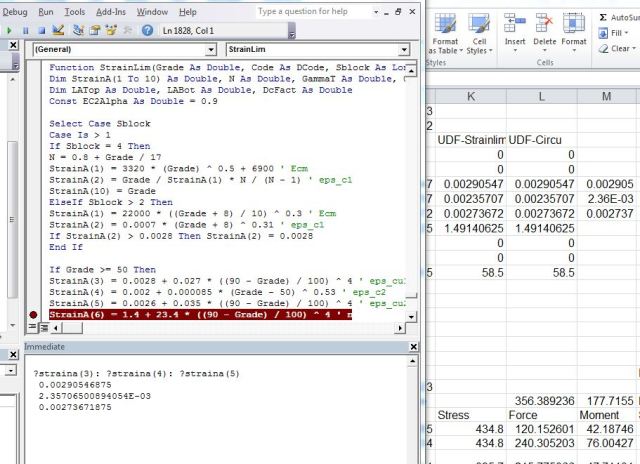
Display variable values in the Immediate Window (Click any image for full size view)

The value of any variable may be displayed as shown:

  • ?straina(3): ?straina(4): ?straina(5)

Note that:

  • I have placed a break point in the code (click in the left margin, or press F9 with the cursor on the required line) at the line immediately following the one where the last array value of interest is assigned.
  • Each command is followed by a “:” so that the three array members may be entered without pressing the Enter key.  The immediate window performs the command on the current line as soon as the Enter key is pressed, but a number of commands may be concatenated with the colon symbol.
  • The commands may be entered directly or copied and pasted from the spreadsheet or a text editor.
  • If the routine is a UDF it may be initiated by selecting the function on the spreadsheet, pressing F2 (Edit), and then pressing Enter (or Ctrl-Shift-Enter for an array function).
  • Unlike the Locals Window, the values in the Immediate Window may be copied and pasted to the spreadsheet for easy comparison with calculated values.  In the screen shot the values have been copied to column M.
  • Immediate Window results remain available after the routine has completed.

The same results can be obtained, with less typing, using a For Loop:

Immediate window using a For Loop

Values may also be displayed using the statement Debug.Print, rather than “?” :
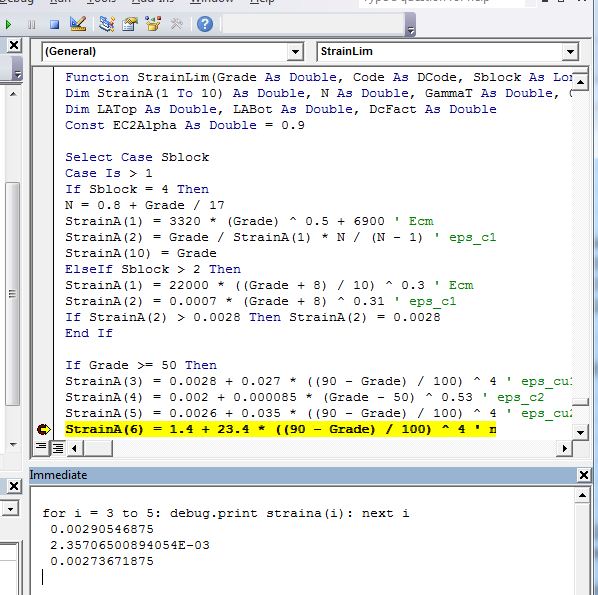
Immediate Window with Debug.Print

It is also possible to enter more complex commands in the Immediate Window.  In the example below the array values are subtracted from the values calculated on the spreadsheet, to check that the result is equal to zero, or very close to it.  The full line is:

  • For i = 3 to 5: ? Range(“J6:J8”).cells(i-2,1).Value – Straina(i): Next i

Immediate Window with data read from the spreadsheet in a For Loop

The Debug.print command can also be used within the code to send data to the immediate window:
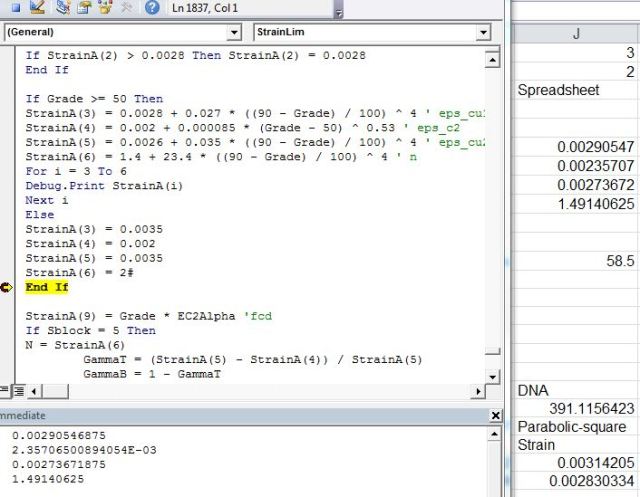
Using Debug.Print commands in the VBA code

The other main VBE window used in debugging is the Watch Window, allowing the value of specific variables to be monitored.  The Watch Window is opened from the View menu, and is initially blank.  A watch point is added through the Debug-Add Watch menu, which opens the Add Watch dialog, having the following features:

  • The expression to be watched is entered, which may be either a single variable, or a more complex expression.
  • The applicable Procedure and Module for the watch point are assumed to be those at the current location in the VBE edit window, but these can be changed.
  • The “Watch Type” may be set to one of either “watch expression”, “break when value is true”, or “break when value changes”

Add Watch Dialog

Alternatively a Watch Value Point may be inserted through the Debug – Quick Watch menu (or Shift-F9), with the cursor located at a variable in the Edit window.  This will insert a watch point for the selected variable, which may then be edited by right-clicking on the variable line in the Watches window.  A third way to add (or remove) watch points is through the right click menu in the Watches window.

Use of the Watches window, with three watch points, is shown in the screen shot below:

Watches window with three watch points

Note that in this case, there are no specified break points, but when the function was initiated it ran through until the first watch point had been  evaluated, where execution was stopped because this point had been specified as “break when value changes”.  The next two points were then evaluated by using the F8 key to step through the code, giving the results in the screen shot above.

A watch point may also be specified as a complete array, rather than a specified array position.  This is shown in the screen shot below:

Watch point on an Array

In this case the watch point has been specified as watch only, and a break point has been inserted below the point in the code where array values 3 to 6 are evaluated.  As with the Locals window, the array initially appears as a single summary line, and must be expanded to view the values for each item.

Posted in Excel, UDFs, VBA | Tagged , , , , , | Leave a comment

Using LatPilePY

LatPilePY is a User Defined Function (UDF) used to analyse the deflections and load actions in laterally loaded piles.  It was presented in this post: LatPilePY.  In response to an e-mail request, this post will give step by step instructions for using this function.

The first step, for those not familiar with the use of array functions, is to read through this post: Using Array Formulas.

Next step; have a look at the example in the spreadsheet in Range A135:F165 on the LPile sheet, and compare with the description of the function arguments given in Cell A5:

 =LatPile(Segments, Loads, Soil table, Sections table, PY tables, Defaults, Output code)

=LatPile($A$59:$B$60,$D$59:$D$65,C74:E80,D111:E123,B86:C108, D127:D131,1)

The steps in using the function are:

  1. Enter the required details for each of the function arguments (Segments, Loads, etc) in any convenient location on the spreadsheet.  See the examples and documentation in the download file for details.
  2. Choose a location for the function results, and in the top left hand corner cell enter the function as shown above.  Note that the argument ranges do not include the descriptive text in the columns to the left of the data; that is for documentation purposes and has no effect on the function output.
  3. Enter the function as an array function, covering the desired output range: select the output range, with the function in the top left hand corner; press F2; press Ctrl-Shift-Enter.  See the link above for more details.

Details of each argument range are:
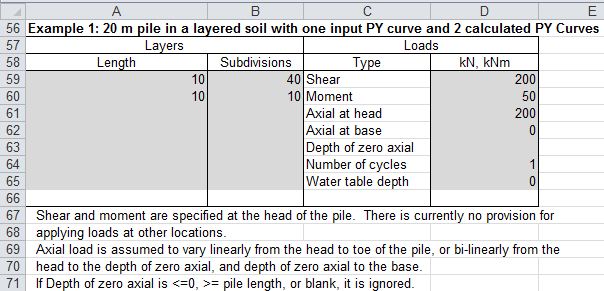
Segments ($A$59:$B$60): 2 column range listing pile length and number of segments

Loads ($D$59:$D$65): 7 row single column range listing applied loads at head of pile:

Segments and Loads

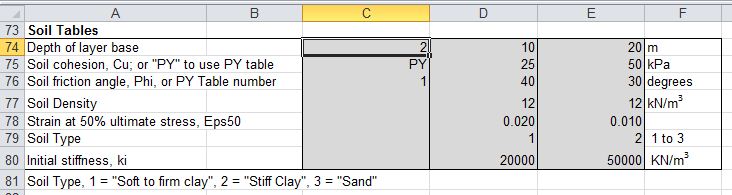
Soil Table (C74:E80):  Range listing soil properties, 7 rows x 1 column for each soil type

Soil Table

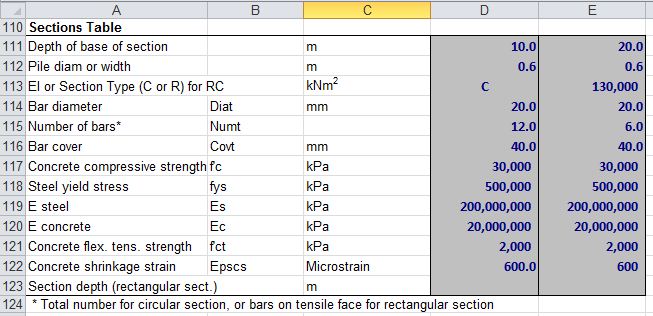
Sections Table (D111:E123):  Range listing pile section properties, 3 to 13 rows x 1 column for each section type

Sections Table

PY Tables (B86:C108):  Contiguous range with 2 columns for each table: pile deflection(Y) and support force per unit length (P).

PY curves are used for those soil layers with “PY” in row 2 of the soil table, and Table Number in row 3.

PY Table

Defaults (D127:D131):  Change system defaults; available parameters and default values are listed below.

Defaults Table

To change the data for the example in the download spreadsheet simple overtype the sample data. The function results will update automatically.

To use the function as entered in the example with changed data ranges:

  1. Select the top left hand corner of the output range.
  2. Press F2 to enter Edit mode.
  3. Change the ranges as required, either by over-typing, or selecting the ranges on the spreadsheet.
  4. Press Ctrl-Shift-Enter to re-enter the function as an array function.
Posted in Arrays, Concrete, Excel, Geotechnical Engineering, Newton, UDFs, VBA | Tagged , , , , , , | Leave a comment