Working with milliseconds in Excel

Edit 3rd Jan 2026: This download is not currently available.

A recent post at Eng-Tips looked for a solution to problems with working with times in Excel, when time differences are required to the nearest millisecond.

The problem is that although times may be entered as a time/date value, and formatted to display milliseconds, the format bar displays the time to the nearest second, and if you press F2 to edit a value, the time value is actually rounded to the second.  Pressing F2 then enter not only changes the displayed value, it changes the actual number:

The simplest way to avoid the problem is to enter the number as text, by starting with ‘ .  Pressing F2 then Enter will not change the text, but simple arithmetic will work:

Using text does have a few disadvantages though:

  • The time is rounded to the nearest millisecond, so if greater precision is required, this is not a suitable solution.
  • It is not possible to include days in the text, although an hours value greater than 24 is interpreted correctly.
  • The text may be misinterpreted if it is not entered in full.  For instance ‘8:23 is interpreted as 8 hours 23 minutes, but ‘8:23.0 is interpreted as 8 minutes 23 seconds.

An alternative approach is to convert the time to a date value in a formula, which will not be rounded by Excel.  A simple user defined function (UDF) that will do the calculation is shown below:

Function msTime(Secs As Double, Optional Mins As Double, _
Optional Hours As Double, Optional days As Double) As Double
Const SecsinDay As Long = 86400, MinsinDay As Long = 1440, HoursinDay As Long = 24

    msTime = days + Hours / HoursinDay + Mins / MinsinDay + Secs / SecsinDay

End Function

Examples of usage of the UDF are shown in the screenshot below.  Note that:

  • Differences of less than 1 millisecond are retained
  • Days may be included if required
  • All the arguments other than seconds are optional
  • The values may be entered as cell references, or directly as values, as for a built-in Excel function

A spreadsheet including the examples shown above, and all three lines of VBA code, may be downloaded from msTime.xlsb

Posted in Computing - general, Excel, UDFs, VBA | Tagged , , , , , , | 1 Comment

Using Matplotlib from Excel with xlwings – update

In February 2016 I posted a spreadsheet with examples of linking to the Python Matplotlib library with xlwings.  Since then updates to xlwings required some changes to the python code, specifically plot.show has been replaced with pictures.add.

The spreadsheet has now been updated, and can be downloaded from:

xlMatPlot.zip

Similar code has also been updated in the xlwScipy spreadsheet:

xlScipy-xlw.zip

A typical graph example is shown in the scree shot below:

See linking to the Python Matplotlib library for more details. The code in the post has now also been updated.

Posted in Charts, Charts, Excel, Link to Python, Newton, NumPy and SciPy, VBA | Tagged , , , , , , , | Leave a comment

More on trend line equations on line charts

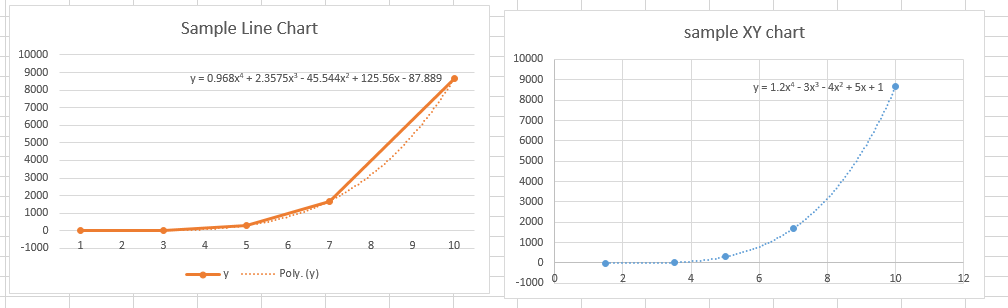
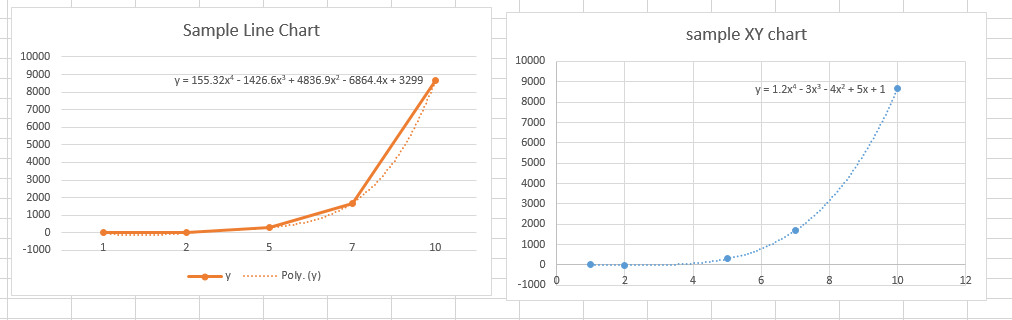
In the previous post we saw that if a trend line equation is added to a line chart it will return the wrong coefficients if the x values are not a continuous sequence of integers, starting at 1 (click on any image for full size view):

Using an XY chart in place of the line chart is one way to get the correct trend line (which will work for any sequence of x values), but there is another way:

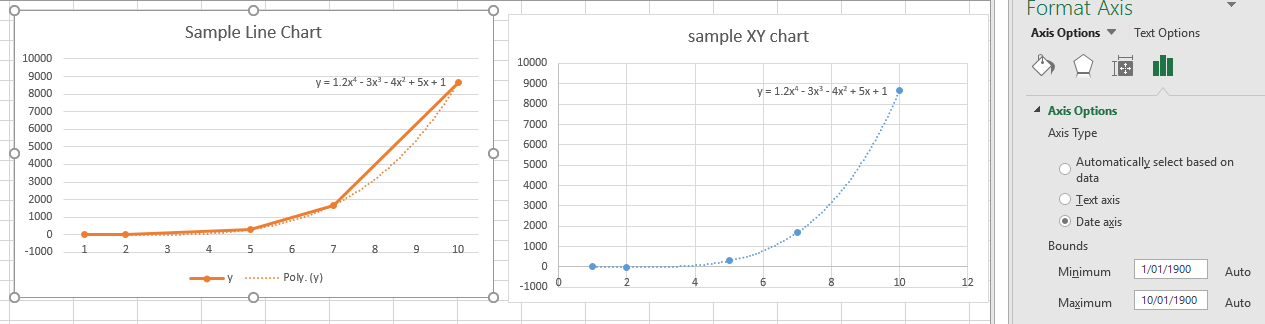
Right click on the X axis, and select Format Axis … then set Axis Type to Date axis:


The line chart and the XY chart now display the same (correct) trend line.

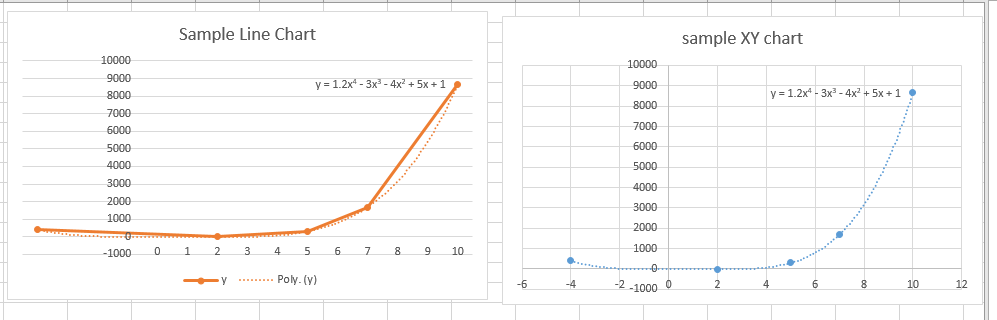
The trend line will also still work correctly if there are one or more negative x values (although the values do not display in the axis labels):

But be careful, the line chart treats the x values as being date numbers, and truncates all decimal values to the integer part:

For more details see Jon Peltier’s blog.

Posted in Charts, Excel, Maths, Newton | Tagged , , , , | 1 Comment

Displaying trend line equations on line charts

This post is prompted by a recent comment at Using LINEST for non-linear curve fitting which found that the trend line formula displayed on a chart was totally different from that found using the Linest function.

The problem was caused by using a line chart, rather than an XY (scatter) chart.  A line chart treats the x-axis values as text labels, even when the data range is formatted as numbers.  When calculating a trend line Excel treats the x range as a consecutive sequence of integers starting at 1, regardless of the value displayed.  As a result, if the x values are any other sequence the trend line equation displayed will be totally different to the correct one.

The solution is simple, convert the chart to an XY chart.

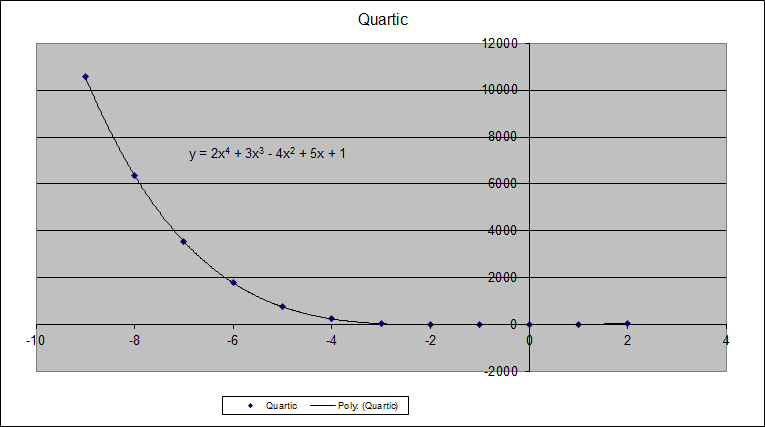
As an example, the screenshot below shows the function:
y = 2x^4 + 3x^3 – 4x^2 + 5x + 1
plotted on a line chart:

The trend line is a good fit to the plotted points, but the calculated trend line formula is totally different to the correct one.

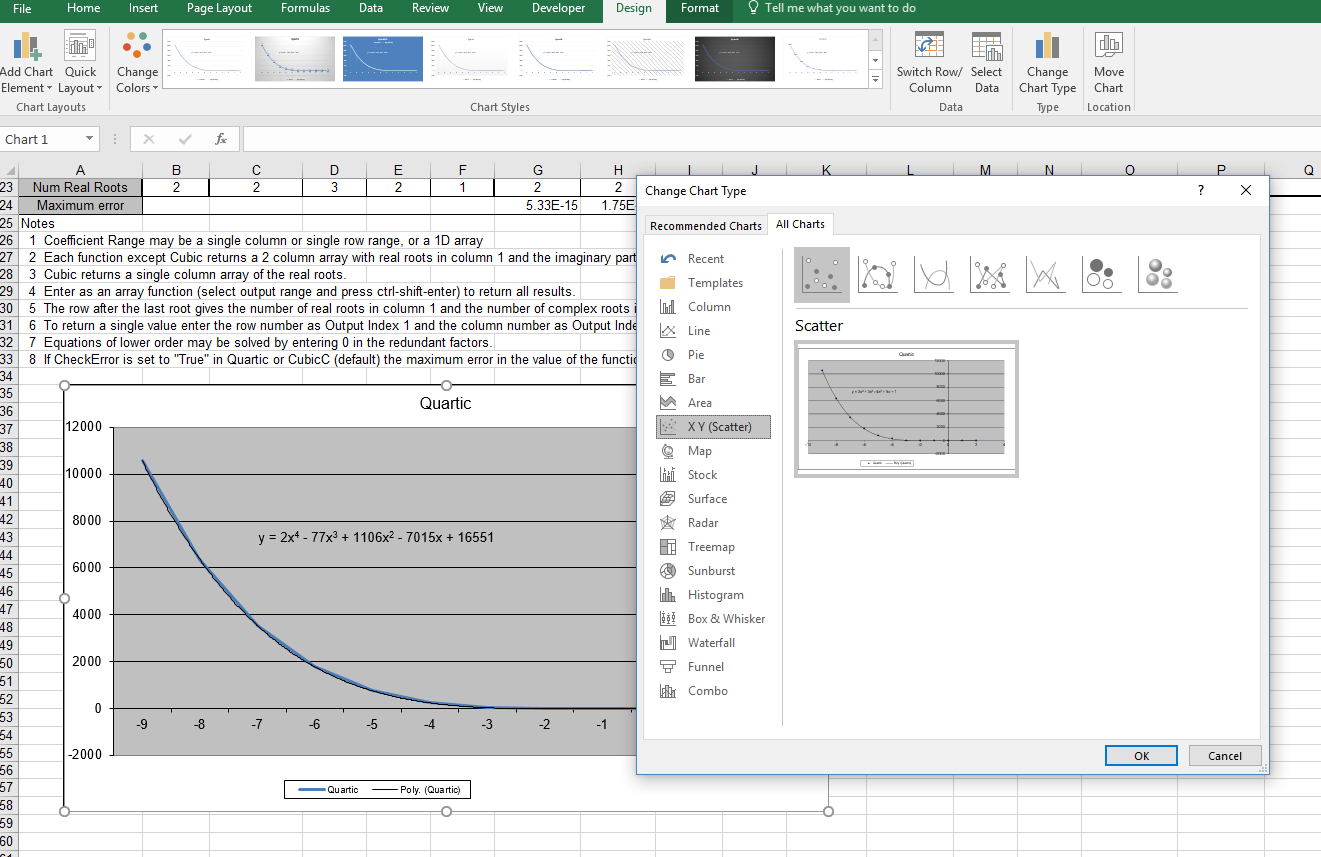
The chart type can be changed to an XY (Scatter) type, using the  Chart-Tools, Design ribbon:

The function formula then displays correctly:

Posted in Charts, Charts, Excel, Maths | Tagged , , , | Leave a comment

Three tributes to John Clarke

From Michael Leunig at The Age:

From the ABC:
Remembering John Clarke


From North Palmerston City Council –
After an off-night at N Palmerston, John Cleese named the city “the suicide capital of New Zealand”.  John Clarke, who was born there, suggested that the city council should respond by naming the local rubbish dump after Cleese, which they duly did, complete with official signage.  Much to the amusement of Eric Idle:

Posted in Bach | Tagged | 1 Comment