Using VBA Evaluate as an Array Function

I recently discovered from a thread at  Chandoo’s Excel Forum that the VBA Evaluate function can be used as an array function.  As a simple example:
Range(“A11:A16”).Value = Evaluate(“= B11:B16 + C11:C16”)
will add the values in columns B and C, and return to column A.

This should not have come as a surprise, since Charles Williams mentioned it in his Excel Blog: Evaluate Functions and Formulas fun: How to make Excel’s Evaluate method twice as fast.  As a rather more useful example than the one above, I have looked at options for calculating the distance between lists of pairs of coordinates.  The code below shows four subroutines that read X and Y coordinates from a specified 4 column range, and return the distance between the two points on each row to the right of the table.

A sample spreadsheet with full open source code and examples may be downloaded from:

EvalDist.xlsb

Sub Distance()
With Sheet1.Range("B12").CurrentRegion.Columns
   .Item(6).Value2 = .Parent.Evaluate("=((" & .Item(3).Address & " - " & .Item(1).Address & ")^2 + (" & .Item(4).Address & "-" & .Item(2).Address & ")^2)^0.5")
End With

End Sub


Sub Distance2()
Dim Col1 As String, Col2 As String, Col3 As String, Col4 As String

With Sheet1.Range("B12").CurrentRegion.Columns
    Col1 = "sheet1!" & .Item(1).Address
    Col2 = "sheet1!" & .Item(2).Address
    Col3 = "sheet1!" & .Item(3).Address
    Col4 = "sheet1!" & .Item(4).Address
   .Item(6).Value2 = Evaluate("=((" & Col3 & " - " & Col1 & ")^2 + (" & Col4 & "-" & Col2 & ")^2)^0.5")
End With

End Sub

Sub Distance3()
Dim XYData As Range
Dim Col1 As String, Col2 As String, Col3 As String, Col4 As String

Set XYData = Range("sheet1!B12:B111")
With XYData.Columns
     Col1 = .Item(1).Address
     Col2 = .Item(2).Address
     Col3 = .Item(3).Address
     Col4 = .Item(4).Address
     
    .Item(6).Value2 = .Parent.Evaluate("=((" & Col3 & " - " & Col1 & ")^2 + (" & Col4 & "-" & Col2 & ")^2)^0.5")
End With

End Sub

Sub Distance4()
Dim XYData As Range, Res As Variant
Dim Col1 As String, Col2 As String, Col3 As String, Col4 As String

Set XYData = Range("sheet1!B12:B111")

With XYData.Columns
     Col1 = .Item(1).Address
     Col2 = .Item(2).Address
     Col3 = .Item(3).Address
     Col4 = .Item(4).Address
     
    Res = .Parent.Evaluate("=((" & Col3 & " - " & Col1 & ")^2 + (" & Col4 & "-" & Col2 & ")^2)^0.5")
.Item(6).Value2 = Res

End With
End Sub

In the first and third routine the Evaluate function is preceded by .Parent, which ensures that the addresses are treated as being on the same sheet as the range specified in the “With” statement.  If this is omitted the addresses will be treated as being on whatever sheet is active when the routine is called.  An alternative is to specify the sheet name with each range (as in Distance2 above).  The fourth function is as Distance3, but the Evaluate results were written to an array for each iteration, and only written back to the spreadsheet once, after the last iteration.  Benchmark results are shown below for these four routines with a range of column lengths and iterations:

Evaluate can also be used in this way from a user defined function (UDF). The code below shows three alternatives.

Function DistF(XYData As Variant)
Dim DistA() As Double, i As Long, NRows As Long, j As Long

XYData = XYData.Value2

NRows = UBound(XYData)
ReDim DistA(1 To NRows, 1 To 1)

    For j = 1 To NRows
        DistA(j, 1) = ((XYData(j, 3) - XYData(j, 1)) ^ 2 + (XYData(j, 4) - XYData(j, 2)) ^ 2) ^ 0.5
    Next j

DistF = DistA
End Function

Function DistF2(XYData As Range)
Dim DistA As Variant
Dim Col1 As String, Col2 As String, Col3 As String, Col4 As String

With XYData.Columns
     Col1 = .Item(1).Address
     Col2 = .Item(2).Address
     Col3 = .Item(3).Address
     Col4 = .Item(4).Address

    DistA = .Parent.Evaluate("=((" & Col3 & " - " & Col1 & ")^2 + (" & Col4 & "-" & Col2 & ")^2)^0.5")
End With

DistF2 = DistA
End Function

Function DistF3(XY_1 As Range, XY_2 As Range)
Dim DistA As Variant
Dim Col1 As String, Col2 As String, Col3 As String, Col4 As String, EvalTxt As String

With XY_1.Columns
     Col1 = .Item(1).Address
     Col2 = .Item(2).Address
End With
With XY_2.Columns
     Col3 = .Item(1).Address
     Col4 = .Item(2).Address
    EvalTxt = "=((" & Col3 & " - " & Col1 & ")^2 + (" & Col4 & "-" & Col2 & ")^2)^0.5"

    DistA = .Parent.Evaluate(EvalTxt)
End With

DistF3 = DistA
End Function

The first does not use Evaluate, converting the input data to a variant array, then looping through each row, writing the results to an array which is returned to the spreadsheet at completion.  The second is similar to Option 3 in the subroutines, except the results are written to an array, which is returned at completion.  The third option has two separate input arrays, so the function can be used on lists of coordinates that are not in adjacent columns.  It also creates the string to be evaluated in a separate operation, which makes checking of the text easier.  Benchmark results for the three functions are shown below:

The two functions using evaluate had very similar performance, and were 2-3 times faster than the routine that looped through the coordinate arrays. They were also faster than the subroutines, probably because the time do not include the time to write the results to the spreadsheet.

Posted in Arrays, Coordinate Geometry, Excel, Maths, UDFs, VBA | Tagged , , , , | 2 Comments

Arcs and arc-splines

I have added two user defined functions (UDFs) to the IP2 spreadsheet to generate coordinates for a single  arc, or a series of arcs connected (if necessary) by straight lines.  The new version may be downloaded from:

IP2.zip

As an example of the use of the new functions, in conjunction with the IP (intersection) function, I have generated an animation showing the movement of two circular bearings, relative to a rotating tri-lobed shaft.  The tri-lobe is generated using the ArcSpline function, by defining the centre, radius, start and end angles, and number of segments for each of the six arcs:

A second arc-spline is then generated at 5 mm outside the first curve, representing the path that bearings of 5mm radius would follow, running around the outside of the inner spline.  The intersection point  of this outer spline can then be found using the IP function, and circles generated at these points, using the Arc function:

Full input for the two splines and two arcs is shown below.

The animation is then generated by recalculating the angular limits and centres of the spline curves, and the coordinates of the intersection of the circles and the X axis, for a series of small angle increments:


Posted in Animation, Charts, Charts, Coordinate Geometry, Drawing, Excel, Maths, UDFs, VBA | Tagged , , , , , , | 1 Comment

New Tricks …

… or in some cases, old but forgotten tricks.

The first comes from a Quora question, asking for the most underutilised feature in Excel.

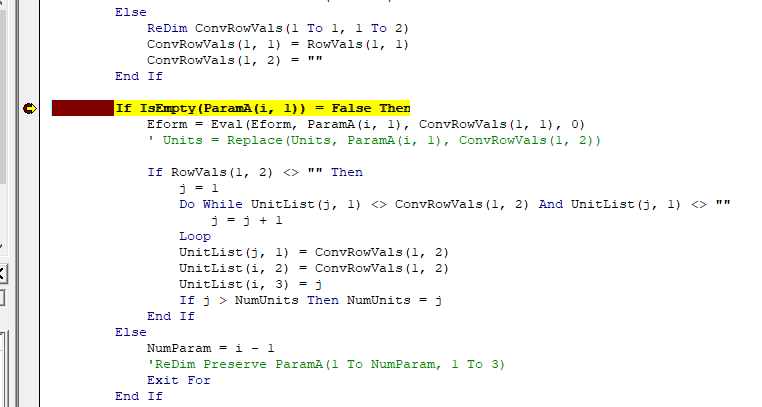
When de-bugging a VBA routine you can set a break point where the code will stop:

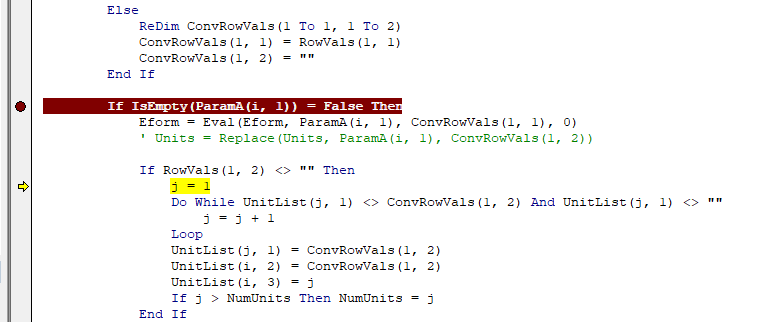
To jump to a different line you can right-click, select “set next statement”, and click the line you want to jump to, but a quicker way is to just click and drag the yellow arrow to where you want to go:


The next is a post from Jeff Weir at Daily Dose of Excel, looking at how to display tool-tips with user defined functions (UDFs).  If you enter a UDF name, including opening bracket, then press Ctrl-Shift-A, all the argument names are entered automatically, which can then be replaced with the actual range or value you want:

I had totally forgotten about this, but I must have known about it once, as I have posted two comments on it.

Finally, another tool-tip trick that I had forgotten about, but that has appeared here before.  If you hover over a variable whilst de-bugging a VB routine, the first 77 characters of the current value of the variable are displayed as a tool-tip:

If the value is a long string, and you want to see the last 77 characters, hold down the Ctrl key before you hover:


Posted in Excel, UDFs, VBA | Tagged , , , , | 4 Comments

Double Bass

Reading the comments on a Davey Graham YouTube video:

I discovered that the bass player on the track was Danny Thompson, and checking the other artists playing on the album, “Large and Life and Twice as Natural”, I found they included Jon Hiseman – on drums, and Dick Heckstall-Smith – on saxophone.  These same two have  also played with Jack Bruce (more famous for electric bass), including  on “Things we Like”, which has appeared here before:

I have often wondered if there was any interaction over the years between Danny Thompson and Jack Bruce. I have still not seen or read any direct evidence of this, but given their interaction with Hiseman and Heckstall-Smith, it seems highly likely.

Posted in Bach | Tagged , , , , , , , | Leave a comment

VBA vs Power Query vs Python

A recent post at Chandoo’s Excel Forum asked for a formula to extract all pairs of digits from a number with 4 digits.  This was soon extended to dealing with longer numbers, and the examples looked at here will work with at least all pairs of digits from a 14 digit number.

Examples and code shown below can be downloaded from:

Listcomb2.zip

Hui came up with a VBA UDF, making use of a dictionary:

Function Extract_Pairs(str As Variant, Optional sort As String = "None") As Variant

' Declare
Dim dict As Object
Set dict = CreateObject("Scripting.Dictionary")

Dim i As Integer, j As Integer, k As Integer
 Const sep As String = ";"

'Loop through input string and add pairs to collection
For i = 1 To Len(str)-1
   For j = i + 1 To Len(str)
     ' Add item
    If Not (dict.Exists(Mid(str, i, 1) & Mid(str, j, 1))) Then
       dict.Add Mid(str, i, 1) & Mid(str, j, 1), 1
     End If
   Next j
Next i

If sort = "xlAscending" Then
   Set dict = SortDictionaryByKey(dict, xlAscending)
ElseIf sort = "xlDescending" Then
   Set dict = SortDictionaryByKey(dict, xlDescending)
End If

'Extract elements out of Collection into string
For Each key In dict.keys
   tempstr = tempstr & key & sep
Next

'Return string to function
Extract_Pairs = "{" & Left(tempstr, Len(tempstr) - 1) & "}"
End Function

See the download file (link above) for slightly modified version,  code for the SortDictionaryByKey function, and example output.

Lori came  up with a  lengthy on-sheet formula, and some examples of much shorter Python code (with a link to this blog):

>>> import itertools
 >>> list(set(itertools.combinations([1,2,3,4],2)))
 [(1, 2), (1, 3), (1, 4), (2, 3), (3, 4), (2, 4)]
 >>> list(set(itertools.combinations([5,6,6,8],2)))
 [(5, 6), (6, 8), (5, 8), (6, 6)]
 >>> list(set(itertools.combinations([5,7,7,7],2)))
 [(5, 7), (7, 7)]
 >>> list(set(itertools.combinations([7,7,7,7],2)))
 [(7, 7)]

I have used the examples above to write a short Python function (in two versions) that can be called from Excel, via xlwings:

import xlwings as xlw
import itertools

@xlw.func
@xlw.arg('num',numbers = int)
@xlw.ret(expand='table')
def listcombs(vals, num=2):
    vals.sort() 
    rtn = list(set(itertools.combinations(vals, num)))
    return sorted(rtn)
    
@xlw.func
@xlw.arg('num',numbers = int)
def listcombs2(vals, num=2):
    vals.sort() 
    rtn = list(set(itertools.combinations(vals, num)))
    return sorted(rtn)

The first version uses the xlwings table decorator to adjust the size of the output array. This is currently slow, and sometimes does not fully update, so the second version uses my VBA array function re-size macro.

Finally Peter Bartholomew posted a solution using Power Query.  A spreadsheet with open code and documentation can be downloaded from:

challenge-n-digit PQ.xlsx

Examples of the results using the different approaches are shown in the screen shots below:

Hui’s original VBA code returned all different 2 digit numbers, for instance both 23 and 32.  I  have modified  it to return only the lower value when two values have the same two digits, to be consistent with Peter Bartholomew’s results:

Output from Peter Bartholomew’s Power Query spreadsheet is shown below.  See the download link for details:

The Python function requires the input digits in separate cells, and returns the results as a multi-column array:

The Python functions will work on an input range of any length, and extract groups of up to 9 digits.  The output array re-sizes automatically if any of the input data is changed:


Posted in Arrays, Excel, Link to Python, UDFs, VBA, xlwings | Tagged , , , , , , , | Leave a comment